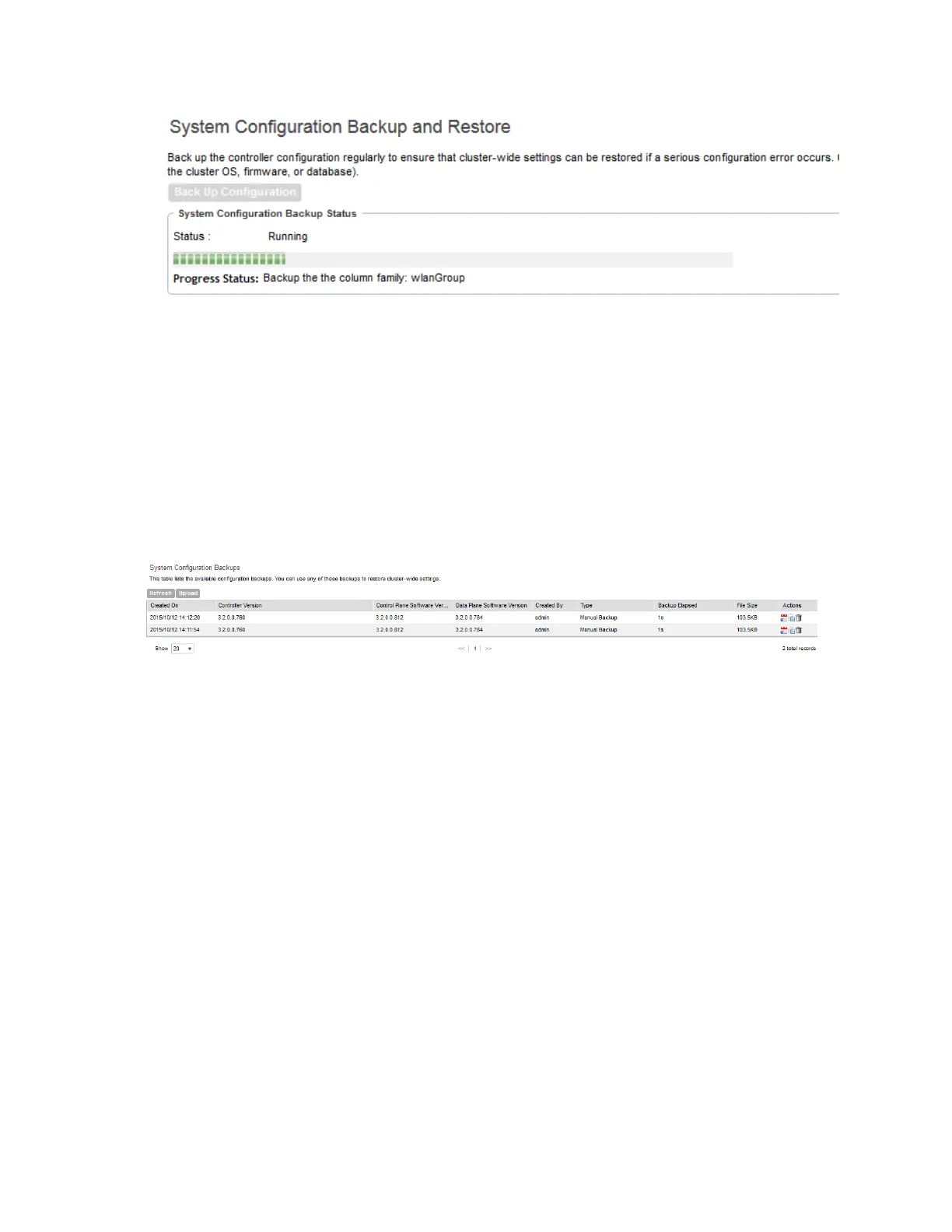
Figure 212: A progress bar appears as the controller backs up its database
When the backup process is complete, the progress bar disappears, and the Configuration
Backup Status section appears and shows the following information:
• Latest backup started: Date and time when configuration backup was initiated
• Finished at: Date and time when configuration backup was completed
• Status: Shows either Successful or Failed
• Progress Status: Shows the current status of the backup process
The backup file appears under the Configuration Backups section.
Figure 213: The backup file appears in the System Configuration Backups section
Exporting the Configuration Backup to an FTP Server Automatically
In addition to backing up the configuration file manually, you can configure the controller to
export the configuration file to an FTP server automatically whenever you click Back Up
Configuration.
Follow these steps to back up the configuration file to an FTP server automatically.
1. Go to Administration > System Configuration Backup and Restore.
2. Go to the Auto Export Backup section.
3. In Auto Export Backup, click Enable.
4. In FTP Server, select the FTP server to which you want to export the backup file.
The FTP server options that appear here are those that you created in Configuring FTP
Services on page 165.
5. Click Test.
The controller attempts to establish connection to the FTP server using the user name and
password that you supplied. If the connection attempt is successful, the following message
appears: FTP server connection established successfully.
SmartCell Gateway 200/Virtual SmartZone High-Scale for Release 3.4.1 Administrator Guide
353
Performing Administrative Tasks
Backing Up and Restoring System Configuration



 To Next Page