Working with User Roles
Use user roles to limit user access to certain WLANs, to allow them to log on with non-standard
client devices, or to grant permission to generate guest passes.
Creating a User Role
A user role limits user access to certain WLANs and allows them to log on with non-standard
client devices, or grants permission to generate guest passes.
Follow these steps to create a user role.
1. Go to Identity > Roles.
2. Click Create New.
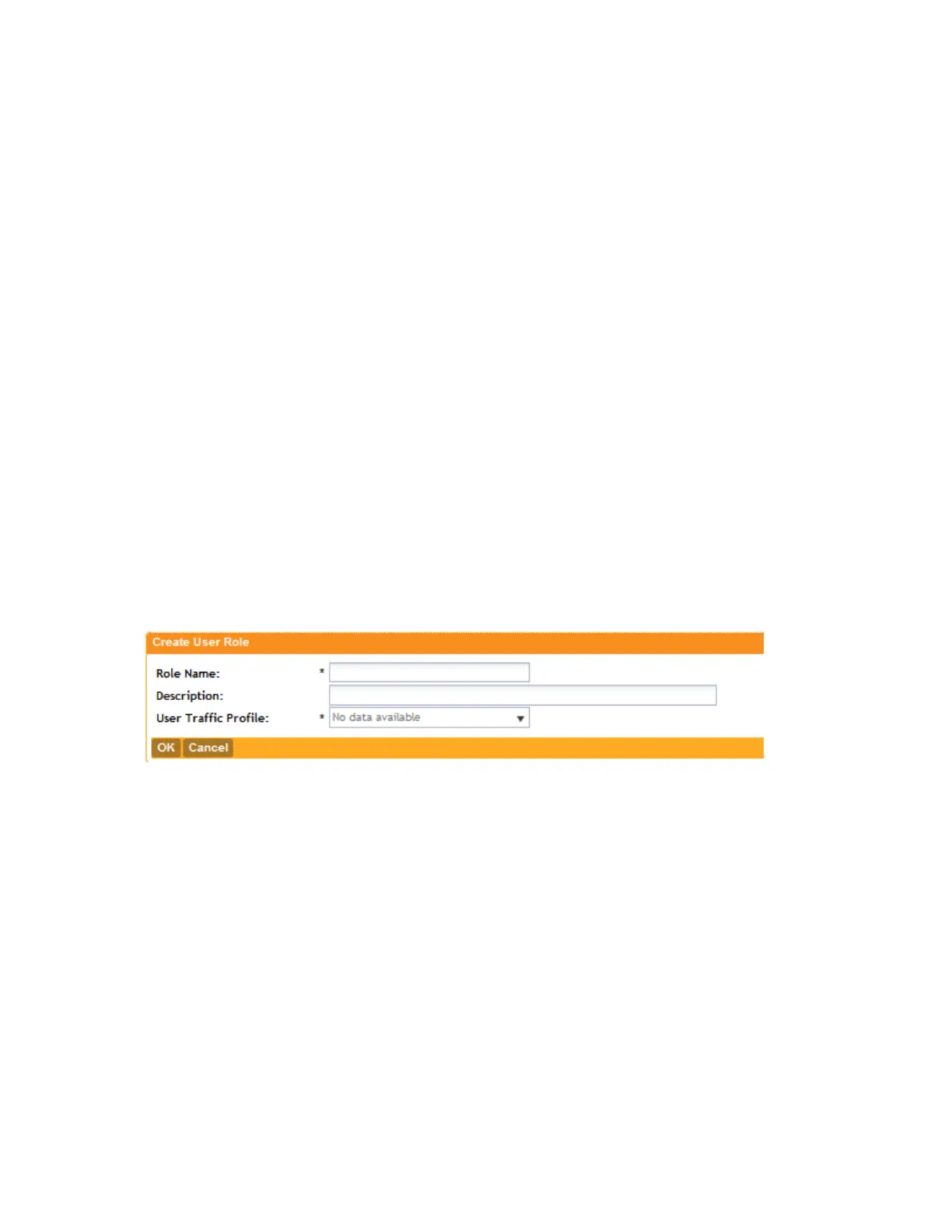
The Create User Role form appears.
3. Role Name: Type a name for this user role.
4. Description: Type a description for this user role.
5. User Traffic Profile: Select the user traffic profile form the drop-down menu.
NOTE: Users can set a group attribute from the RADIUS server/Active Directory/LDAP.
6. Click OK.
You have completed creating a user role.
Figure 192: Creating a user role
Managing Subscription Packages
A subscription package defines the characteristics of a subscription that has been created for
a registered user.
See Working with Local Users on page 322. These characteristics include the expiration date of
the subscription.
NOTE: If the user is connected at the time when his or her subscription expires, the user will get
disconnected from the AP and any attempts to reauthenticate will fail.
This section covers:
SmartCell Gateway 200/Virtual SmartZone High-Scale for Release 3.4.1 Administrator Guide
337
Working with Local, Guest, and Remote Users
Working with User Roles



 To Next Page