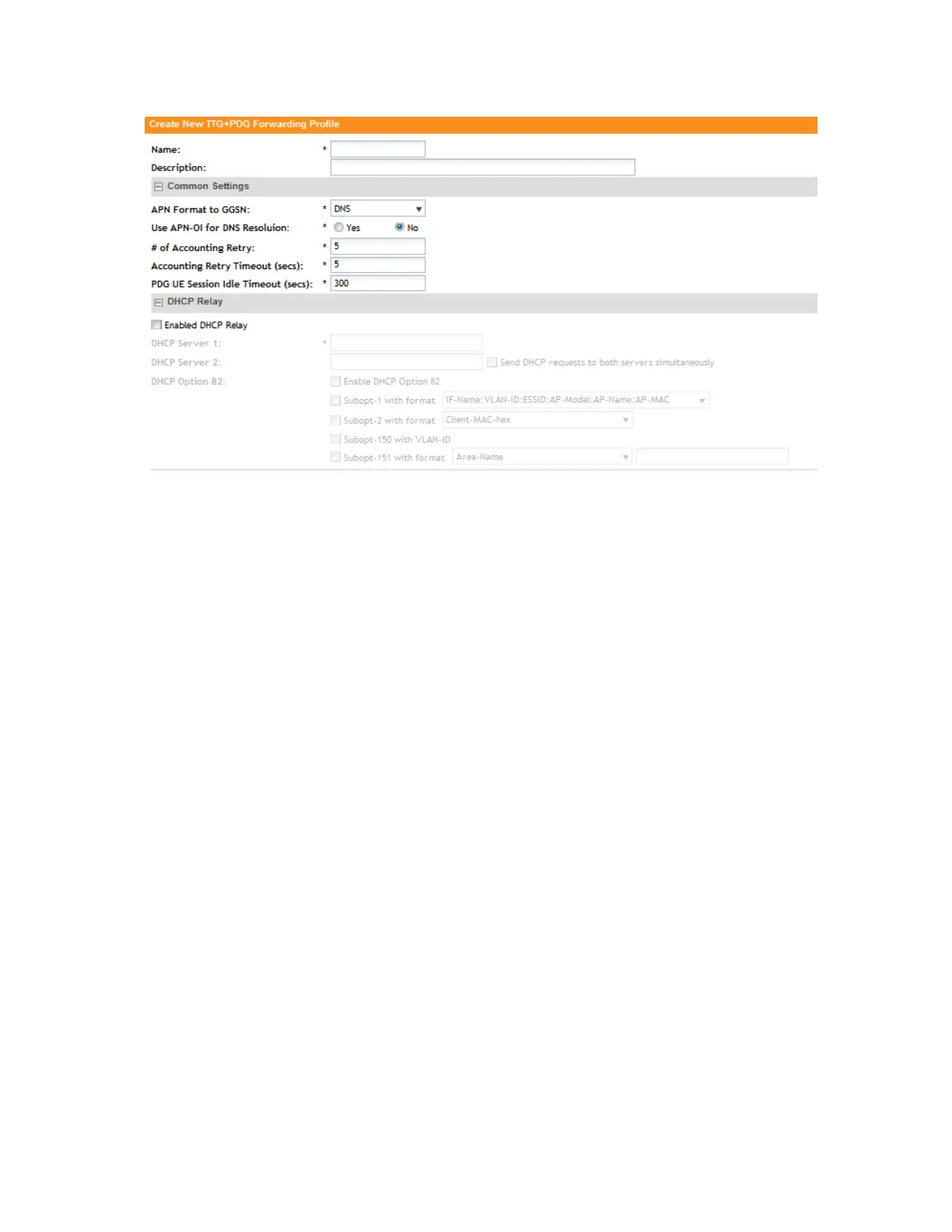
Figure 250: The Create New TTG+PDG Forwarding Profile form
Configuring the WISPr (Hotspot) Services of an AP Zone
Configuring WISPr (Hotspot) services of the AP Zone is a procedural step required to set up the
captive portal.
Follow these steps to configure the hotspot service of the zone template.
1. Click Configuration > AP Zones.
2. On the AP Zone List page, click the AP zone for which you want to create a hotspot service.
3. On the sidebar, click WISPr (Hotspot).
The WISPr (Hotspot) Services page appears.
4. Click Create New.
The form for creating a new hotspot service appears.
5. In the General Options section, configure the following options:
• Name: Type a name for the hotspot service.
• Description: Type a description for the hotspot service.
• Type: Click Registered Users if you want only users with existing profiles on the controller
to be able to connect to this hotspot. Click Guest-Access if you want guest users to be
able to connect to this hotspot.
6. In the Redirection section, configure the following options:
DescriptionOption
Select one of the following options:Smart Client
Support
• None: Select this option to disable Smart Client support on the hotspot
service.
SmartCell Gateway 200/Virtual SmartZone High-Scale for Release 3.4.1 Administrator Guide
396
Overview of the Captive Portal
Configuring the Captive Portal



 To Next Page