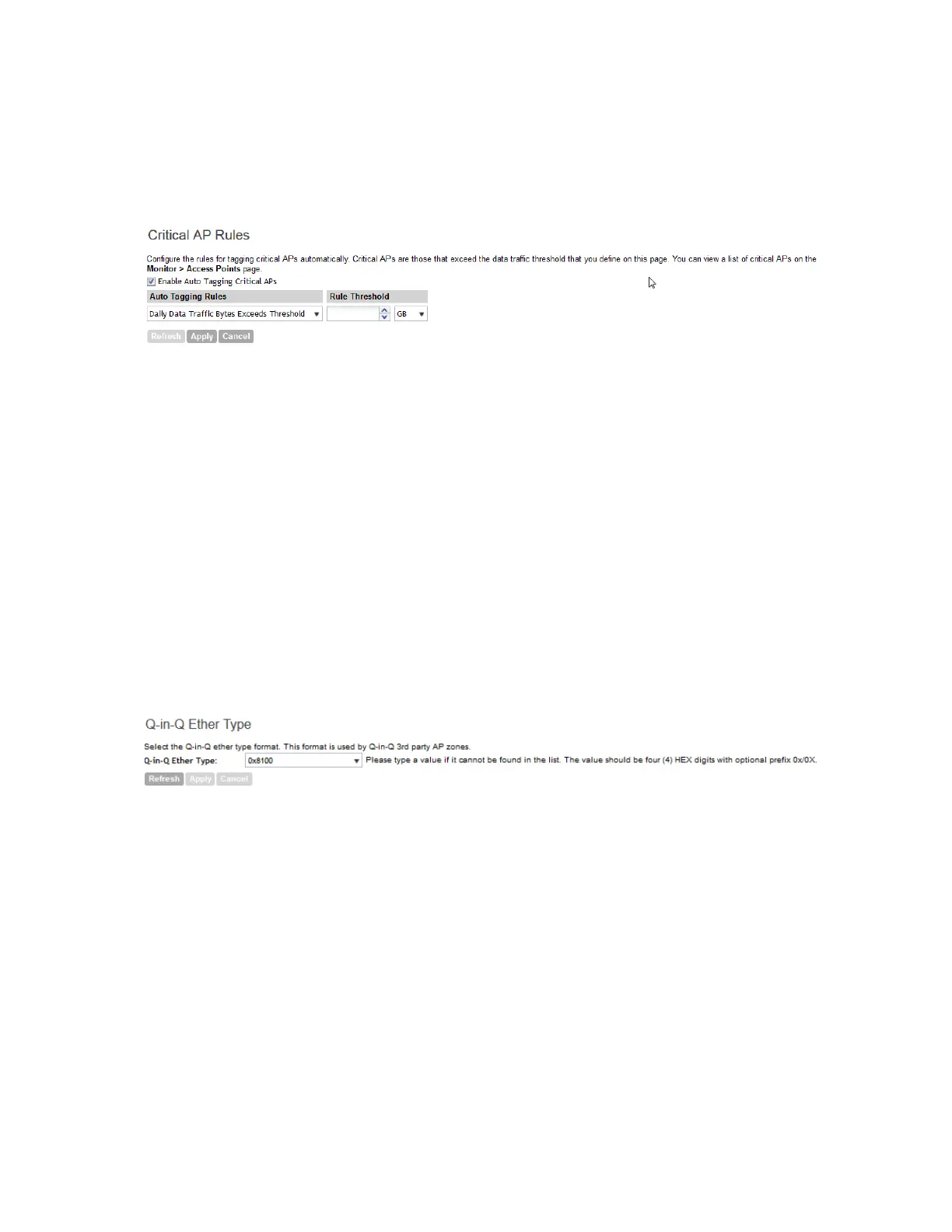
7. Click Apply.
APs that exceed the daily traffic threshold that you specified will appear highlighted on the AP
List page and the Access Point details page. Additionally, the controller will send an SNMP
trap to notify that an AP has been disconnected.
Figure 102: Critical AP tagging rules
Configuring Q-in-Q Ether Type
Follow these steps to configure the Q in Q Ether type.
1. Go to Configuration > System.
2. On the sidebar, click Q-in-Q Ether Type.
The Q-in-Q Ether Type page appears.
3. From the drop-down list, select the Q-in-Q Ether Type format.
Alternatively, you can type in a value if it cannot be found on the list. The value should be 4
Hex digits with optional prefix 0x/0X.
4. Click Apply to save the changes.
You have completed configuring the Q-in-Q Ether Type.
Figure 103: Configuring the Q-in-Q Ether Type
Managing the Global User Agent Black List
Follow these steps to configure the global user agent black list.
1. Go to Configuration > System.
2. On the sidebar, click Manage Global User Agent Black List to view the page.
3. Click Add New to enter the name, user agent pattern, and error.
4. Click Save.
You have completed adding an agent to the black list.
SmartCell Gateway 200/Virtual SmartZone High-Scale for Release 3.4.1 Administrator Guide
210
Configuring the System Settings
Configuring General System Settings



 To Next Page