Creating and Configuring a WLAN Template
Creating a WLAN template requires that you create the template and configure the services that
will be deployed with the template.
Follow these steps to create a WLAN template.
Step 1: Create the WLAN Template
Creating a WLAN template requires that you create the template and configure the services that
will be deployed with the template.
Follow these steps to create a WLAN template.
1. Go to Configuration > AP Zones.
2. On the sidebar, click WLAN Templates.
3. On the WLAN Templates page, click Create New.
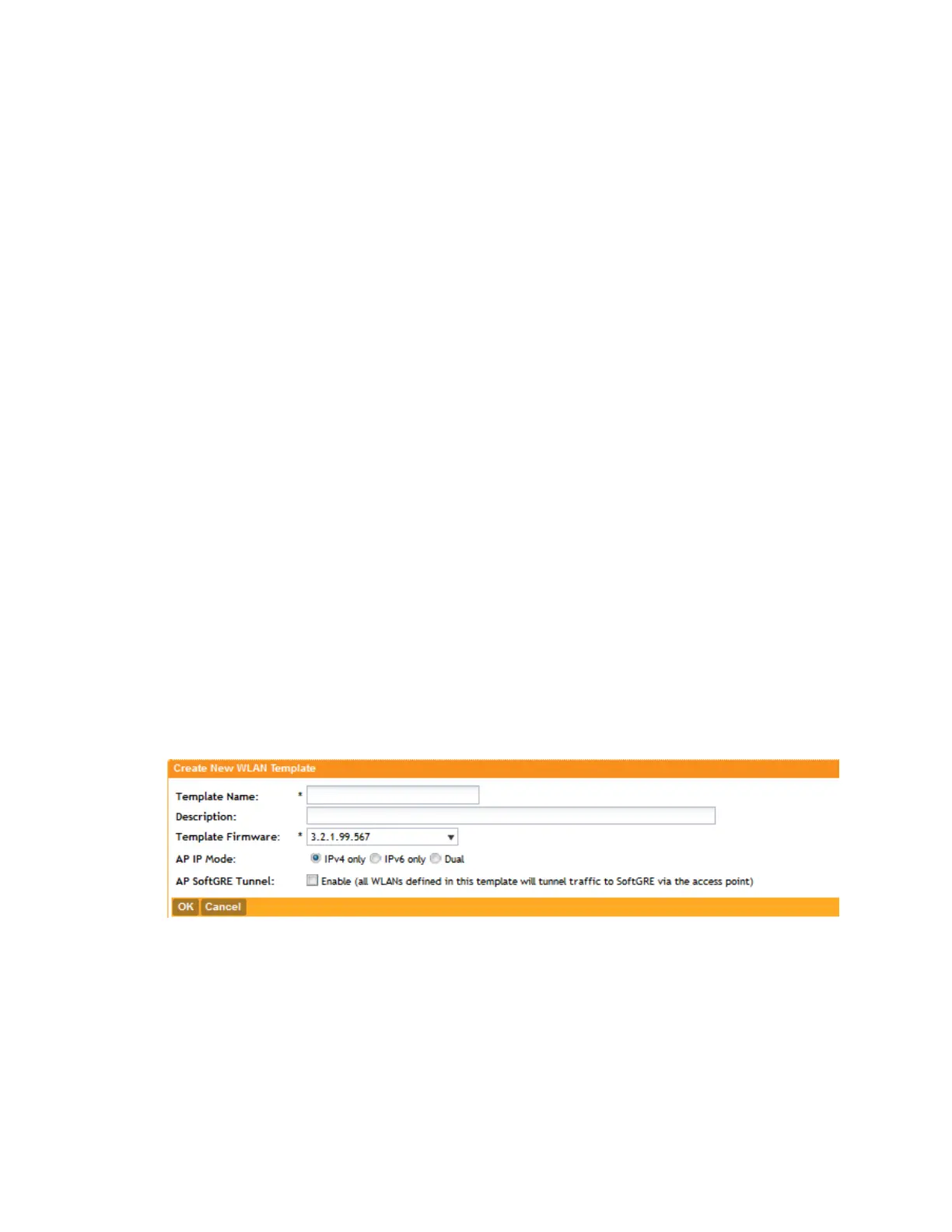
The Create New WLAN Template form appears.
4. In Template Name, type a name for the WLAN template that you are creating.
5. In Description, type a description for this template.
6. In Template Firmware, select the controller firmware version to which to apply this template.
7. In AP IP Mode, select the IP addressing mode that you want APs (to which this template will
applied) to use. Options include:
• IPv4 Only
• IPv6 Only
• Dual
8. In AP SoftGRE Tunnel, select the Enable check box if you want all WLANs created from
this template to tunnel traffic to SoftGRE through the AP.
9. Click Create New at the bottom of the form.
10. Continue to Step 2: Configure the AAA Servers for the WLAN Template.
Figure 47: The form for creating a WLAN template
Step 2: Configure the AAA Servers for the WLAN Template
Follow these steps to create and configure an AAA server for the WLAN template.
1. Click Configuration > AP Zones.
2. On the sidebar, click WLAN Templates.
The WLAN Templates page appears.
SmartCell Gateway 200/Virtual SmartZone High-Scale for Release 3.4.1 Administrator Guide
124
Managing Global Configuration, AP Tunnel Profiles, Templates, and AP Registration Rules
Working with WLAN Templates



 To Next Page