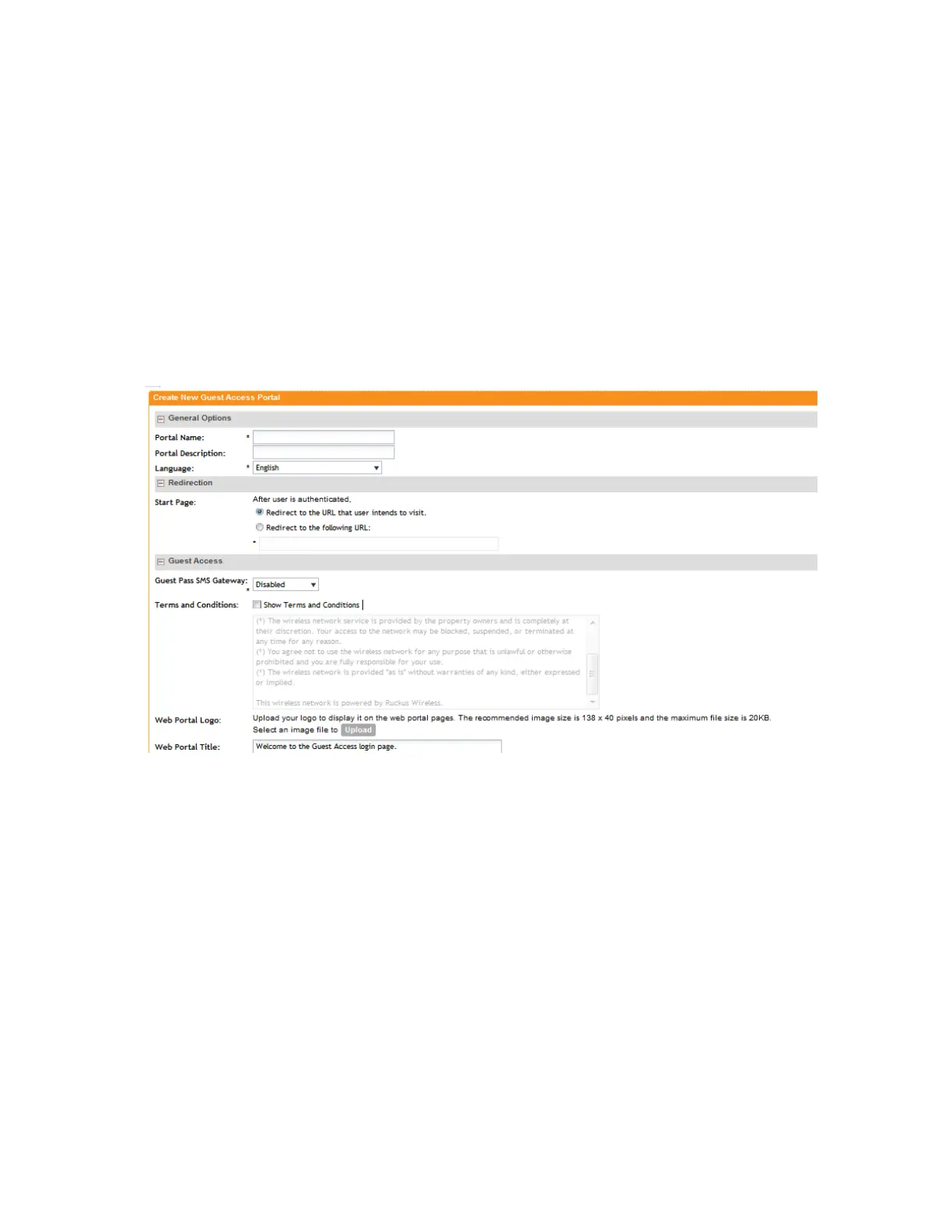
• Web Portal Title: Type your own guest hotspot welcome text or accept the default
welcome text ("Welcome to the Guest Access login page").
7. In User Session, configure the following:
• Session Timeout: Specify a time limit after which users will be disconnected and required
to log on again.
• Grace Period: Set the time period during which clients will not need to re-authenticate
after getting disconnected from the hotspot. Enter a number (in minutes) between 1 and
14399.
8. Click OK.
You have completed creating a guest access portal.
Figure 22: Creating a guest access portal
Viewing Guest Access Portals
Using the controller’s guest access features, you can provide visitors to your organization limited
access to a guest WLAN with configurable guest policies.
Each guest WLAN must be associated with a guest access portal, which defines the behavior
of the guest WLAN interface.. Follow these steps to view a list of existing guest access portals.
1. Click Configuration > AP Zones.
2. On the AP Zone List page, click the AP zone for which you are created the guest access
portals.
3. On the sidebar, click Guest Access.
The Guest Access Portal page appears and displays all existing guest access portals and
their basic settings are shown, including the following:
• Name
SmartCell Gateway 200/Virtual SmartZone High-Scale for Release 3.4.1 Administrator Guide
63
Managing Ruckus Wireless AP Zones
Working with Guest Access Portals



 To Next Page