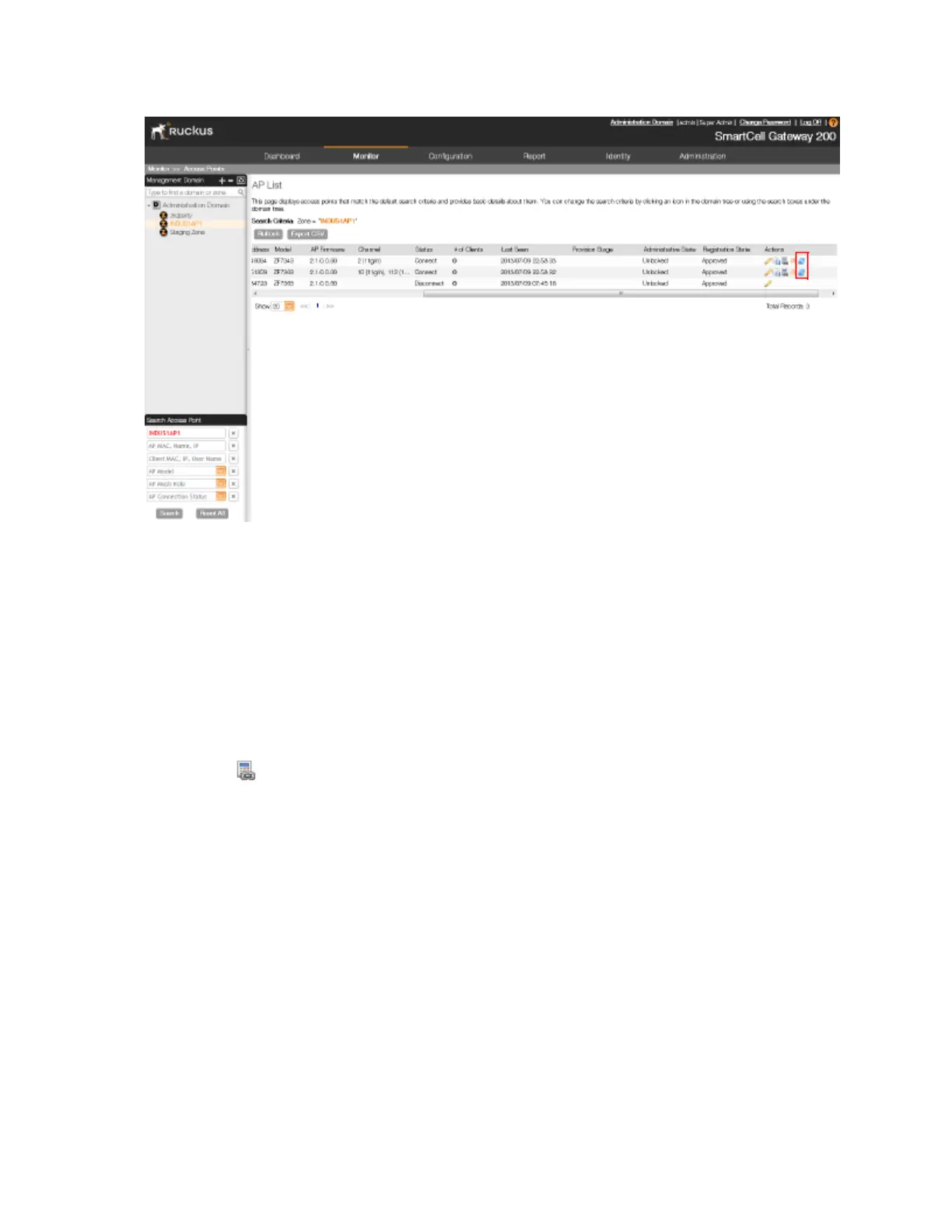
Figure 160: The restart buttons for restarting access points remotely
Running Ping and Traceroute on an Access Point
The controller web interface provides two commonly used tools – ping and traceroute – that
allow you to diagnose connectivity issues on managed access points.
Follow these steps to run the ping and traceroute on an access point.
1. Go to Monitor > Access Points.
2. On the AP List page, locate the access point on which you want to run the ping or traceroute
tool.
3.
Click the icon that is in the same row as the MAC address of the access point.
The Network Connectivity window appears.
4. In IP Address, type an IP address to check whether the access point can connect to it.
For example, type 199.238.178.36 if you want to check if the access point can connect
to the Ruckus Wireless website.
5. Click either Ping or Trace Route (depending on which test you want to run).
The blank box below is populated with the test results.
You have completed running a ping or traceroute test.
SmartCell Gateway 200/Virtual SmartZone High-Scale for Release 3.4.1 Administrator Guide
293
Monitoring AP Zones, Access Points, and Wireless Clients
Monitoring Managed Access Points



 To Next Page