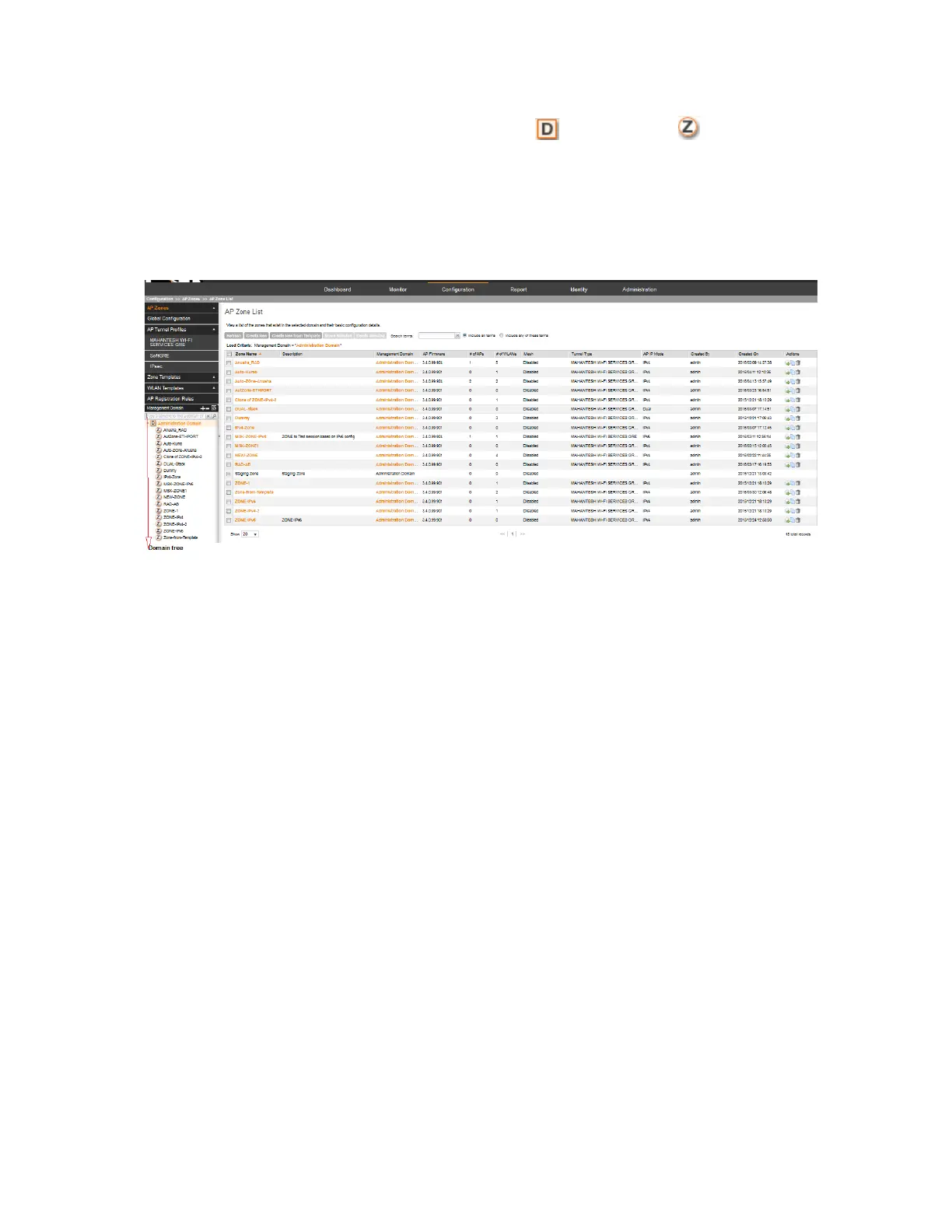
The domain tree displays the management domains ( ) and AP zones ( ) that are under
Administration Domain. Clicking a domain icon in the tree displays the AP zones that belong
to it in the content area. Clicking an AP zone icon, on the other hand, displays detailed information
about the AP zone, including its general information, AAA server configuration, and hotspot
configuration.
NOTE: The search criteria are case-sensitive.
Figure 10: The domain tree
Creating an AP Zone
An AP zone functions as a way of grouping Ruckus Wireless APs and applying settings including
WLANs to these groups of Ruckus Wireless APs. Each AP zone can include up to six WLAN
services..
Follow these steps to create an AP zone.
NOTE: If you are planning to use SoftGRE tunneling for this AP zone, you must first create a
SoftGRE tunnel profile before creating the AP zone. For information on how to create a SoftGRE
tunnel profile, Creating a SoftGRE Tunnel Profile on page 103.
1. Click Configuration > AP Zones.
2. Click Create New.
The form for creating a new AP zone appears.
3. Configure General Options.
DescriptionOption
Type a name that you want to assign to this new zone.Zone Name
Type a description for this new zone. This is an optional field.Description
Select the AP firmware version that you want the AP zone to use. By
default, the latest AP firmware available on the controller is selected.
AP Firmware
SmartCell Gateway 200/Virtual SmartZone High-Scale for Release 3.4.1 Administrator Guide
32
Managing Ruckus Wireless AP Zones
Working with AP Zones



 To Next Page