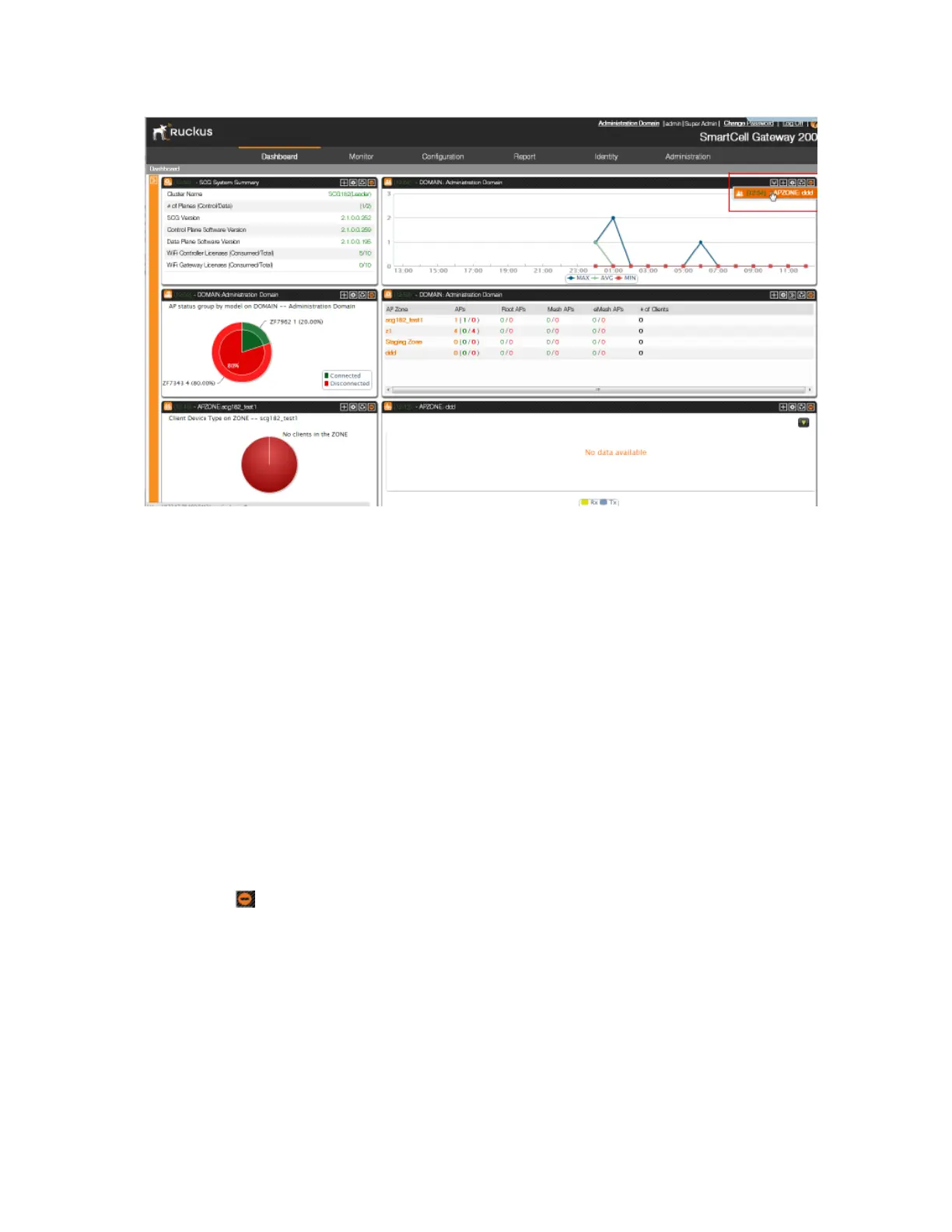
Figure 6: Click the name of the widget that you want to display
Moving a Widget
Follow these steps to move a widget from one widget slot to another.
1. Make sure that there are sufficient slots for the widget that you want to move.
2. Hover your mouse pointer on the title bar of the widget.
The pointer changes into a four-way arrow.
3. Click-and-hold the widget, and then drag it to the empty slot to which you want to move it.
4. Release the widget.
You have completed moving a widget to another slot.
Deleting a Widget
Follow these steps to delete a widget.
1. Locate the widget that you want to delete.
2.
Click the icon that is on the upper-right hand corner of the widget.
A confirmation message appears.
3. Click OK to confirm.
The dashboard refreshes, and then the widget that you deleted disappears from the page.
4. Click OK to confirm that you want to delete this widget.
SmartCell Gateway 200/Virtual SmartZone High-Scale for Release 3.4.1 Administrator Guide
28
Navigating the Web Interface
Using Widgets on the Dashboard



 To Next Page