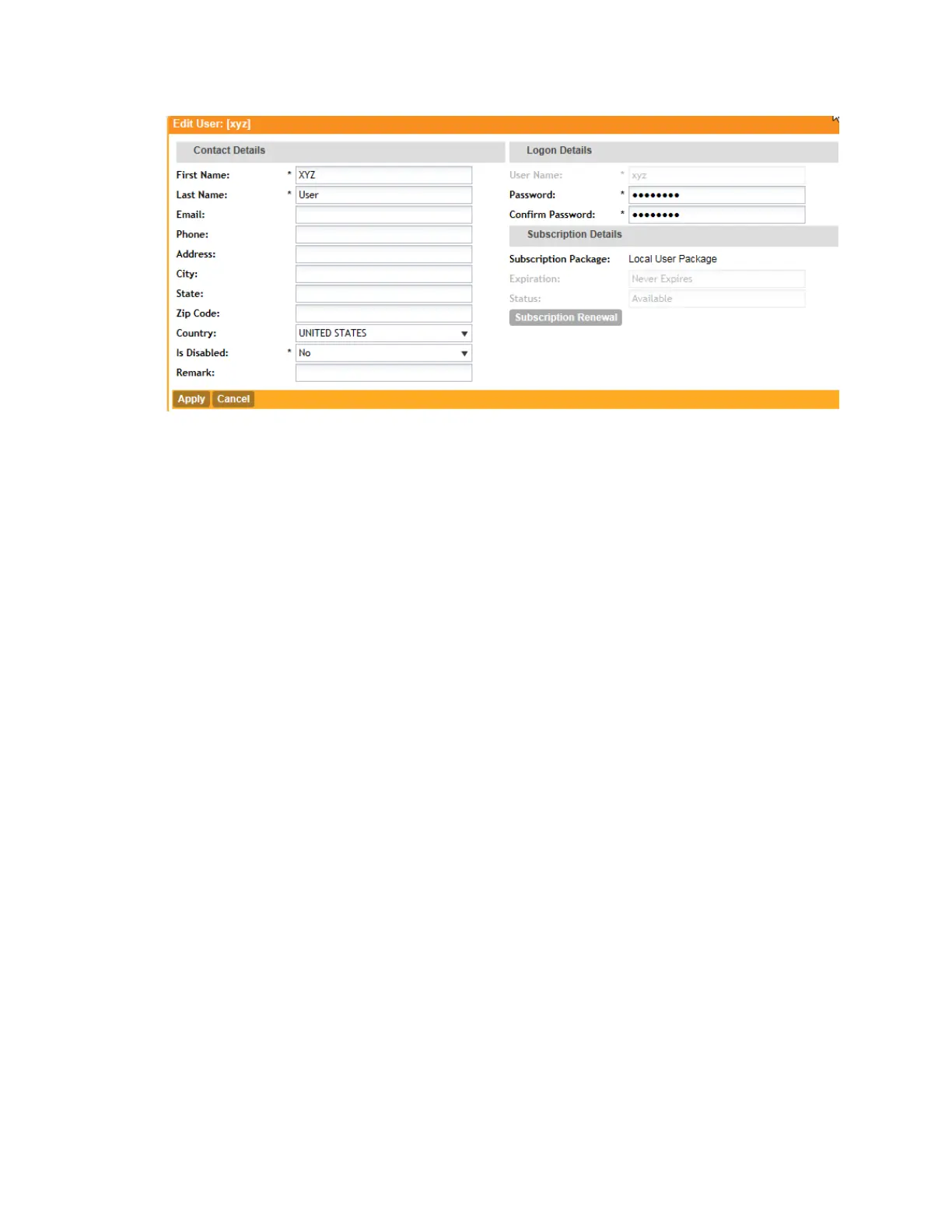
Figure 179: Editing a user account
Working with Guest Users
Similar to local user accounts, guest user accounts in the controller allow users to gain access
to the controller hotspots.
However, unlike local user accounts, guest users are not required to provide personal information
to access the controller hotspots and can, therefore, remain anonymous.
(See Working with Local Users on page 322.)
Generating Guest Passes
Guest users require guest passes, which are credentials that allow temporary access to the
controller hotspots and are generated for specific WLANs only – guest pass users will only be
able to gain access to the WLANs for which the guest pass was generated.
Generating guest passes involves the following steps:
Step 1: Create a Guest Access Portal on page 324
Step 2: Create a Guest Access WLAN on page 326
Step 3: Generate a Guest Pass on page 326
NOTE: If you want to send the guest pass to guest users via Short Message Service (SMS),
make sure you add the SMS server to the controller before starting the next procedure. For
information on adding an SMS server to the controller, see Configuring an SMS Server on page
170.
Step 1: Create a Guest Access Portal
Each guest WLAN must be associated with a guest access portal, which defines the behavior
of the guest WLAN interface.
Follow these steps to create a guest access portal.
1. Create an AP zone that you want to use to provide hotspot access to guest users. For more
information, see Creating an AP Zone on page 32.
SmartCell Gateway 200/Virtual SmartZone High-Scale for Release 3.4.1 Administrator Guide
324
Working with Local, Guest, and Remote Users
Working with Local, Guest, and Remote Users



 To Next Page