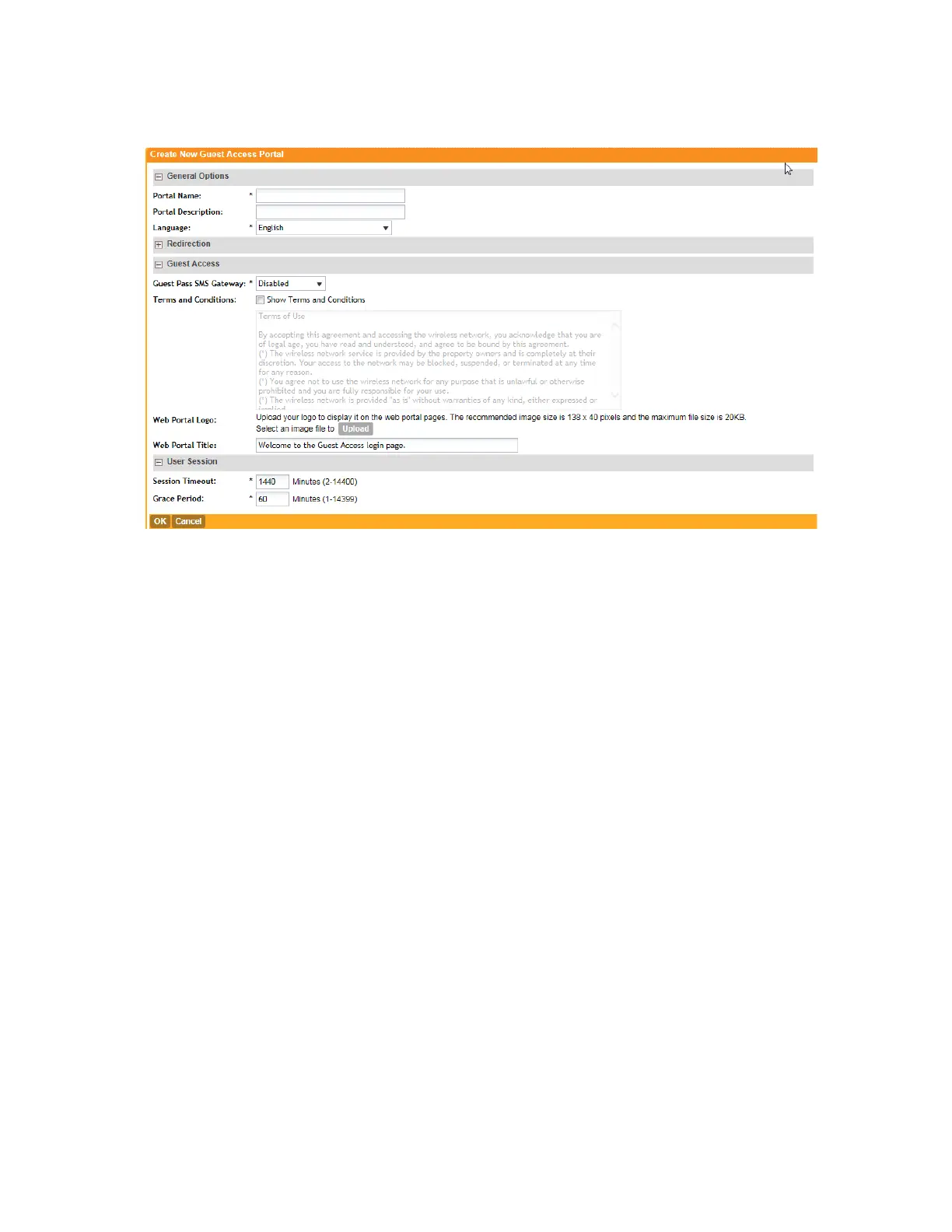
10. Click OK.
Figure 180: The Create New Guest Access Portal form
You have completed creating a guest access portal. You may now continue to Step 2: Create
a Guest Access WLAN on page 326.
Step 2: Create a Guest Access WLAN
In this step, you will create a WLAN for the AP zone that you created in Step 1: Create a Guest
Access Portal on page 324.
1. Create a new WLAN by following the instructions in Creating a WLAN on page 68.
2. Make sure though that you configure Authentication Type and Hotspot (WISPr) Service
exactly as described below.
• In Authentication Type, click Guest Access.
• In Guest Access, select the guest access portal that you created earlier in Step 1: Create
a Guest Access Portal on page 324.
3. Click Create New.
You have completed creating a guest access WLAN. Continue to Step 3: Generate a Guest
Pass on page 326.
Step 3: Generate a Guest Pass
Follow these steps to generate a guest pass.
1. Click Identity > Users.
The Users page appears.
2. Click Guest Pass > Guest Pass Service.
SmartCell Gateway 200/Virtual SmartZone High-Scale for Release 3.4.1 Administrator Guide
326
Working with Local, Guest, and Remote Users
Working with Local, Guest, and Remote Users



 To Next Page