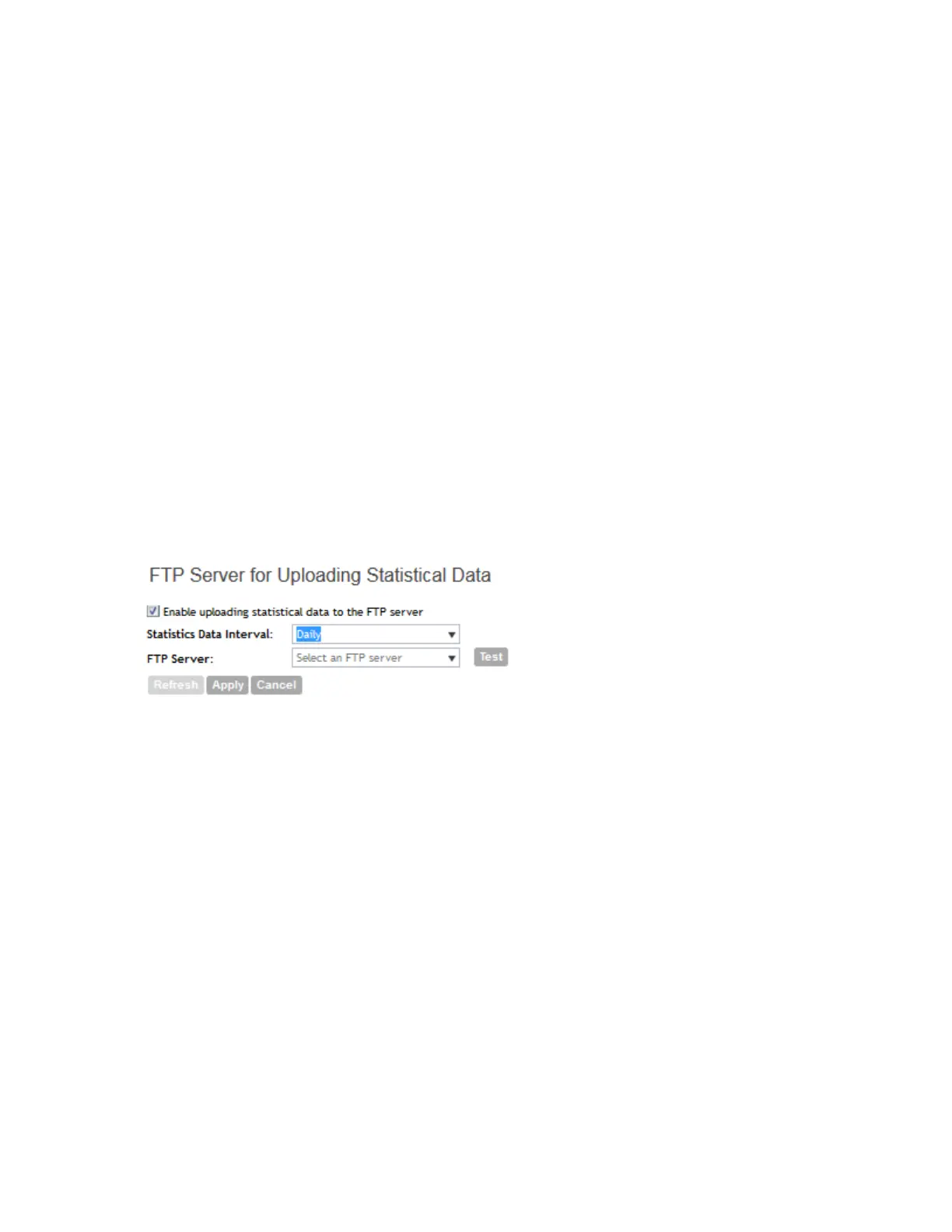
2. Select the Enable uploading statistics data to FTP server check box.
3. In Statistics Data Interval, select the time interval at which the controller uploads a copy of
raw statistical data to the FTP server. Options include:
• Hourly: If you select this option, the controller will upload data to the FTP server every
20th minute of the hour (for example, 00:20, 01:20, 02:20 and so on).
• Daily: If you select this option, the controller will upload data to the FTP server at 12:35AM
every day.
4. In FTP Server, select the FTP server to which you want to upload the statistics data.
The FTP server options that appear here are those that you created in Configuring FTP
Services on page 165.
5. To verify that the FTP server settings and logon information are correct, click Test.
If the server and logon settings are correct, the following message appears: Test completed
successfully.
6. Click Apply.
NOTE: For detailed information on the statistics files that are exported to the FTP server and
their content, see Statistics Files the Controller Exports to an FTP Server on page 405.
Figure 101: FTP server settings
Setting Critical AP Auto Tagging Rules
A critical AP is an AP that exceeds the daily traffic threshold (sum of uplink and downlink) data
bytes configured on the controller web interface.
Follow these steps to tag critical APs automatically.
1. Go to the Critical AP Rules section.
2. Select the Enable Auto Tagging Critical APs check box.
3. Under Auto Tagging Rules, select Daily Traffic Bytes Exceeds Threshold.
4. Under Rule Threshold, specify the threshold:
5. In the first box, type a value that you want to set as the traffic threshold.
This value will be applied in conjunction with the data unit that you will select in the second
box.
6. In the second box, select the data unit for the threshold – M for megabytes or G for gigabytes.
SmartCell Gateway 200/Virtual SmartZone High-Scale for Release 3.4.1 Administrator Guide
209
Configuring the System Settings
Configuring General System Settings



 To Next Page