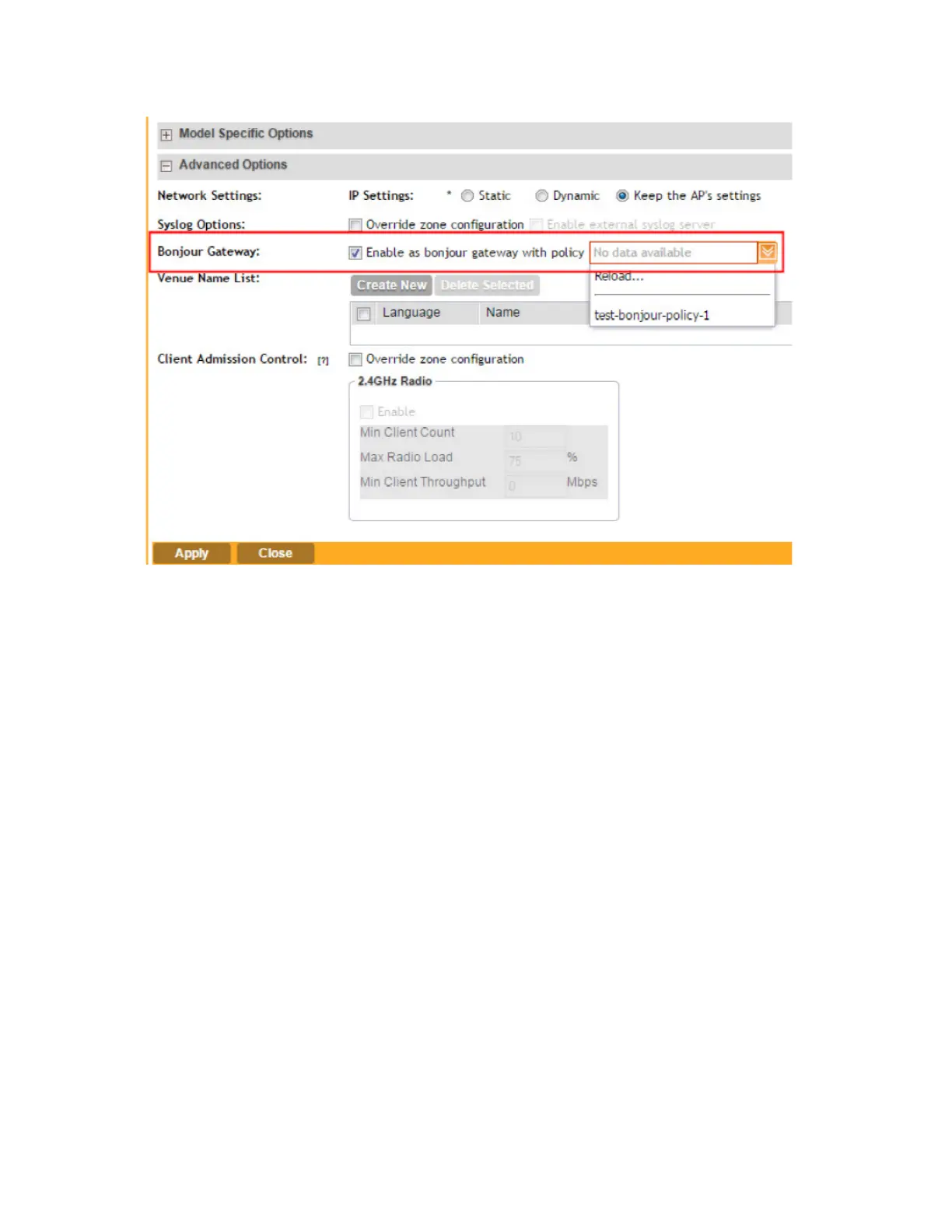
Figure 32: Select the Bonjour
®
policy that you created earlier
Creating a DiffServ Profile
If you need to configure the type of traffic (ToS) bit settings for the access side traffic from Ruckus
Wireless APs, follow these steps to create a Differentiated Services (DiffServ) profile.
This profile can only be applied to Ruckus GRE and SoftGRE traffic. Follow the steps to create
a diffserv profile.
1. Click AP Zones > Zone Name ({AP Zone Name}) > DiffServ.
For example, if you want to create a DiffServ profile for an AP zone named “ap-zone-1,” click
AP Zones > Zone Name (ap-zone-1) > DiffServ.
The DiffServ Profiles page appears.
2. Click Create New.
The form for creating a new DiffServ profile appears.
3. In Name, type a name for the DiffServ profile that you are creating.
4. In Description, type a brief description for the DiffServ profile.
5. In Tunnel DiffServ, configure the following options.
• Set Uplink DiffServ: Select the check box if you want to set the Differentiated Services field
for uplink user traffic from Ruckus Wireless APs towards either the controller or a third
SmartCell Gateway 200/Virtual SmartZone High-Scale for Release 3.4.1 Administrator Guide
92
Managing Ruckus Wireless AP Zones
Creating a DiffServ Profile



 To Next Page