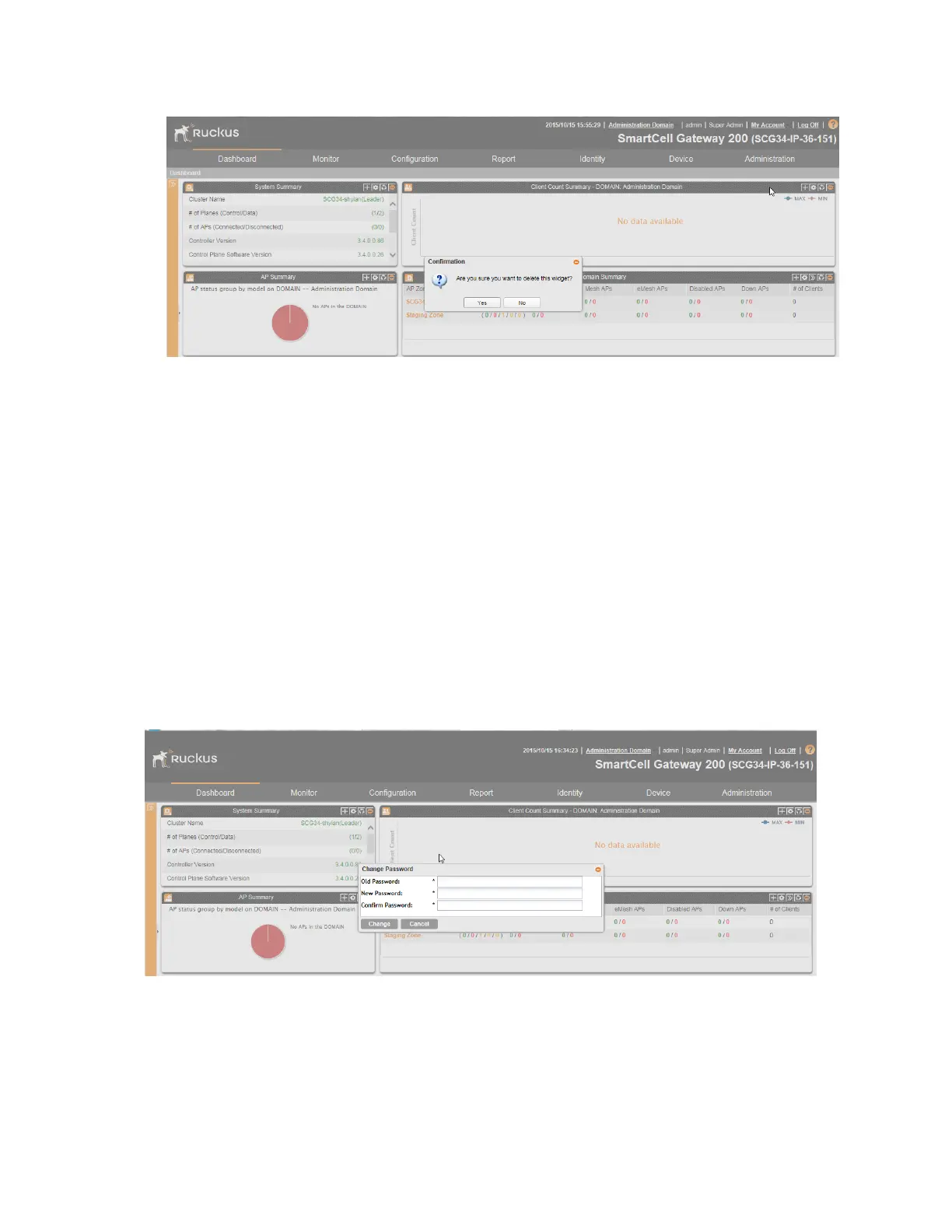
Figure 7: Click Yes to delete the widget
Changing the Administrator Password
Follow these steps to change the administrator password.
1. On the Miscellaneous Bar, click Change Password.
The Change Password form appears.
2. In Old Password, type your current password.
3. In New Password, type the new password that you want to use.
4. In Confirm Password, retype the new password above.
5. Click Change.
You have completed changing your administrator password. The next time you log on to the
controller, remember to use your new administrator password.
Figure 8: The Change Password form
SmartCell Gateway 200/Virtual SmartZone High-Scale for Release 3.4.1 Administrator Guide
29
Navigating the Web Interface
Changing the Administrator Password



 To Next Page