zone. Reason: It is disallowed to change the tunnel type, because it
has tunneled WLAN.
Monitoring SoftGRE
You can use the Monitor pages to view AP SoftGRE statistics. This section describes:
Checking the AP Tunnel Type of a Zone
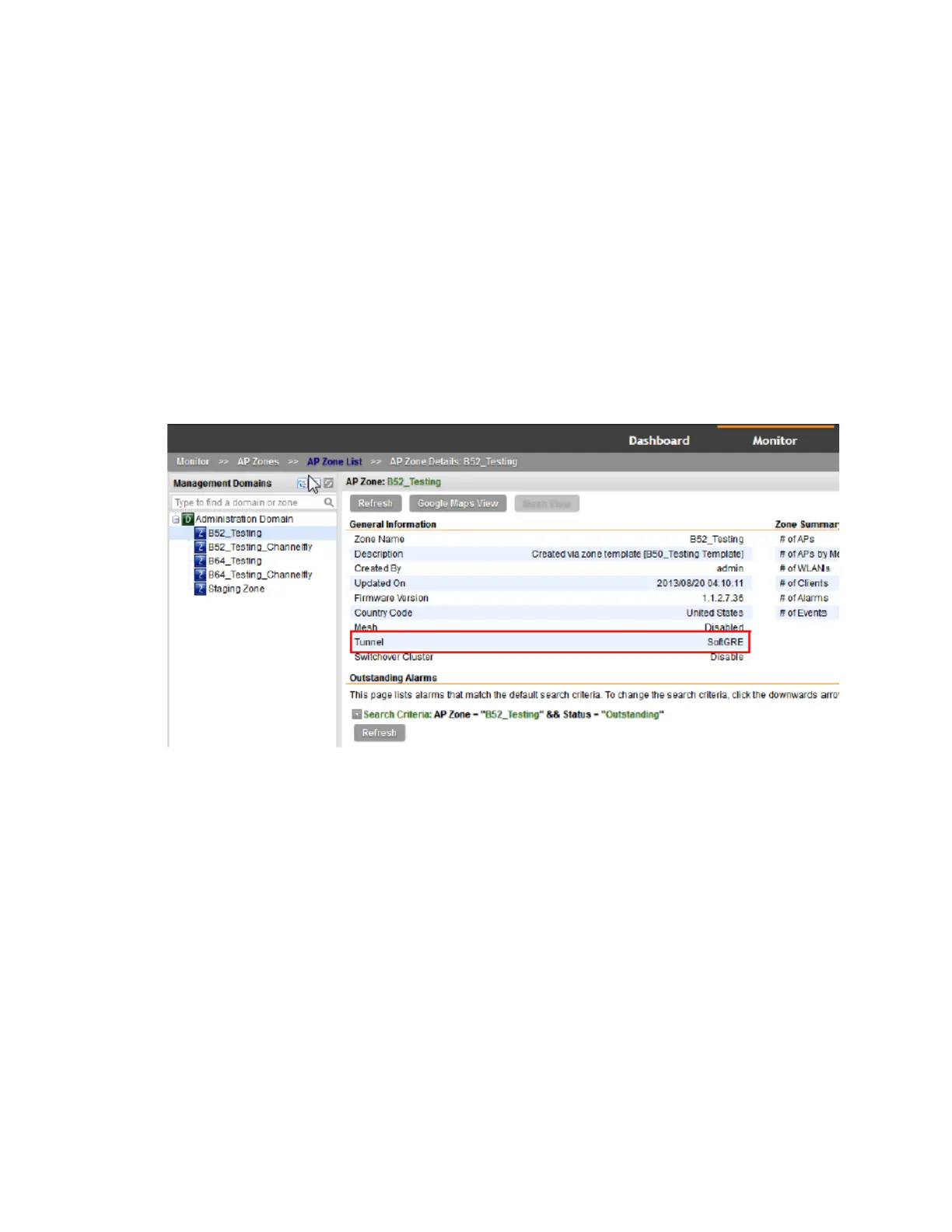
Follow these steps to check if a zone is using SoftGRE tunneling.
1. Go to Monitor > AP Zone.
2. In the Administration Domain tree, click each AP zone name to display their zone information
summary.
3. In the General Information section, check the value for Tunnel.
If the value shown is SoftGRE, this indicates that the zone is using SoftGRE tunneling.
Figure 258: Check the value for "Tunnel" to verify that a zone is using SoftGRE tunneling
Viewing SoftGRE Traffic Statistics of an AP
Monitor pages allow you to view AP SoftGRE statistics.
Follow these steps to view the SoftGRE tunnel statistics of an AP that belongs to a zone enabled
for SoftGRE
1. Go to Monitor > Access Points.
2. In the Administration Domain tree, click a zone that is enabled for SoftGRE.
The APs that appear on the AP List page are all using SoftGRE tunneling.
3. Click the MAC address of an AP whose SoftGRE traffic statistics you want to view.
4. On the AP Status tab, scroll down to the AP SoftGRE Tunnel Statistics section to view the
AP SoftGRE statistics.
SmartCell Gateway 200/Virtual SmartZone High-Scale for Release 3.4.1 Administrator Guide
437
SoftGRE Support
Overview of SoftGRE Support



 To Next Page