• Service Schedule: Use the Service Schedule tool to control which hours of the day, or
days of the week to enable/disable WLAN service. Options include:
• Always On: Click this enable this WLAN at all times.
• Always Off: Click this option to disable the WLAN service at all times.
• Specific: Click this to set specific hours during which this WLAN will be enabled. For
example, a WLAN for student use at a school can be configured to provide wireless
access only during school hours. Click on a day of the week to enable/disable this
WLAN for the entire day. Colored cells indicate WLAN enabled. Click and drag to select
specific times of day. You can also disable a WLAN temporarily for testing purposes,
for example.
• Band Balancing: To disable band balancing on this WLAN, select the Do not perform
band balancing for this WLAN service check box. For more information, see Band
Balancing.
15. Click OK at the bottom of the form.
You have completed creating and configuring a WLAN template.
Viewing Existing WLAN Templates
Follow these steps to view the list of WLAN templates created.
1. Click Configuration > AP Zones.
2. On the sidebar, click WLAN Templates.
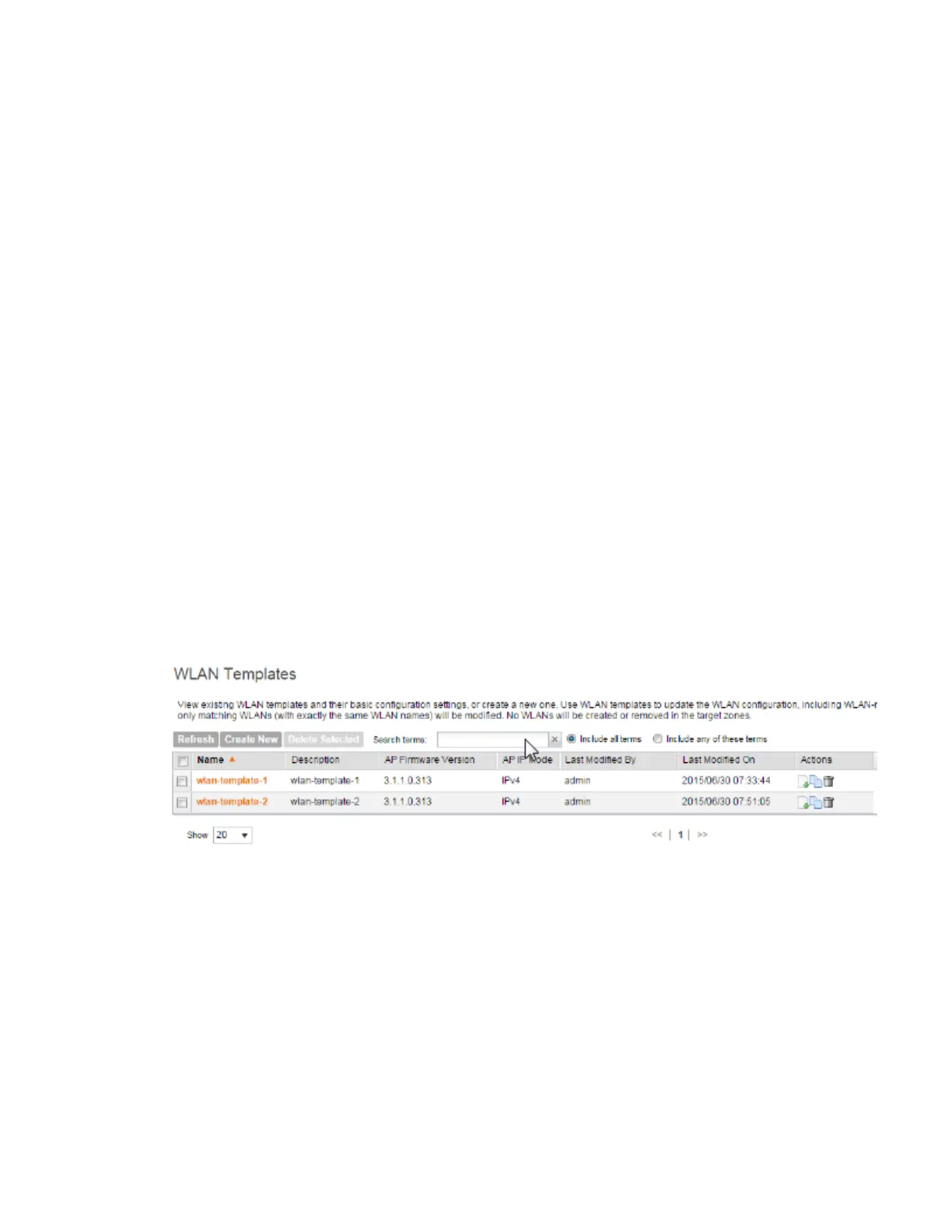
The WLAN Templates page appears and displays the details of WLAN templates that have
been configured on the controller.
Figure 49: List view of WLAN templates
Deleting WLAN Templates
You can delete a single or multiple WLAN templates simultaneously. Follow these steps to delete
a single or multiple WLAN templates.
1. Go to Configuration > AP Zones.
2. On the sidebar, click WLAN Templates.
The WLAN Templates page appears.
3. To delete a single WLAN template, follow these steps:
SmartCell Gateway 200/Virtual SmartZone High-Scale for Release 3.4.1 Administrator Guide
133
Managing Global Configuration, AP Tunnel Profiles, Templates, and AP Registration Rules
Working with WLAN Templates



 To Next Page