Applying a Network Traffic Profile to a 3
rd
Party AP Zone
Follow these steps to apply a network traffic profile to a 3rd party AP zone.
NOTE: Before continuing, make sure you have already created a network traffic profile. If you
have not, see Creating a Network Traffic Profile for instructions.
1. Go to Configuration > 3rd Party AP Zones > 3rd Party AP Zone List.
2. Under Administration Domain, click the 3rd party AP zone to which you want to assign a
network traffic profile.
The Edit 3rd Party AP Zone: {zone-name} form appears.
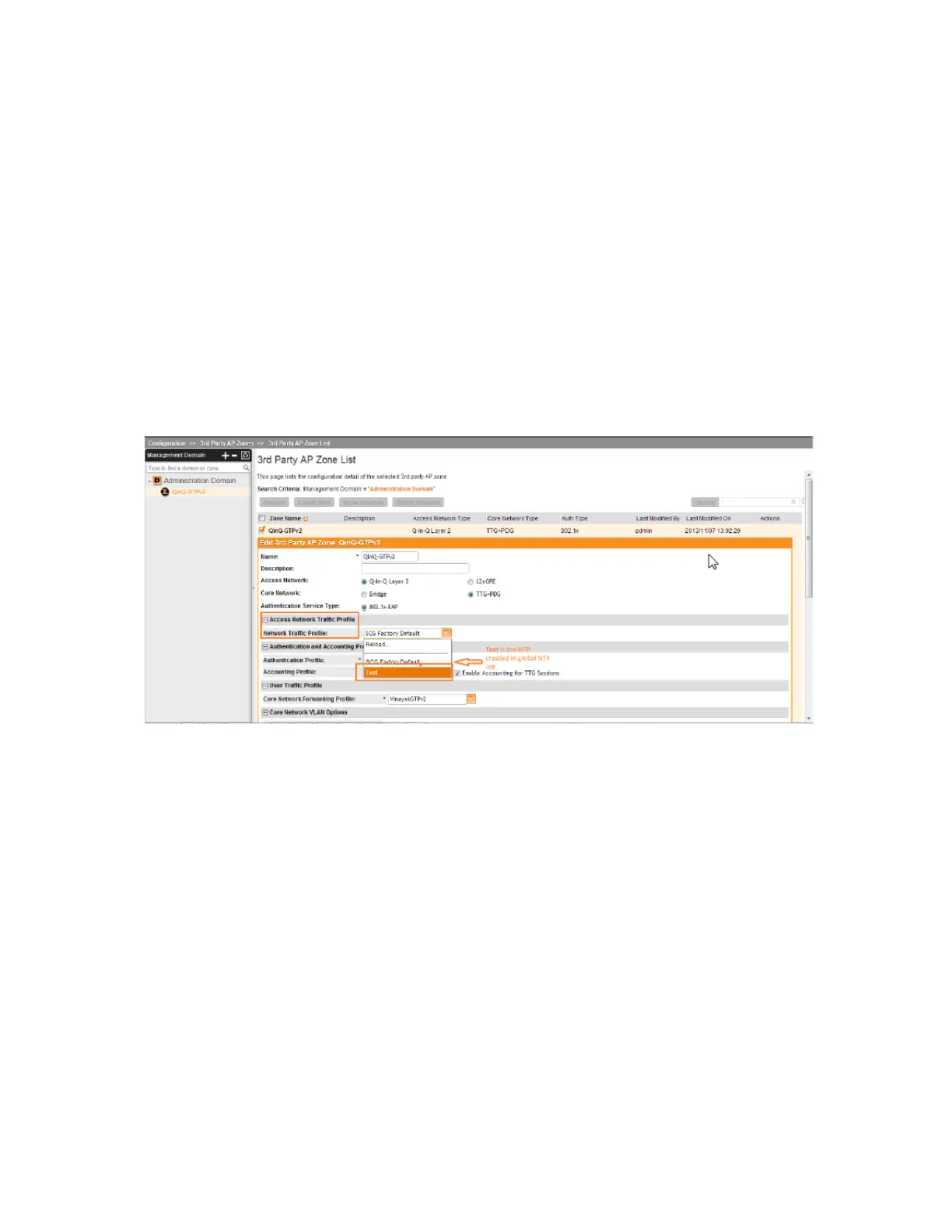
3. In Access Network Traffic Profile, select the network traffic profile that you want to assign
to the 3rd party AP zone.
4. Click Apply.
You have completed applying a network traffic profile to a 3rd party AP zone.
Figure 87: In Access Network Traffic Profile, select the profile that you want to assign to
the 3rd party AP zone
Working with User Traffic Profiles
A user traffic profile defines whether the system will allow or block a particular type of traffic
based on a number of attributes, including:
• Source IP address (specific IP address or IP address range)
• Source port number (specific port or port range)
• Destination IP address (specific IP address or IP address range)
• Destination port number (specific port or port range)
• Network protocol (TCP, UDP, etc.)
• Traffic direction
SmartCell Gateway 200/Virtual SmartZone High-Scale for Release 3.4.1 Administrator Guide
185
Configuring Services and Profiles
Working with Profiles



 To Next Page