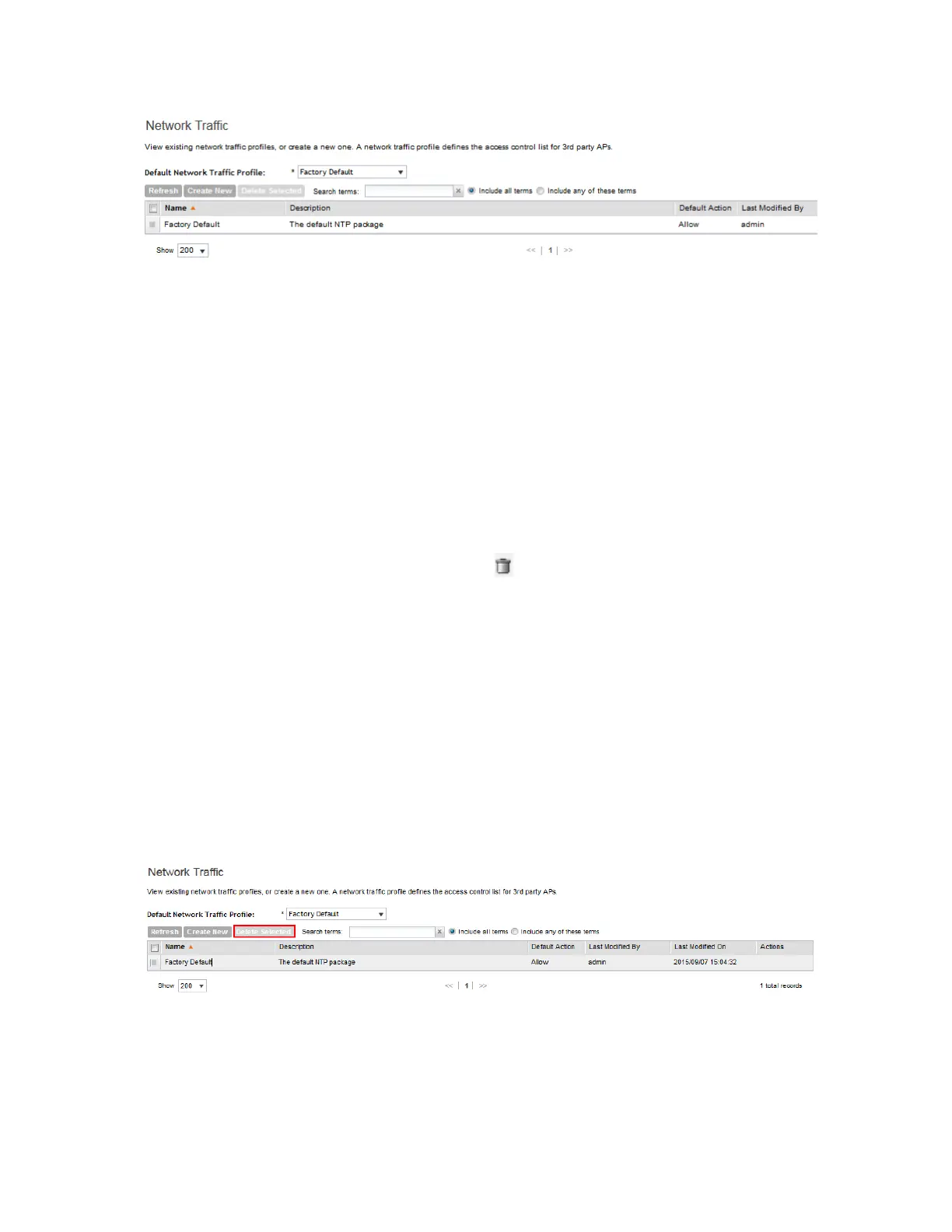
Figure 85: The Network Traffic Profiles page lists the profiles that have been created on
the controller
Deleting Network Traffic Profiles
Follow these steps to delete a single or multiple network traffic profiles simultaneously.
1. Go to Configuration > Services & Profiles.
2. On the sidebar under Profiles, click Network Traffic.
The Network Traffic page appears and lists the profiles that have been configured on the
controller.
Delete a single or multiple profiles.
3. To delete a single profile:
a) From the list of existing profiles, locate the profile that you want to delete.
b)
Under the Actions column, click the icon that is in the same row as the profile.
A confirmation message appears.
c) Click Yes.
The page refreshes, and the profile that you deleted disappears from the view list.
4. To delete multiple profiles simultaneously, follow these steps:
a) From the list of existing profiles, locate the profiles that you want to delete.
b) Select the check boxes before the profiles that you want delete.
c) Click Delete Selected.
A confirmation message appears.
d) Click Yes.
The page refreshes and the profiles that you deleted disappears from the list.
You have completed deleting network traffic profiles.
Figure 86: Deleting multiple profiles simultaneously
SmartCell Gateway 200/Virtual SmartZone High-Scale for Release 3.4.1 Administrator Guide
184
Configuring Services and Profiles
Working with Profiles



 To Next Page