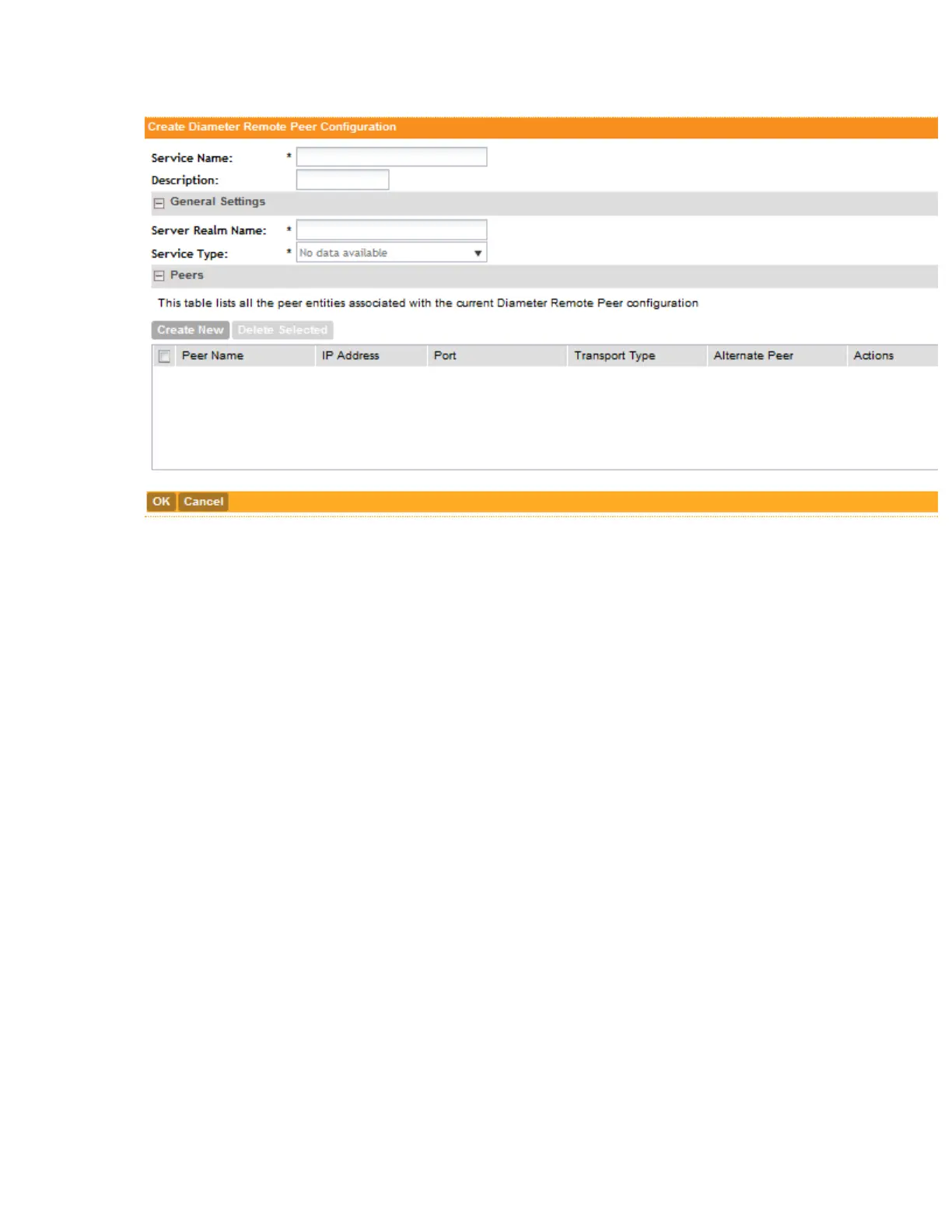
Figure 69: The Create Diameter Remote Peer Configuration form
Configuring FTP Services
You can automatically back up statistical data, CGF server binary files, reports, and system
configuration backups to an external FTP server. However, before you can do this, you must
add at least one FTP server to the controller. Follow these steps to add an FTP server to which
the controller will export data automatically.
1. Go to Configuration > Services & Profiles.
2. On the sidebar under Services, click FTP.
The FTP page appears.
3. In FTP Name, type a name that you want to assign to the FTP server that you are adding.
4. In Port, type the FTP port number. The default FTP port number is 21.
5. In FTP Host, type the IP address of the FTP server.
6. In User Name, type user name of the FTP account that you want to use.
7. In Password, type the password that is associated with the FTP user name above.
8. In Remote Directory, type the path on the remote FTP server to which data will be exported
from the controller. The path must start with a forward slash (/).
9. To verify that the FTP server settings and logon information are correct, click Test.
If the server and logon settings are correct, the following message appears: Test completed
successfully.
10. Click Create New.
SmartCell Gateway 200/Virtual SmartZone High-Scale for Release 3.4.1 Administrator Guide
165
Configuring Services and Profiles
Configuring FTP Services



 To Next Page