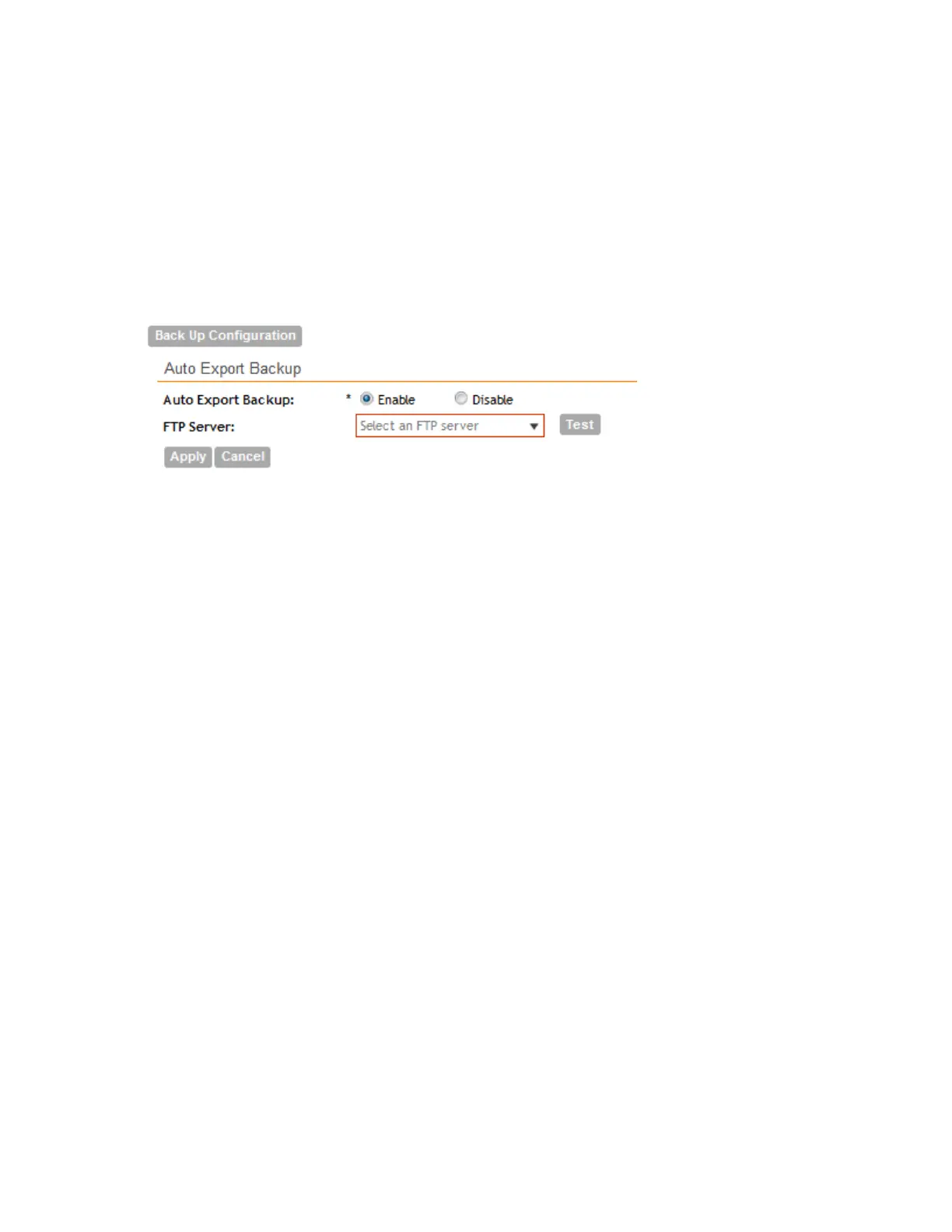
If the connection attempt is unsuccessful, verify that the FTP server details (including the user
name and password) are correct, and then click Test again.
6. After you verify the controller is able to connect to the FTP server successfully, click Apply
to save the FTP server settings.
You have completed configuring the controller to export the configuration backup file to an FTP
server. When you click the Back Up Configuration button (see Creating a System Configuration
Backup on page 352), a copy of the configuration backup will be uploaded to the FTP server
automatically.
Figure 214: Configure the FTP server settings in the Auto Export Backup section
Scheduling a Configuration Backup
You also have the option to configure the controller to backup its configuration automatically
based on a schedule you specify.
Follow these steps to schedule a configuration backup.
1. Go to Administration > System Configuration Backup and Restore.
2. Scroll down to the Schedule Backup section.
3. In Schedule Backup, click Enable.
4. In Interval, set the schedule when the controller will automatically create a backup of its
configuration. Options include:
• Daily
• Weekly
• Monthly
5. Define the schedule further by configuring the following options:
• Every: If you selected Weekly in the previous step, select the day of the week when the
controller will generate the backup. If you selected Monthly, select the day of the month.
• Hour: Select the hour of the day when the controller will generate the backup.
• Minute: Select the minute of the hour.
6. Click Apply.
You have completed configuring the controller to create a backup automatically. When a
scheduled configuration backup is generated, it appears in the System Configuration Backups
section.
SmartCell Gateway 200/Virtual SmartZone High-Scale for Release 3.4.1 Administrator Guide
354
Performing Administrative Tasks
Backing Up and Restoring System Configuration



 To Next Page