DescriptionColumn Name
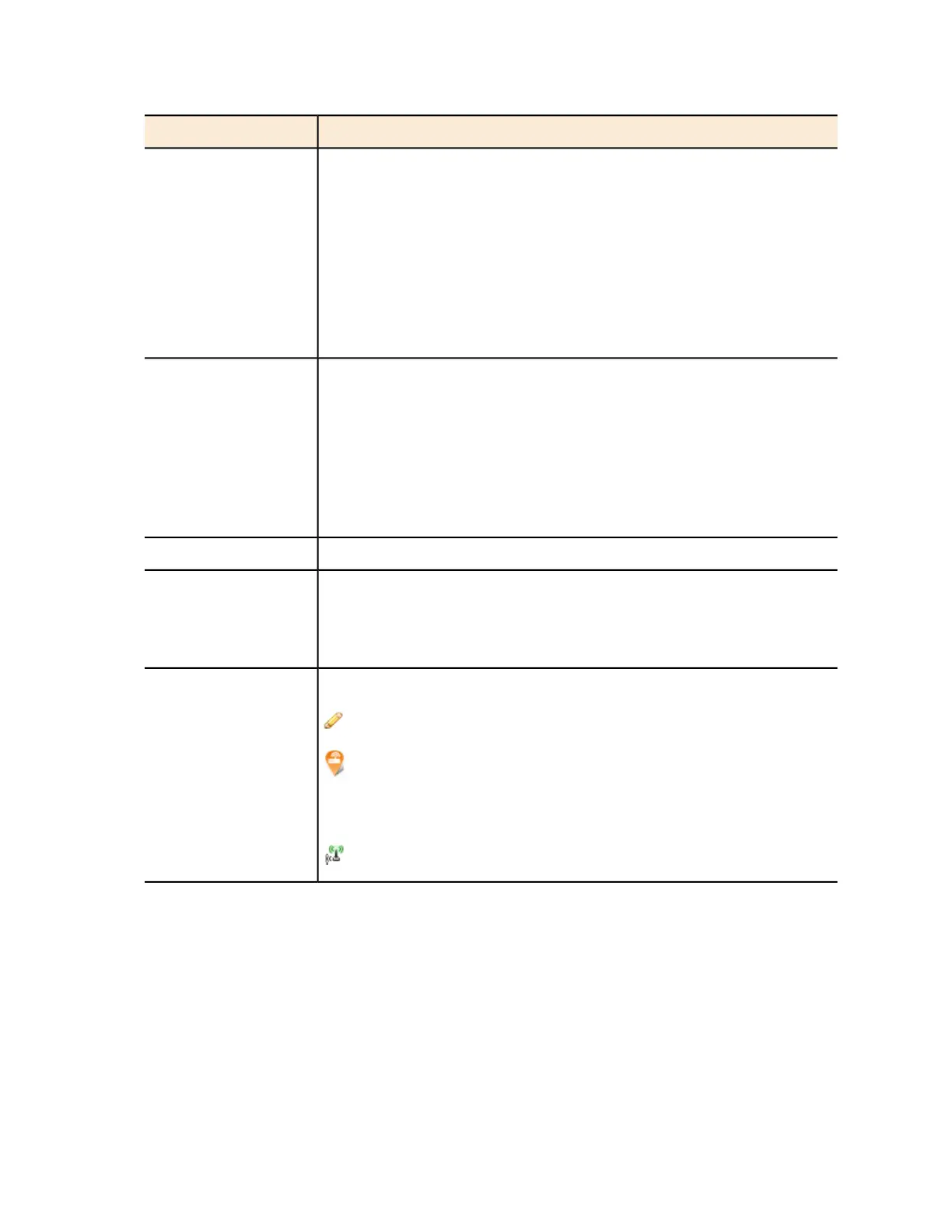
Number of alarms that have occurred in the AP zone. The numbers
that are separated by a forward slash indicate the number of alarms
per alarm type (from left to right order):
Critical alarms (red)
# of Alarms
Major alarms (red)
Minor alarms (orange)
Warnings (orange)
Number of APs that belong to this zone. The numbers that are
separated by a forward slash indicate the total number of APs in the
# of APs
zone (orange), the number of APs that are currently online (green), and
the number of APs that are currently offline (red).
Clicking the number of APs (link, except when zero) loads a page that
displays detailed information about the APs. See Viewing a Summary
of Access Points on page 287.
Number of WLAN services that exist in this zone# of WLANs
Number of wireless clients that are currently associated with APs in this
zone. Clicking the number of clients (link, except when zero) loads a
# of Clients
page that displays detailed information about the wireless clients. See
Viewing a Summary of Wireless Clients on page 294.
Icons for actions that you can perform, including:
– Click to view detailed configuration of this AP zone.
Actions
– Click to view all access points that belong to this AP zone on
Google Maps. See Viewing All APs That Belong to an AP Zone on
Google Maps on page 287.
– Click to view the mesh topology of this AP zone.
Exporting the AP Zone List to CSV
Follow these steps to export the AP zone list to a CSV file.
1. Go to Monitor > AP Zones.
The AP Zone List page appears.
2. Click the Export CSV button in the content area.
The following message appears: Downloading AP Zone Data. Please wait...
SmartCell Gateway 200/Virtual SmartZone High-Scale for Release 3.4.1 Administrator Guide
285
Monitoring AP Zones, Access Points, and Wireless Clients
Monitoring AP Zones



 To Next Page