NOTE: The refresh intervals for the client count summary and data throughput summary
widgets are non-configurable.
5. Click OK.
The widget slot refreshes, and then the widget that you added appears.
You have completed adding a widget to a widget slot.
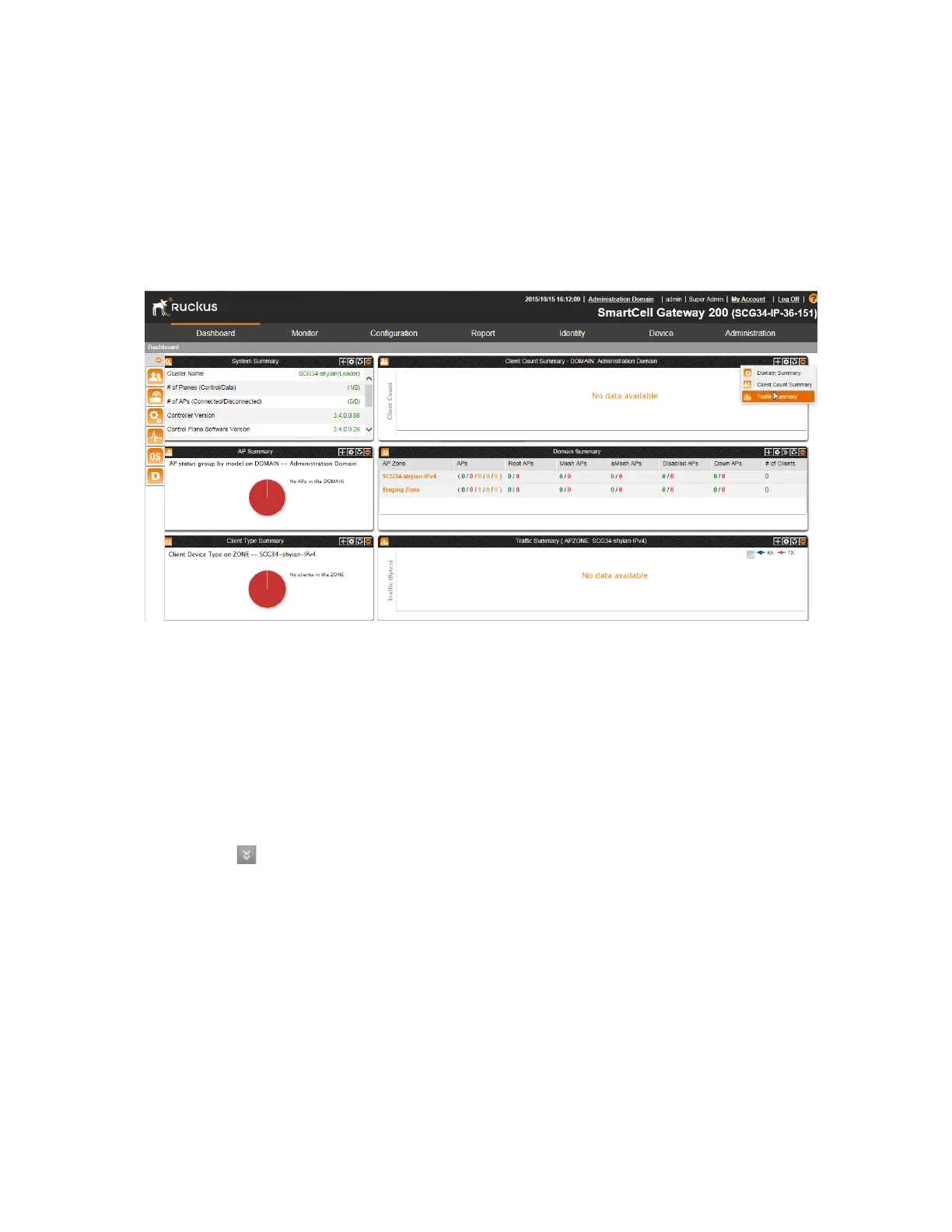
Figure 5: Click the name of the widget that you want to add to the widget slot
Displaying a Widget in a Widget Slot
A widget slot that contains multiple widgets automatically cycles through the different widgets
that have been added to it at one-minute intervals.
If you want to view a specific widget in a widget slot, you can manually display it.
Follow these steps to display a widget that belongs to a widget slot manually.
1. Locate the widget slot that contains the widget that you want to display.
2.
Click the icon that is on the upper-right hand corner of the widget slot.
A submenu appears and displays the widgets that have been added to the widget slot.
3. Click the name of the widget that you want to display.
The widget slot refreshes, and the widget that you clicked appears.
You have completed displaying a widget in a widget slot.
SmartCell Gateway 200/Virtual SmartZone High-Scale for Release 3.4.1 Administrator Guide
27
Navigating the Web Interface
Using Widgets on the Dashboard



 To Next Page