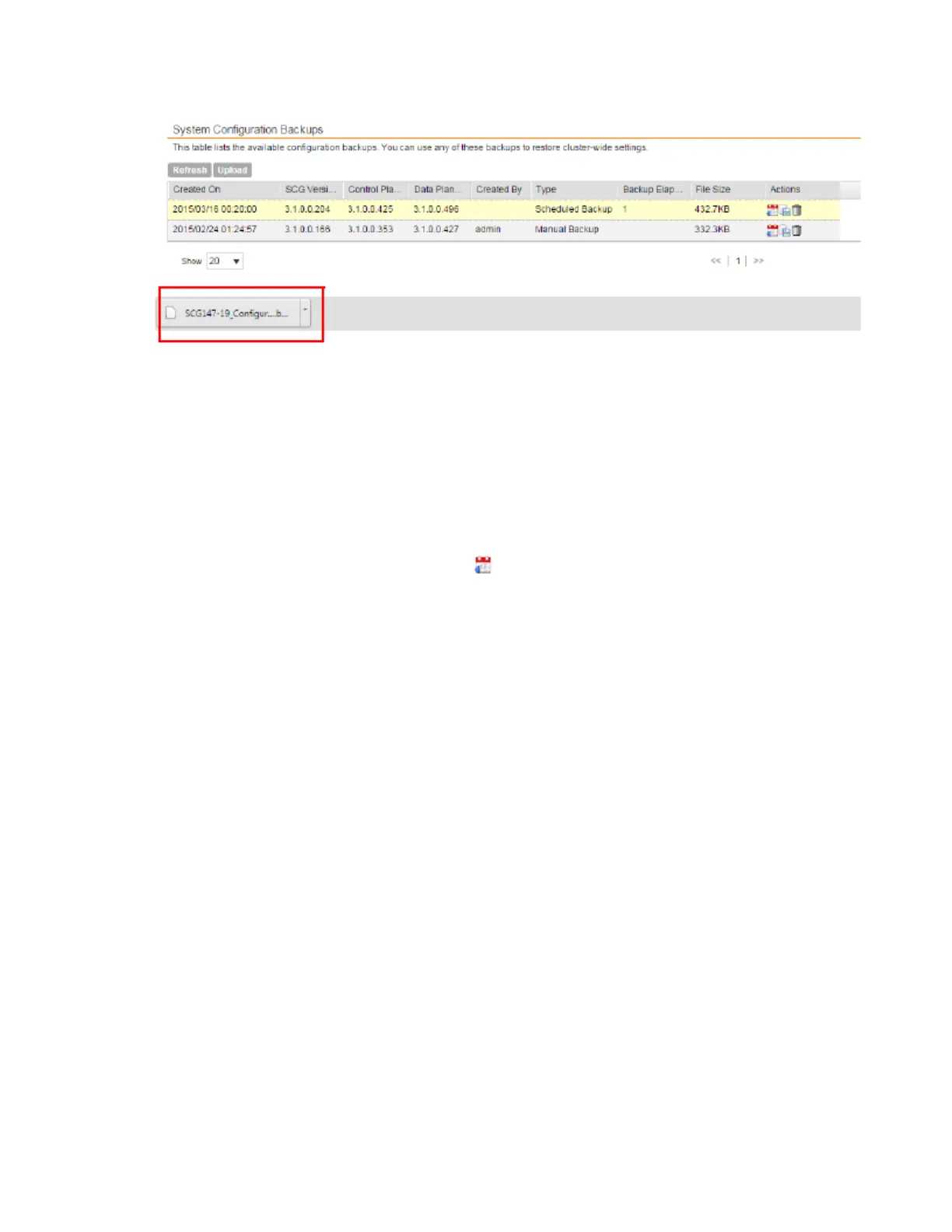
Figure 216: When your browser completes downloading the backup file, you may see a
notification at the bottom of the web page
Restoring a System Configuration Backup
Follow these steps to restore a backup controller database.
1. Go to Administration > System Configuration Backup and Restore.
2. In the System Configuration Backups section, locate the backup file that you want to
restore.
3.
Once you locate the backup file, click the icon that is in the same row as the backup file.
A confirmation message appears.
NOTE: Take note of the backup version that you are using. At the end of this procedure, you
will use the backup version to verify that the restore process was completed successfully.
4. Click Yes.
The following message appears: System is restoring. Please wait... When the
restore process is complete, the controller logs you off the web interface automatically.
5. Log on to the controller web interface.
6. Check the web interface pages (for example, Configuration, Report, and Identity) and verify
that the setting and data contained in the backup file have been restored successfully to the
controller.
You have completed restoring a system configuration backup file.
SmartCell Gateway 200/Virtual SmartZone High-Scale for Release 3.4.1 Administrator Guide
356
Performing Administrative Tasks
Backing Up and Restoring System Configuration



 To Next Page