Cloning an AP Zone from the Domain Tree
Cloning an AP zone enables you to copy the configuration of an existing zone and save it as a
new zone.
If you need to create an AP zone with configuration settings that are similar to an existing AP
zone, cloning that existing AP zone would be the easiest way to do it.
Follow these steps to clone an AP zone.
1. Go to Configuration > AP Zones.
2. In the domain tree, find the AP zone that you want to clone.
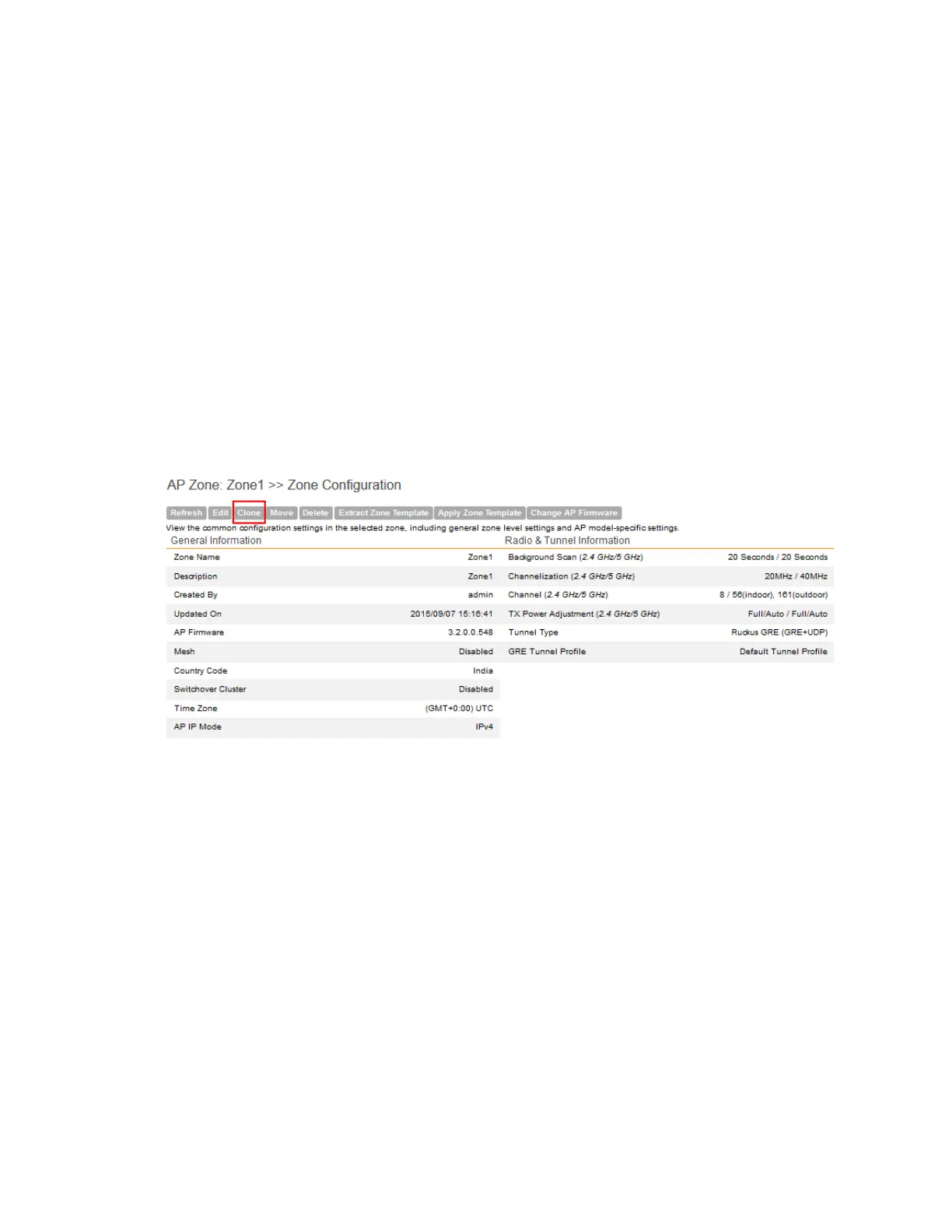
3. Click Clone.
A form appears and prompts you for the name that you want to assign to the cloned zone.
The default name is Clone of {Original Zone Name}.
4. Edit the AP zone name or leave it as is.
5. Click OK to finish cloning the AP zone.
Figure 12: Click the Clone button to save the AP zone as a new zone
Cloning an AP Zone from the AP Zone List
Another method to save an existing AP zone as a new zone is by cloning it from the AP Zone
List page.
Follow these steps to clone an AP zone from the AP Zone List page.
1. Go to Configuration > AP Zones.
2. On the AP Zones List page, find the AP zone that you want to clone.
3. Click the action icon that is in the same row as the AP zone name.
4. A form appears and prompts you for the name that you want to assign to the cloned zone.
The default name is Clone_of_{Original Zone Name}.
5. Edit the AP zone name or leave it as is.
6. Click Apply.
SmartCell Gateway 200/Virtual SmartZone High-Scale for Release 3.4.1 Administrator Guide
42
Managing Ruckus Wireless AP Zones
Working with AP Zones



 To Next Page