Configuring SoftGRE
This section describes the configuration options for the SoftGRE feature.
Creating an AP Zone That Supports SoftGRE
For information on how to create an AP zone that supports SoftGRE tunneling, see Working
with AP Zones on page 31.
NOTE: MVNO accounts are currently unsupported by SoftGRE tunnels. If you create an MVNO
account and assign an AP zone that is using a SoftGRE tunnel, an error message appears.
Changing the Tunnel Type from SoftGRE
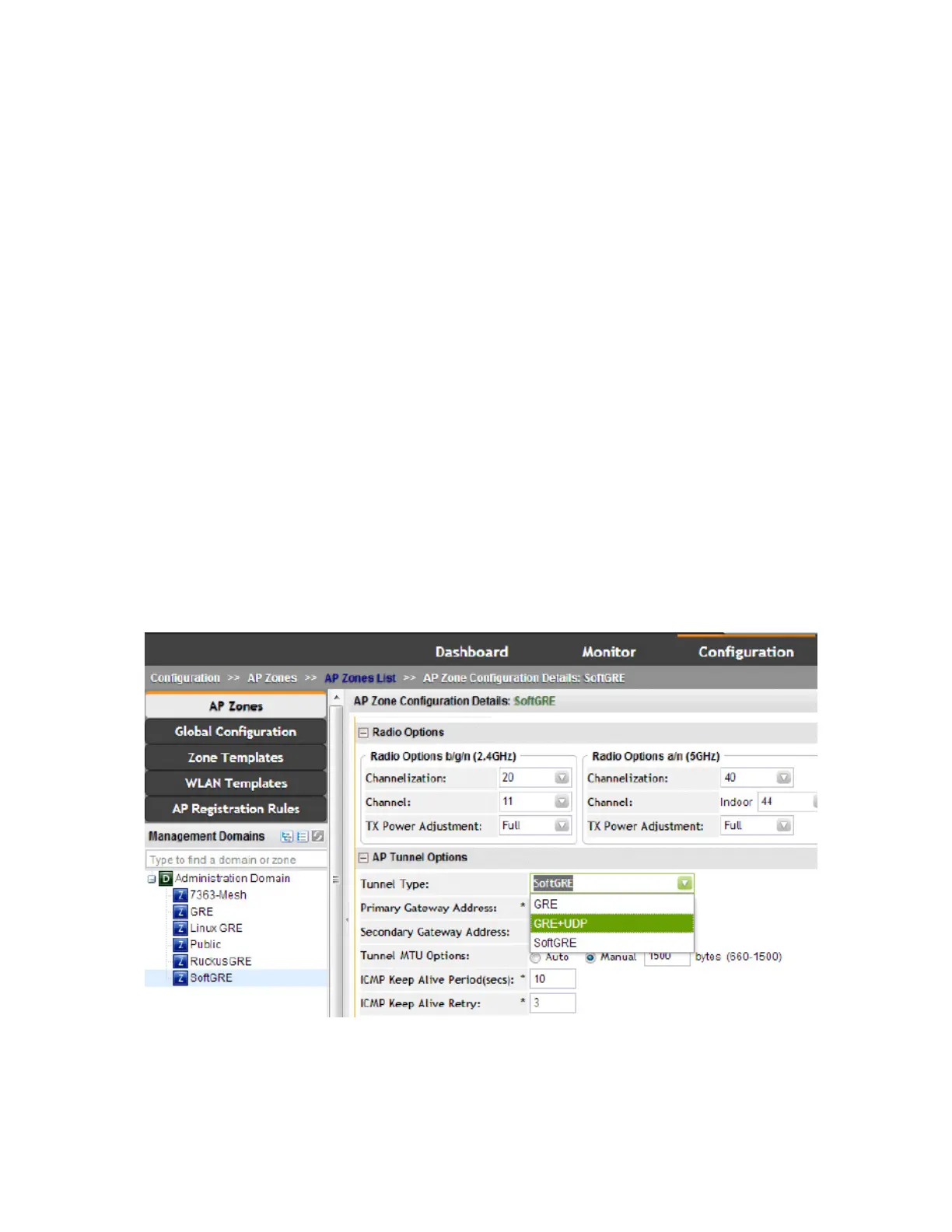
If no tunneled WLANs exist in the zone, you can change the tunnel type from SoftGRE to GRE
or GRE + UDP.
Follow these steps to change the tunnel type from SoftGRE.
1. Go to Configuration > AP Zones page.
2. On the AP Zone List page, click the name of the zone that you want to edit.
The Zone Configuration page appears.
3. Click Edit.
4. Scroll down to the AP GRE Tunnel Option section.
5. In AP Tunnel Type, select the tunnel type to which you want to change from SoftGRE.
6. Click Apply.
Figure 257: Change the tunnel type from SoftGRE to GRE or GRE+UDP
If you attempt to change the tunnel type when a tunneled WLAN exists within the zone, the
following error message appears:Unable to update the configuration of the AP
SmartCell Gateway 200/Virtual SmartZone High-Scale for Release 3.4.1 Administrator Guide
436
SoftGRE Support
Overview of SoftGRE Support



 To Next Page