party gateway via SoftGRE. Configure the desired value to be set by the Ruckus Wireless
AP.
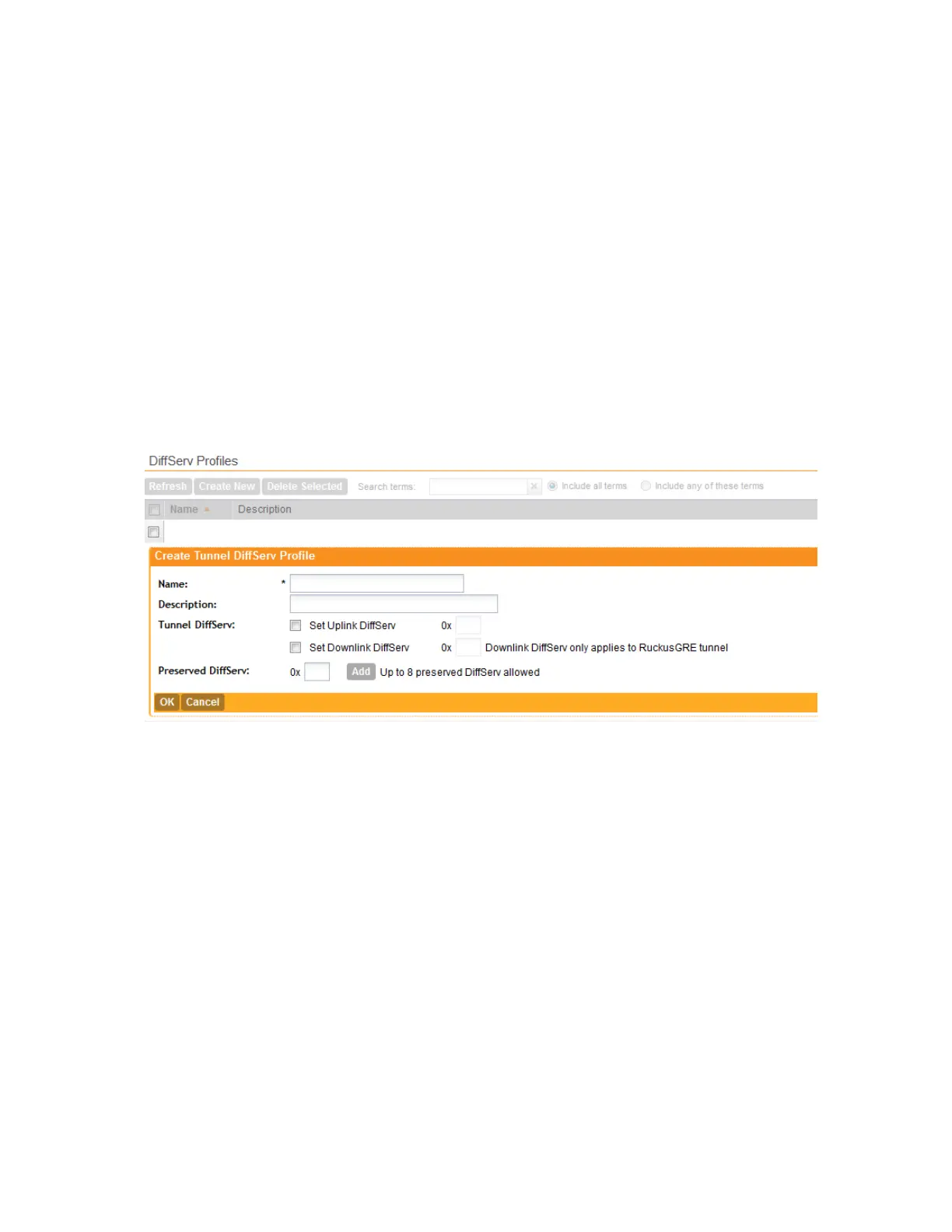
• Set Downlink DiffServ: Select the check box if you want to set the Differentiated Services
field for downlink user traffic from the controller towards the AP, and then configure the
desired value to be set by the Ruckus Wireless AP.
6. In Preserved DiffServ, configure up to eight (8) entries in the preserved DiffServ list. The
Preserved DiffServ list allows the preservation of values that have been already marked in
incoming packets either in uplink or downlink traffic.
7. Click OK.
The page refreshes, and then the DiffServ profile you created appears on the page.
You have completed creating a DiffServ profile.
NOTE: Control DSCP can be configured from the controller's CLI.
Figure 33: The Create Tunnel DiffServ Profile form
Creating an Ethernet Port Profile
An Ethernet port profile contains settings that define how an AP will handle VLAN packets when
its port is designated as either trunk, access, or general port. By default, two Ethernet port
profiles exist: Default Access Port and Default Trunk Port.
Follow the steps to create an Ethernet port profile.
1. On the menu, click Configuration > AP Zones.
2. On the sidebar, click Ethernet Port.
The Ethernet Port Profiles page appears.
3. Click Create New.
The Create New Ethernet Port form appears.
4. Configure the options that appear in the form.
SmartCell Gateway 200/Virtual SmartZone High-Scale for Release 3.4.1 Administrator Guide
93
Managing Ruckus Wireless AP Zones
Creating an Ethernet Port Profile



 To Next Page