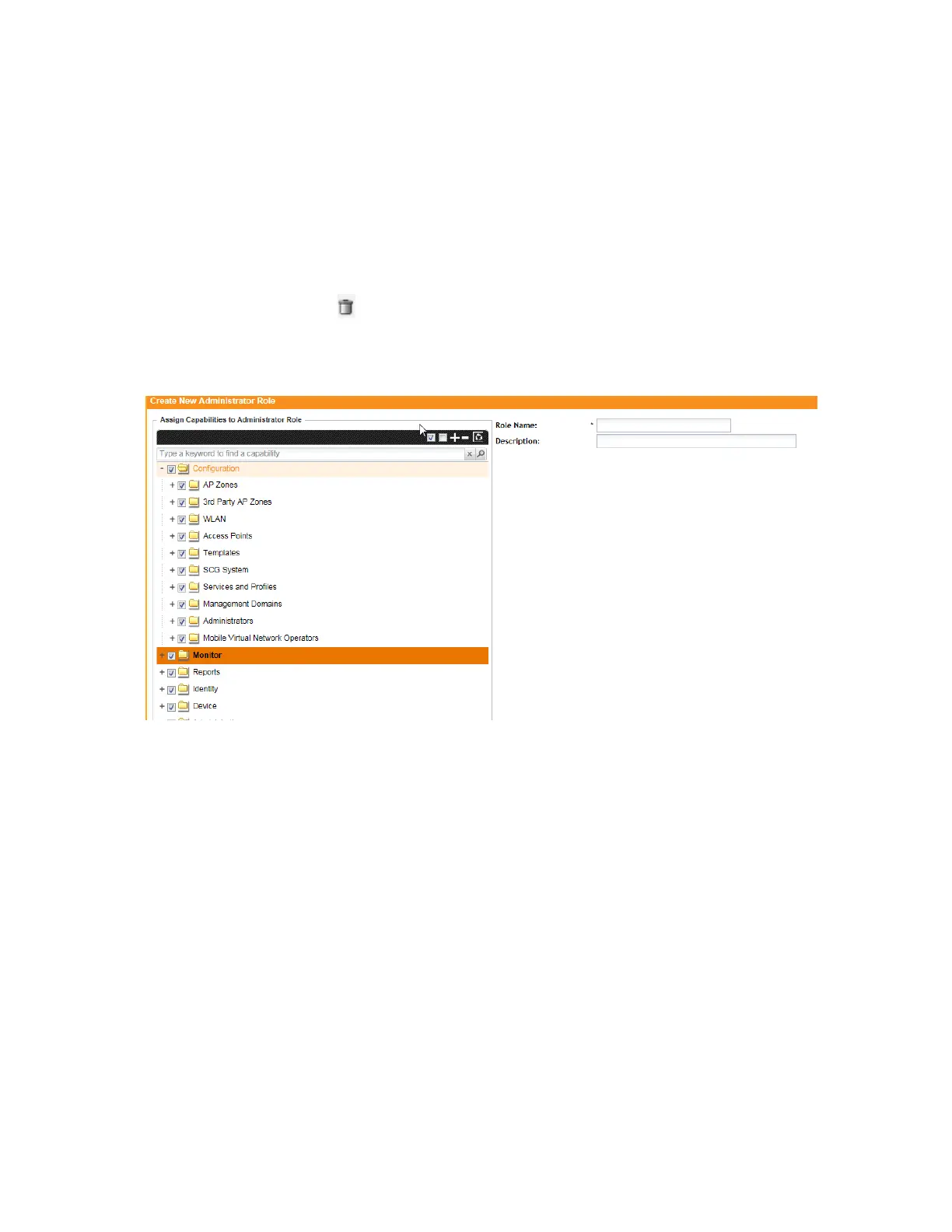
2. In Role Name, type a name for the administrator role that you are creating.
3. In Description, type a short description for the administrator role.
4. In the Assign Capabilities to Administrator Role tree (located on the left side of the form),
select the administrator capabilities that you want to assign to this role.
If you plan to grant this administrator role most of the capabilities that are available, click
Select All, and then clear the check boxes for the capabilities that you do not want this role
to have.
5.
Remember to click the icon next to each folder to view all capabilities that are included.
6. Click Create New.
You have completed creating an administrator role.
Figure 135: The Create New Administrator Role form
Editing an Administrator Role
An administrator role defines the tasks that an administrator can perform, and it can be edited.
Follow these steps to edit an existing administrator role.
1. In the Administrator Roles section, locate the role that you want to edit.
2. Click the name of the administrator role that you want to edit.
The Edit Administrator Role form appears.
3. In the Assign Capabilities to Administrator Role tree (located on the left side of the form),
add or remove capabilities from the role.
Remember to click the icon next to each folder to view all capabilities that are included.
4. To add a capability, select the check box next to it.
SmartCell Gateway 200/Virtual SmartZone High-Scale for Release 3.4.1 Administrator Guide
253
Managing Administrator Accounts
Editing an Administrator Role



 To Next Page