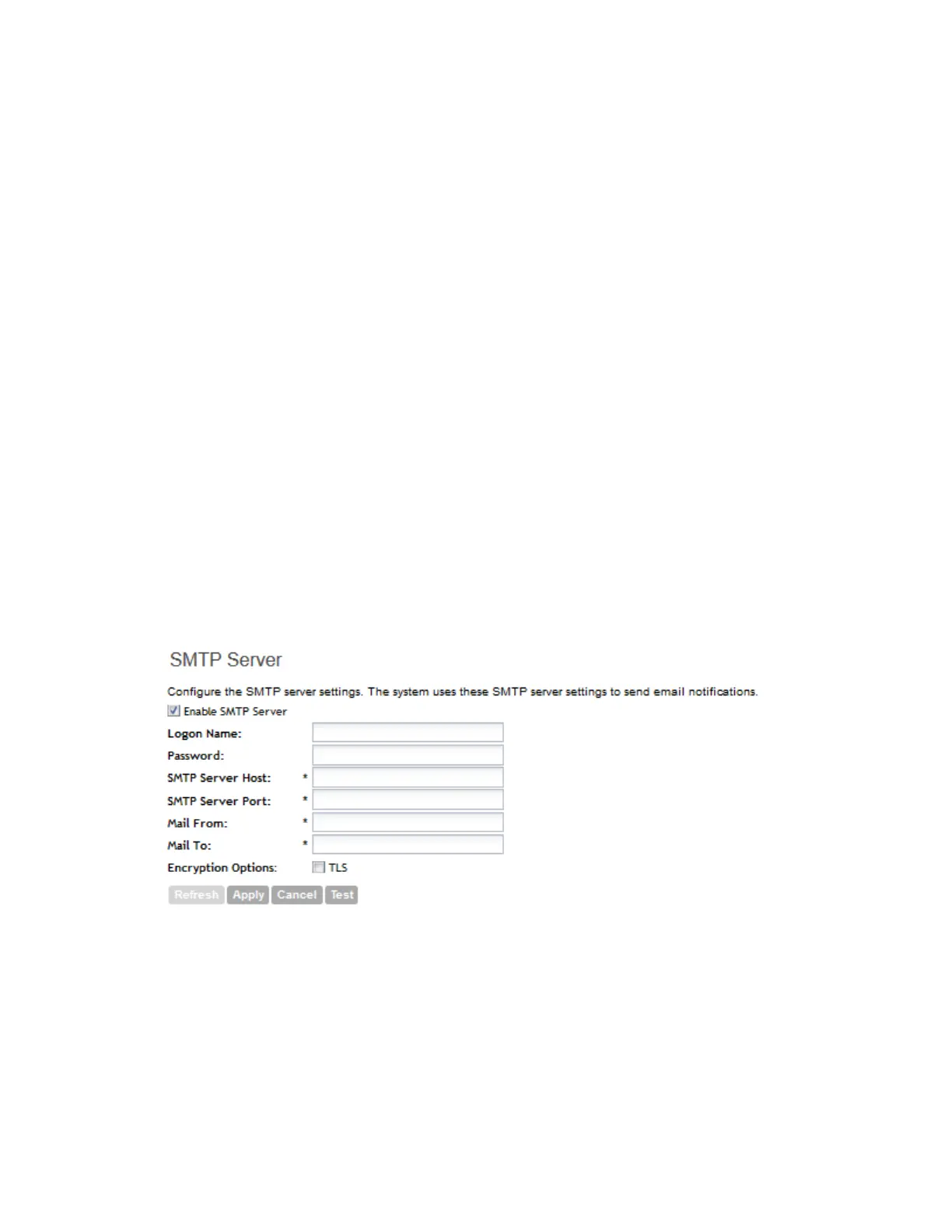
1. Go to the SMTP Server Settings section.
2. Select the Enable SMTP Server check box.
3. In Logon Name, type the logon or user name provided by your ISP or mail administrator.
This might be just the part of your email address before the @ symbol, or it might be your
complete email address. If you are using a free email service (such as Hotmail
™
or Gmail
™
),
you typically have to type your complete email address.
4. In Password, type the password that is associated with the user name above.
5. In SMTP Server Host, type the full name of the server provided by your ISP or mail
administrator.
Typically, the SMTP server name is in the format smtp.company.com.
6. In SMTP Server Port, type the SMTP port number provided by your ISP or mail administrator.
Often, the SMTP port number is 25 or 587. The default SMTP port value is 25.
7. In Mail From, type the email address from which the controller will send email notifications.
8. In Mail To, type the email address to which the controller will send alarm messages. You can
send alarm messages to a single email address.
9. If your mail server uses encryption, select the encryption method in Encryption Options.
Options include TLS and STARTTLS. Check with your ISP or mail administrator for the correct
encryption settings that you need to set.
10. Click Apply.
Figure 100: The SMTP Server Settings section
Configuring the FTP Server Settings
Follow these steps to configure the FTP server settings for uploading raw report data (in CSV
format).
1. Go to the FTP Settings for Uploading Statistics section.
SmartCell Gateway 200/Virtual SmartZone High-Scale for Release 3.4.1 Administrator Guide
208
Configuring the System Settings
Configuring General System Settings



 To Next Page