Working with DNS Server Services
The DNS Server Services provides and option to override and DNS server. When the option of
override a DNS server is enabled, the AP associated with it retrieves the DNS server configuration
from the controller, and applies the configuration to the DNS server service.
Creating a DNS Server Services Profile
The DNS server service configured for an AP allows it to retrieve the DNS server configuration.
Follow these steps to create a DNS server services profile.
1. Go to Configuration > Services & Profiles > Service Profiles > DNS Server Services.
The DNS Server Services page appears.
2. Click Create New.
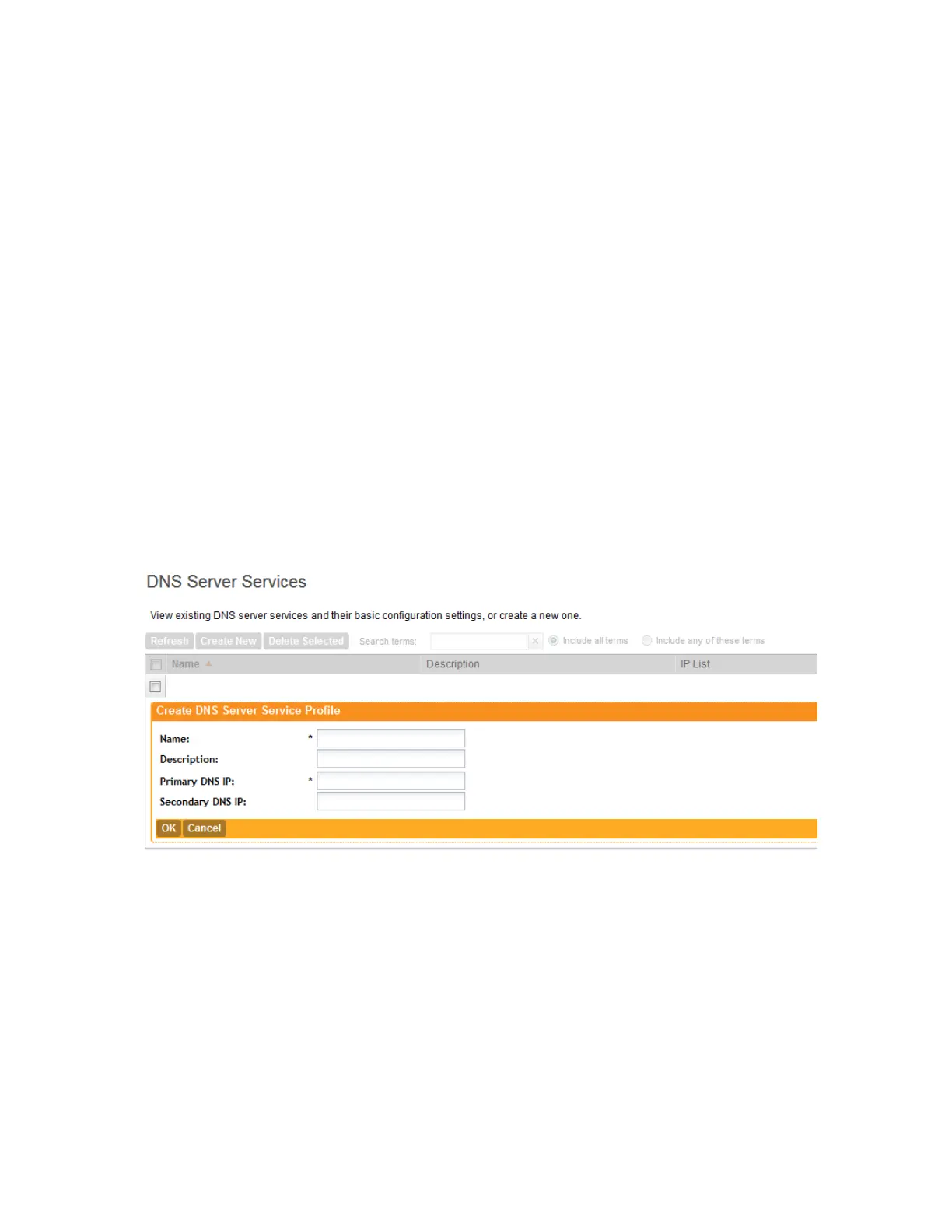
The Create DNS Server Services Profile page appears.
3. In Name, type a name for this profile.
4. In Description, type a short description for this profile.
5. In Primary DNS IP, type the IP address of the primary DNS server.
6. In the Secondary DNS IP, type the IP address of the secondary DNS server.
7. Click OK.
You have completed creating a DNS server service profile.
Figure 88: Create DNS Server Services Profile form
Viewing DNS Server Services Profiles
A DNS server services profile retrieves the configuration of the DNS server and applies it to the
controller.
Follow these steps to view a list of existing DNS server services profiles.
Go to Configuration > Services & Profiles > Service Profiles > DNS Server Services.
The DNS Server Services page appears and displays all existing DNS Server Services
profiles.
SmartCell Gateway 200/Virtual SmartZone High-Scale for Release 3.4.1 Administrator Guide
188
Configuring Services and Profiles
Working with Profiles



 To Next Page