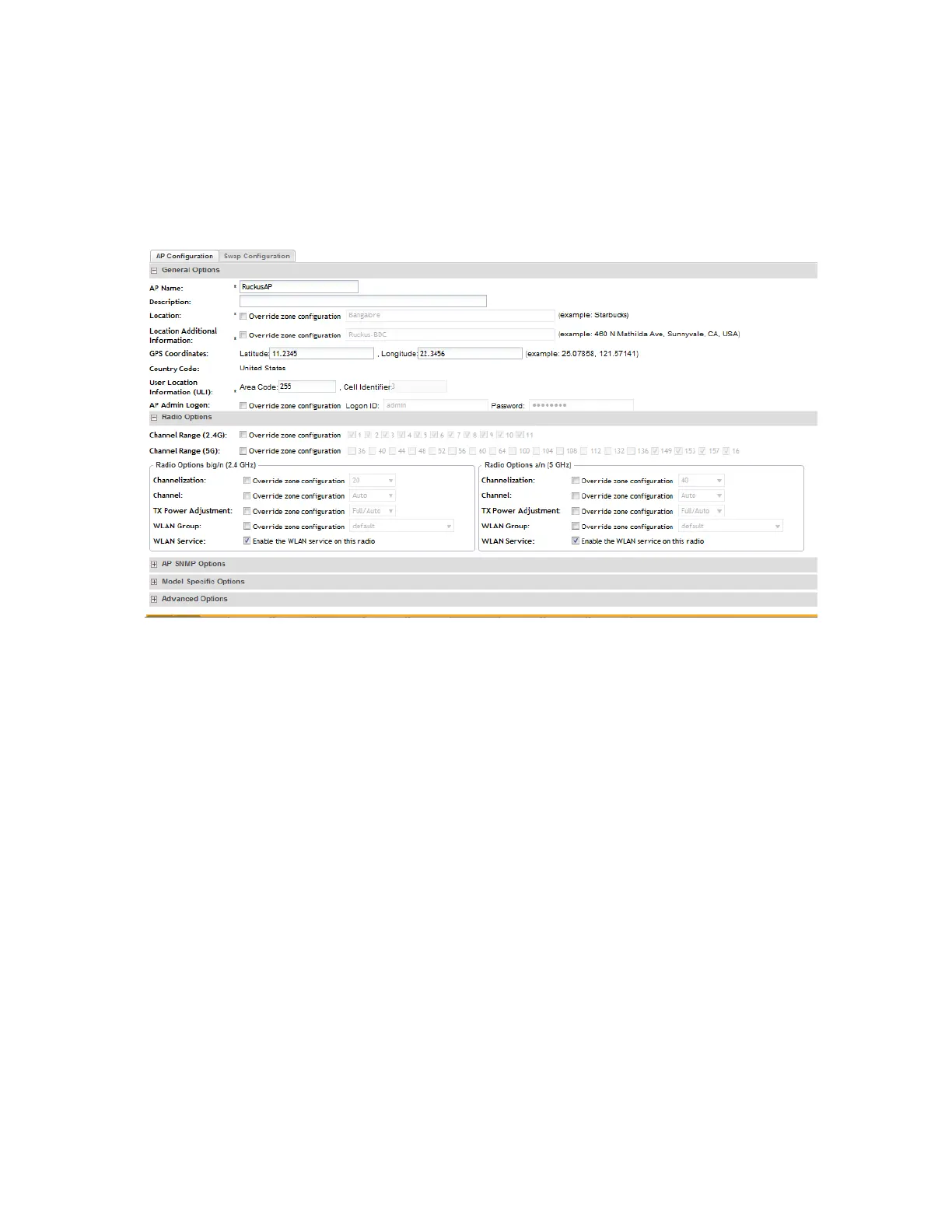
NOTE: The loc parameter (which holds the Location attribute in the AP configuration) in the
controller's Captive Portal redirection to the configured hotspot login portal is encoded using
the Hex encoder from the org.apache.commons.codec.binary library. If you have hotspots on
the network and you are using an external portal, take note of the encoding mechanism for the
loc parameter so your external portal can decode it.
Figure 56: The AP Configuration form
Editing Swap Configuration
The controller supports the swapping or replacement of a managed AP with a new AP of the
same model. This feature is useful when you want to avoid service interruption because you
need to replace an AP in the field.
By configuring the swap settings, you can easily and automatically export and apply the settings
of the old AP to the new AP.
Follow these steps to configure the swap settings of an AP.
1. On the AP List page, locate the access point whose swap configuration you want to update.
2. Click the AP MAC address of the access point.
3. Click the Swap Configuration tab.
4. Update the access point configuration by modifying the options in the form.
5. Click OK.
You have completed editing the swap configuration.
SmartCell Gateway 200/Virtual SmartZone High-Scale for Release 3.4.1 Administrator Guide
147
Managing Access Points
Editing Swap Configuration



 To Next Page