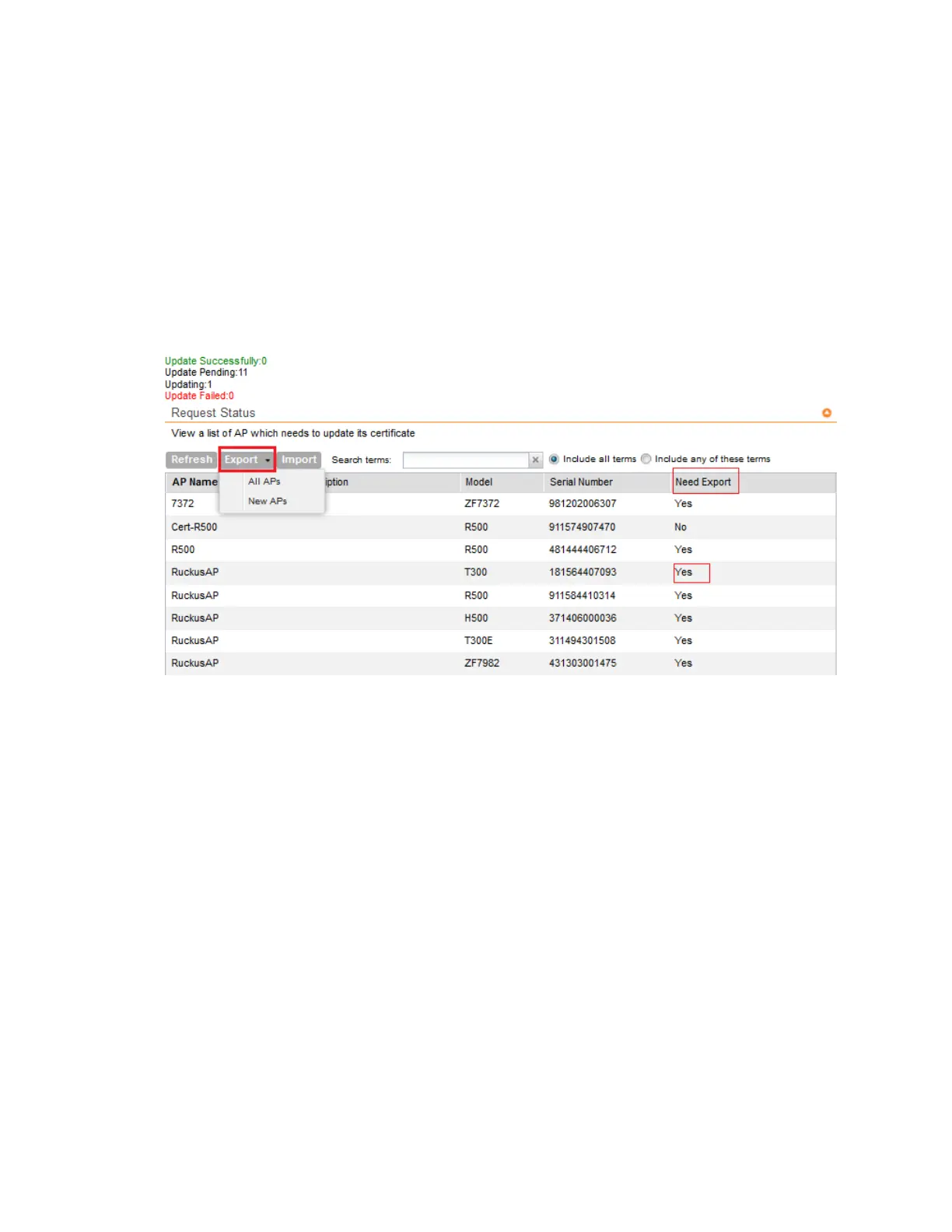
If the AP is updating, the status displayed against the AP is Updating. If the AP certificate
does not update, the status displayed against the AP is Update Failed.
NOTE: The AP reports to the controller at 15-minute intervals. As a result, it may take up to
15 minutes for the AP to update its certificate status on the web interface.
3. Click Request Updated Failed AP to reset the status of the APs for which certification update
failed.
After reset, the status of the AP in the Request Status section change. APs in need of a new
certificate display Yes in the Need Export column.
Figure 241: APs requiring new
certificates
Use the Search terms option to look for APs by name, model, serial number, or description.
Managing Licenses
Depending on the number of Ruckus Wireless APs that you need to manage with the controller,
you may need to upgrade the controller license as your network expands.
The maximum number of access points that the controller can manage is controlled by the
license file that came with the controller. If the number of access points on the network exceeds
the limit in the license file, you will need to obtain an additional license file and upload it to the
controller.
NOTE: For information on obtaining additional license files, contact Ruckus Wireless Support
or an authorized Ruckus Wireless reseller.
The maximum number of access points that a license supports depends on its stock-keeping
unit (SKU).
SmartCell Gateway 200/Virtual SmartZone High-Scale for Release 3.4.1 Administrator Guide
379
Performing Administrative Tasks
Managing Licenses



 To Next Page