Testing an AAA Server
To ensure that the controller administrators will be able to authenticate successfully with the
RADIUS server type that you selected, Ruckus Wireless strongly recommends testing the AAA
server after you set it up.
The test queries the RADIUS server for a known authorized user and return groups associated
with the user that can be used for configuring roles within the controller. Follow these steps to
test an AAA server.
1. Go to Configuration > Administrators.
2. Scroll down to the RADIUS Servers for Administrators section.
3. Click Test AAA.
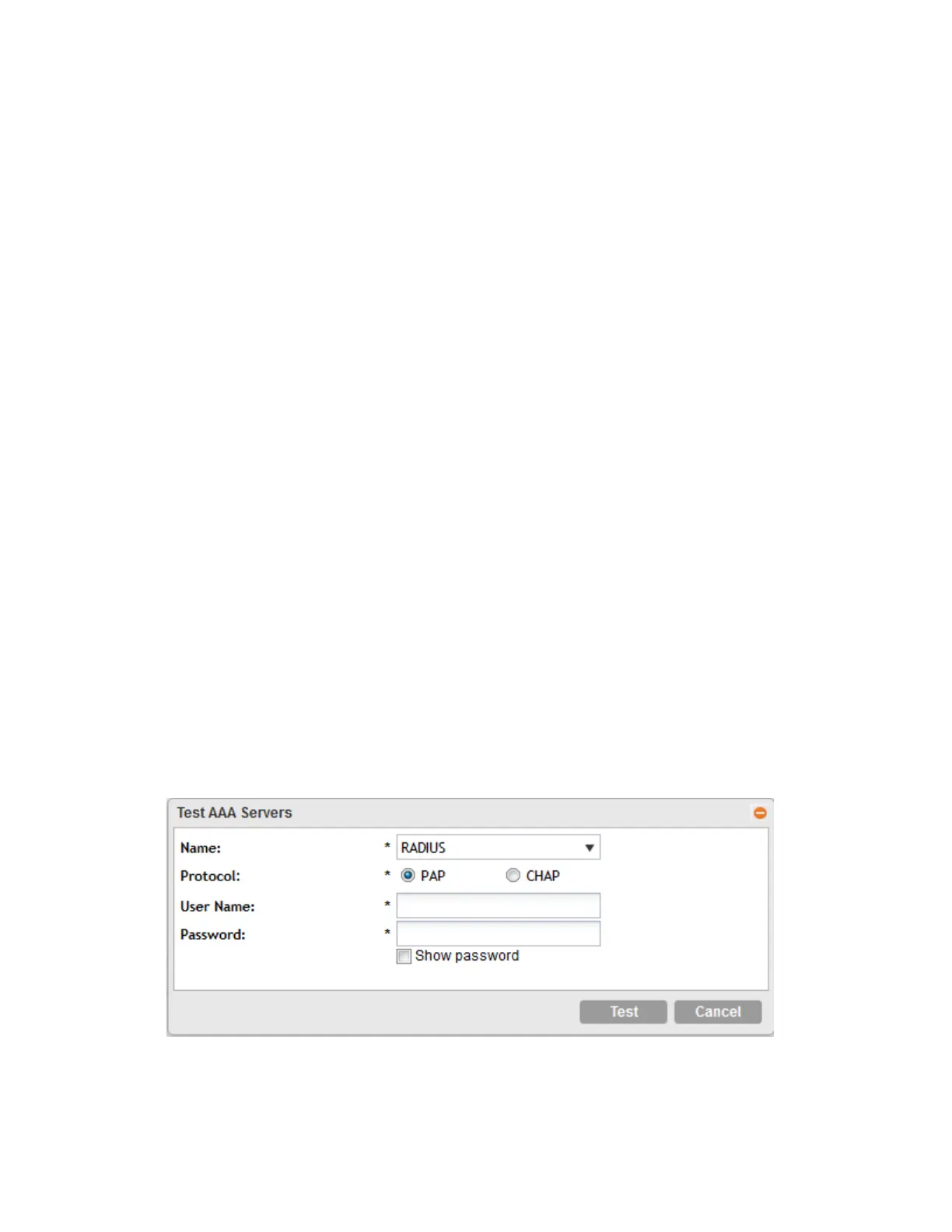
The Test AAA Servers form appears.
4. In Name, select one of the AAA servers that you previous created.
5. In Protocol, select the Password Authentication Protocol (PAP), or the Challenge Handshake
Authentication Protocol (CHAP) to authenticate the AAA server.
6. In User Name, type an existing user name on the AAA server that you selected.
7. In Password, type the password for the user name you specified.
8. Click Test.
If the controller was able to connect to the authentication server and retrieve the configured
groups/attributes, the information appears at the bottom of the page.
If the test was unsuccessful, there are two possible results (other than success) that will be
displayed to inform you if you have entered information incorrectly:
• Admin invalid
• User name or password invalid
These results can be used to troubleshoot the reasons for failure to authenticate administrators
with an AAA server through the controller.
Figure 138: The Test AAA Servers form
SmartCell Gateway 200/Virtual SmartZone High-Scale for Release 3.4.1 Administrator Guide
259
Managing Administrator Accounts
Testing an AAA Server



 To Next Page