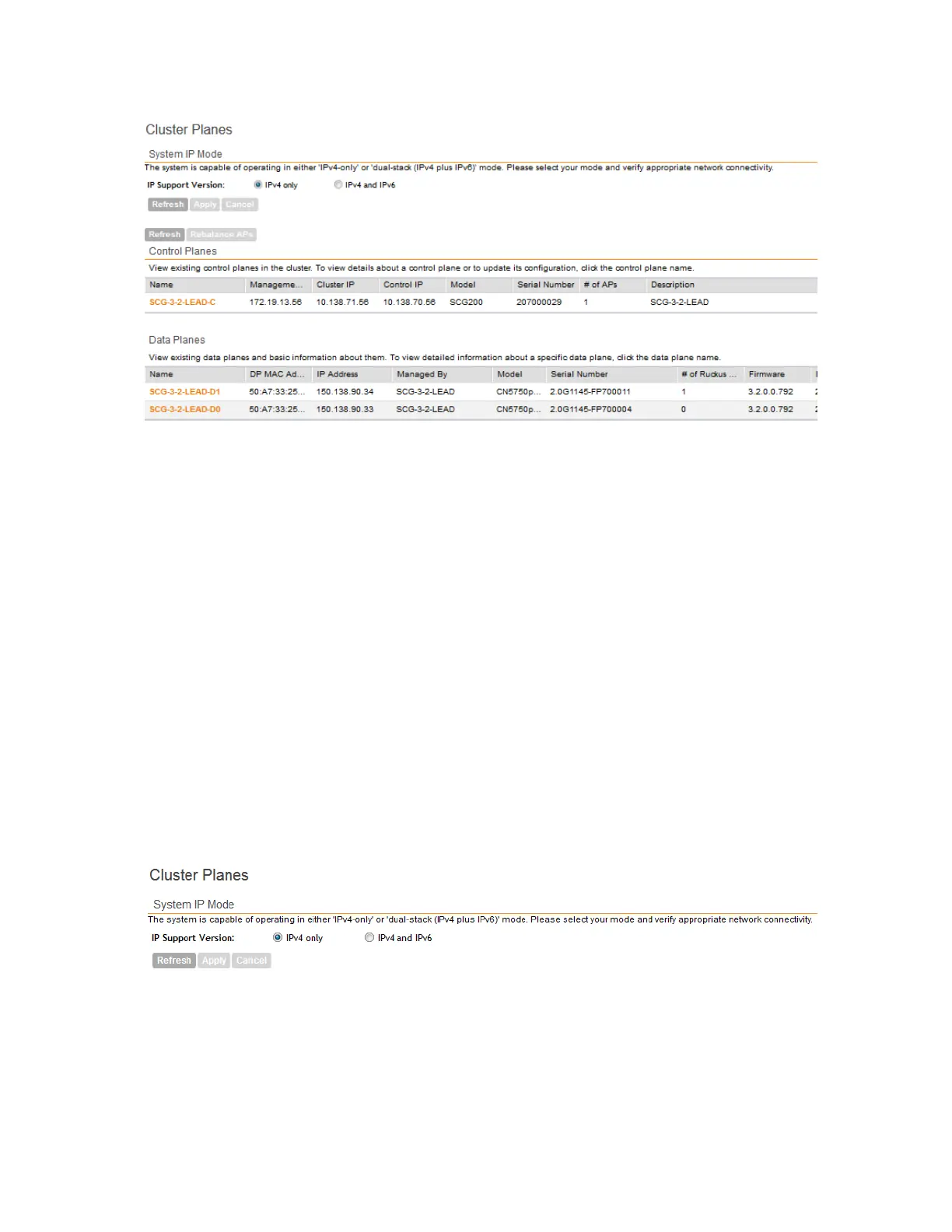
Figure 111: Cluster Plane view
Setting the System IP Mode
The controller supports IPv4 only and IPv4 and IPv6 addressing modes. The system IP mode
controls the format of the IP address that you need to enter in a number of IP address-related
settings (for example, cluster plane addresses, static routes, management ACLs, etc.).
Follow these steps to change the controller’s system IP mode.
1. Go to Configuration > System.
2. On the sidebar, click Cluster Planes.
3. In the System IP Mode section, select the system IP mode that you want to controller to
use. Options include:
• IPv4 Only
• IPv4 and IPv6
4. Click Apply.
You have completed setting the system IP mode.
Figure 112: The System IP Mode section
SmartCell Gateway 200/Virtual SmartZone High-Scale for Release 3.4.1 Administrator Guide
220
Configuring the System Settings
Configuring Cluster Planes



 To Next Page