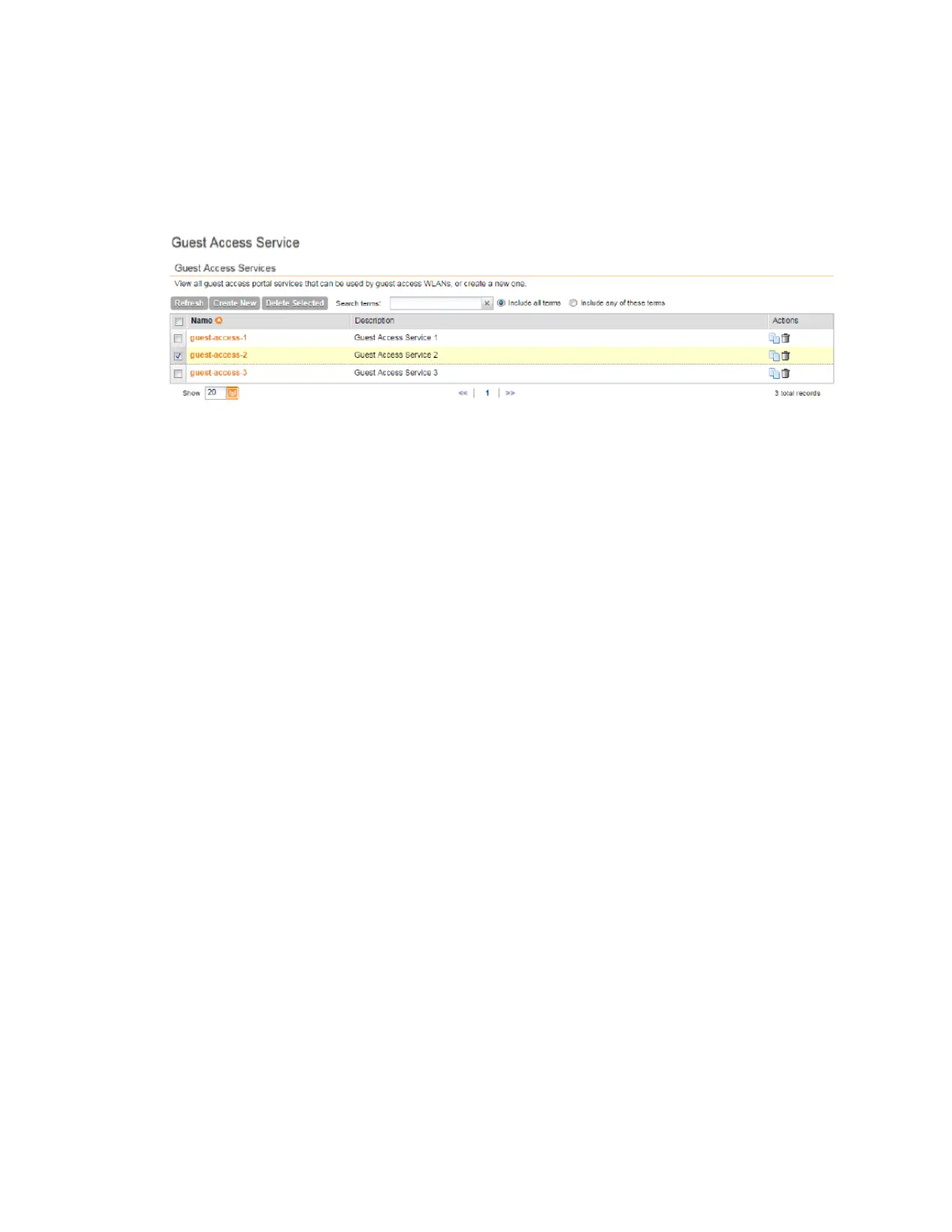
• Description
• Actions (that you can perform)
4. To view or update the settings of a guest access portal, click the guest access portal name.
You have completed viewing the existing guest access portals.
Figure 23: Viewing guest access portals
Deleting Guest Access Portals
Follow these steps to delete guest access portals.
1. On the AP Zone List page, click the AP zone for which you created the guest access portal.
2. On the sidebar, click Guest Access.
The Guest Access Portal page appears.
3. Locate the service or services that you want to delete.
4. Select the check boxes (first column) for the services that you want to delete.
5. Click Delete Selected.
The services that you selected disappear from the list.
You have completed deleting guest access portals.
NOTE: If you are deleting a single guest access portal, you can also click the icon (under the
Actions column) that is in the same row as the service that you want to delete.
Working with Web Authentication Portals
A web authentication portal (also known as a “captive portal”) redirects users to a logon web
page the first time they connect to a WLAN, and requires them to log on before granting access
to use the WLAN.
Creating and configuring a web authentication portal requires the following steps:
SmartCell Gateway 200/Virtual SmartZone High-Scale for Release 3.4.1 Administrator Guide
64
Managing Ruckus Wireless AP Zones
Working with Web Authentication Portals



 To Next Page