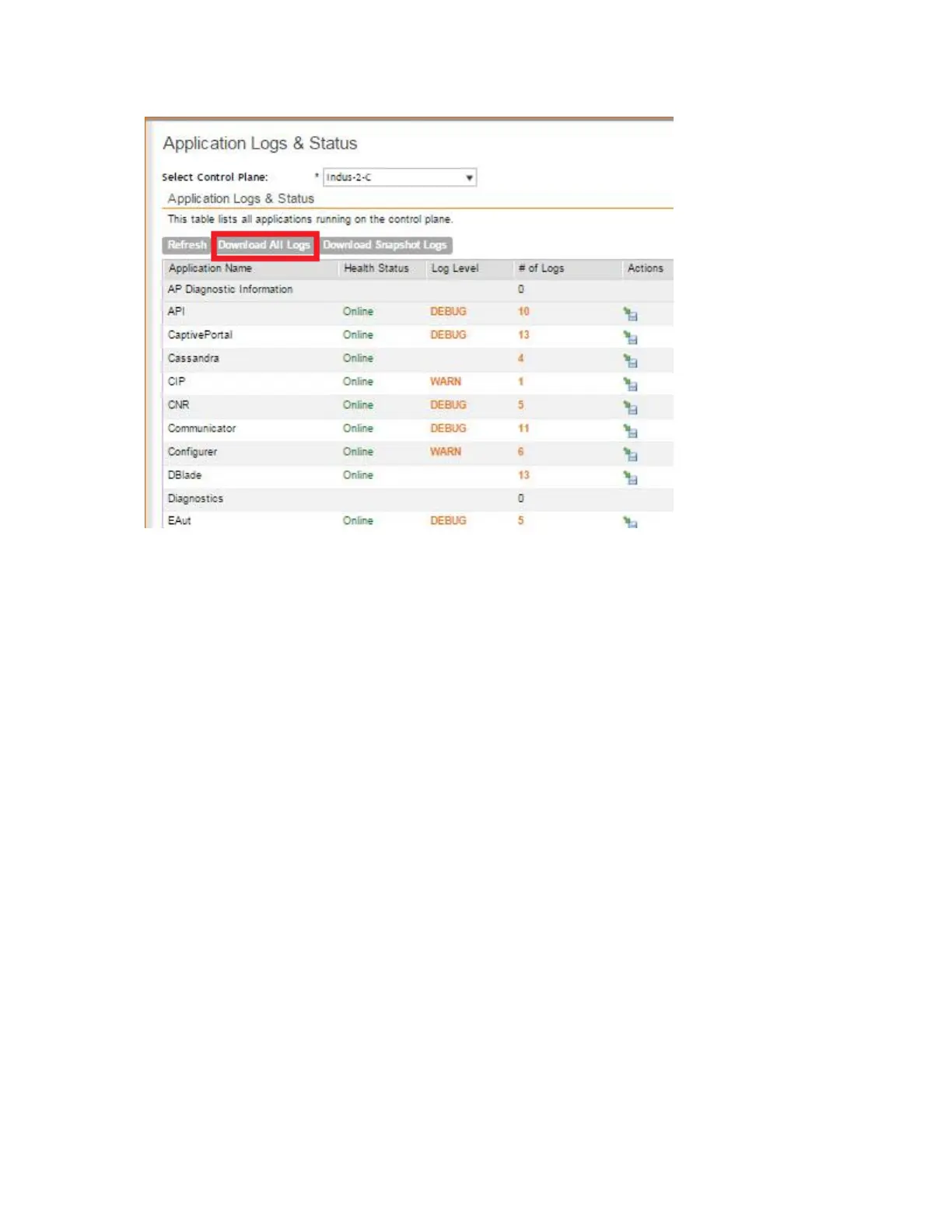
Figure 229: Click the Download All Logs button
Downloading Snapshot Logs Generated from the CLI
Snapshot logs contain system and configuration information, such as the AP list, configurations
settings, event list, communicator logs, SSH tunnel lists, etc. If you triggered the controller to
generate a snapshot from the CLI, you have the option to download snapshot logs from the
web interface.
Follow these steps to download the CLI-generated snapshot logs from the web interface.
1. On the CLI, trigger the controller to generate a snapshot.
2. Log on to the web interface.
3. Go to Administration > Diagnostics.
4. On the sidebar, click Application Logs & Status.
5. Click Download Snapshot Logs.
Your web browser downloads a tar (.TGZ) file that contains all available snapshot logs.
6. Go to your browser's default download folder, and then verify that the snapshot log file or
files have been downloaded successfully.
7. Extract the contents of the tar file.
You have completed downloading snapshot logs from the controller.
SmartCell Gateway 200/Virtual SmartZone High-Scale for Release 3.4.1 Administrator Guide
370
Performing Administrative Tasks
Working with Logs



 To Next Page