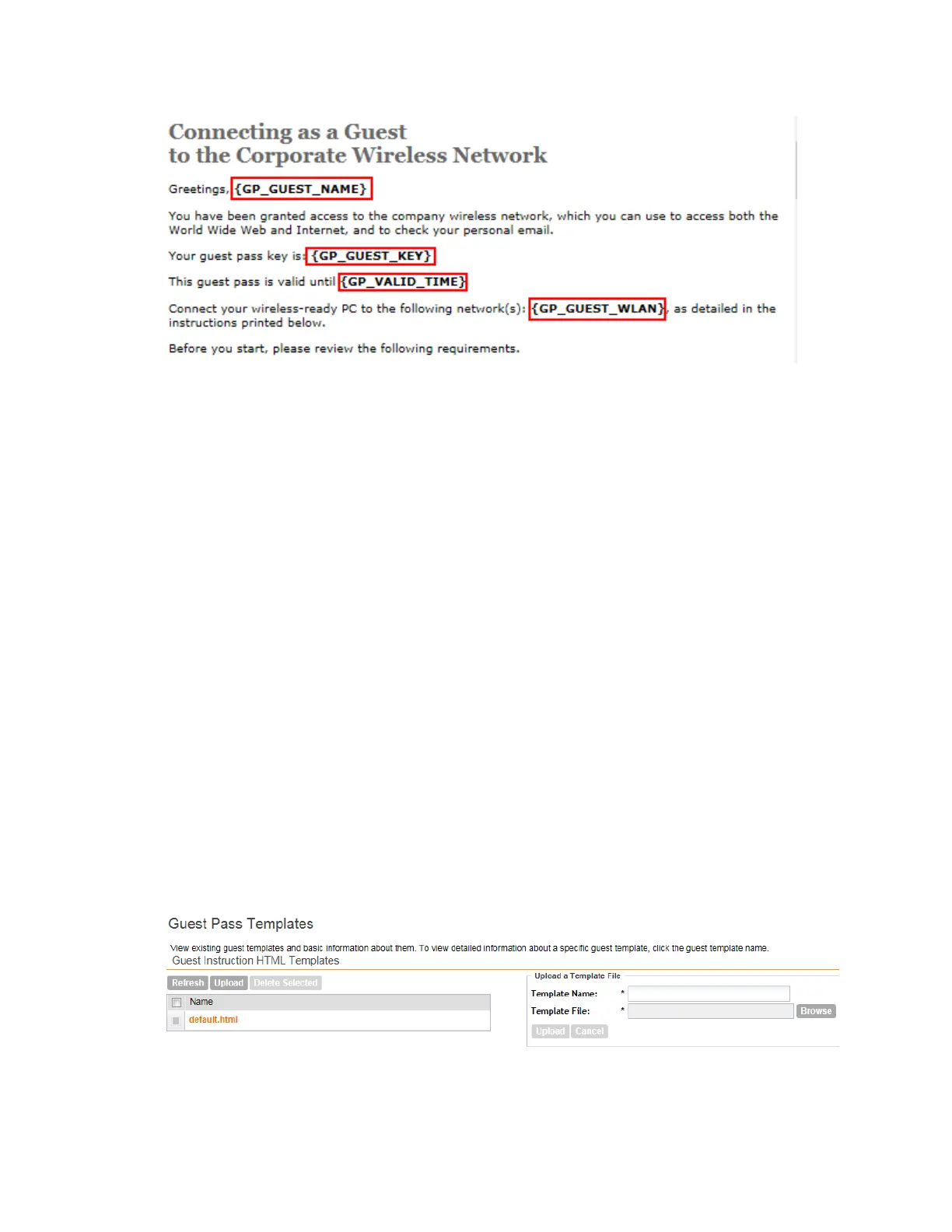
Figure 190: Content of the default printout template
5. Insert the following variables into the content of your template:
• {GP_GUEST_NAME}: This is the guest pass user name.
• {GP_GUEST_KEY}: This is the guest pass key.
• {GP_VALID_TIME}: This is the expiration date and time of the guest pass.
• {GP_GUEST_WLAN}: This is the WLAN with which the guest user can associate using
the guest name and guest key.
6. Save the file.
7. On the Manage Guest Instruction Templates page, click the appropriate Upload button
for the template that you are creating.
The Upload a Template File form appears on the right side of the page.
8. Configure the Upload a Template File options:
a) Template Name: Type a name for the template that you are uploading.
b) Template File: Click Browse, and then select the template file you created.
9. Click Upload.
An information message box appears and informs you that the template file has been uploaded
successfully.
10. Click OK.
The template file you uploaded now appears on the list of templates.
Figure 191: The Upload a Template File form
SmartCell Gateway 200/Virtual SmartZone High-Scale for Release 3.4.1 Administrator Guide
336
Working with Local, Guest, and Remote Users
Working with Local, Guest, and Remote Users



 To Next Page