DescriptionColumn Name
Indicates whether mesh networking is enabled on the access point
and the mesh role that is assigned to it. Possible values include:
Disabled: Mesh networking is disabled.
Mesh Role
Mesh AP
Root AP
eMesh AP
If mesh networking is enabled, this indicates the mesh role (Root AP,
Mesh AP, or Disable) of the AP
Mesh Mode
Indicates the radio channels used by the AP to provide WLAN
services
Channel
Indicates whether the access point is currently connected (online) or
disconnected (offline)
Status
Indicates the number of wireless clients that are currently associated
with the access point. Clicking the number of clients (link, except
# of Clients
when zero) loads a page that displays detailed information about the
wireless clients. See Viewing a Summary of Wireless Clients on page
294.
Indicates the date and time when the access point last reported to
the controller
Last Seen
Provision Stage
Shows either Locked or Unlocked.Administrative State
Shows either Discovery, Approved, or Rejected.Registration State
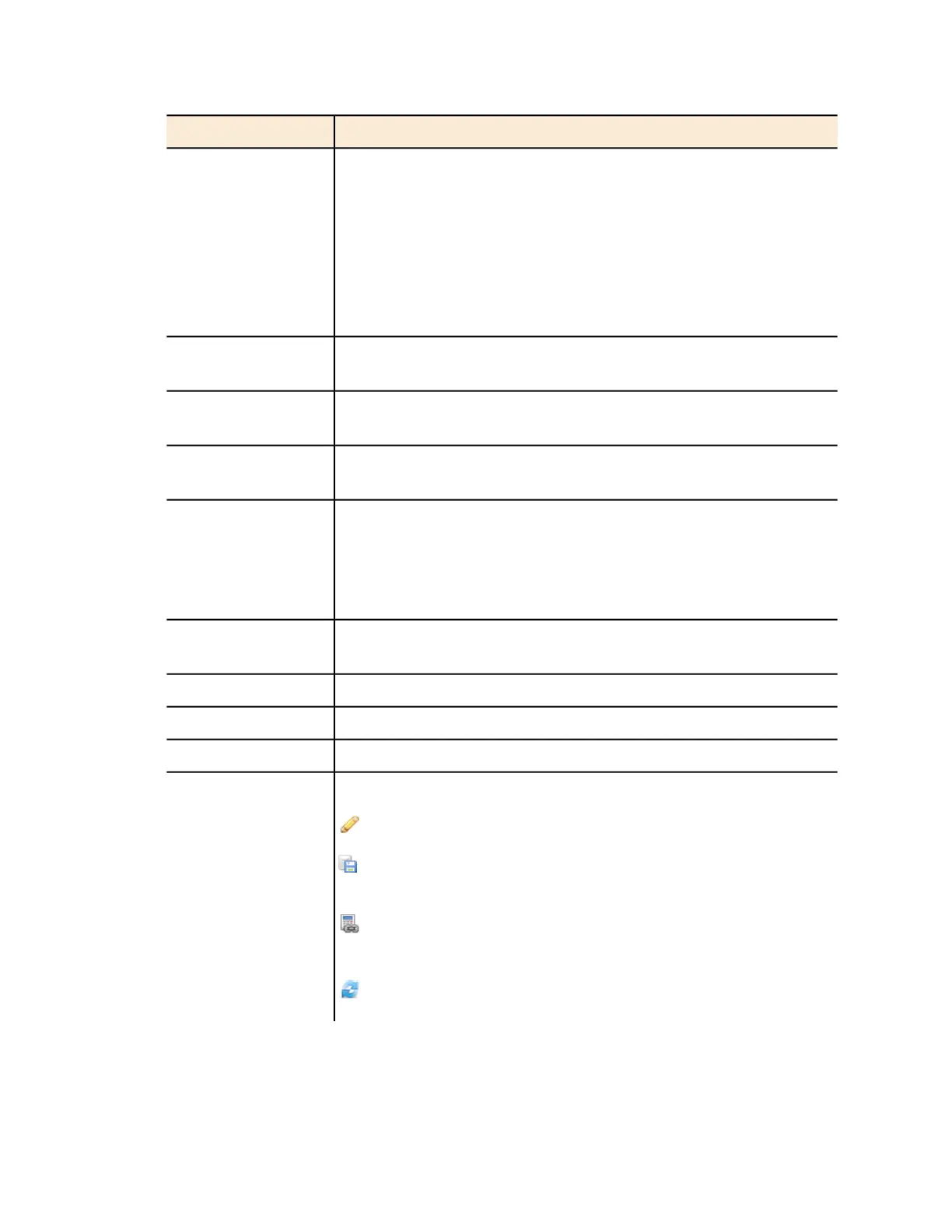
Icons for actions that you can perform, including:
– Click to view detailed configuration of this access point.
Actions
– Click to download the support log from this access point. See
Downloading the Support Log from an Access Point on page 291.
– Click to run network connectivity tests (PING and traceroute)
on this access point.
– Click to restart the access point.
SmartCell Gateway 200/Virtual SmartZone High-Scale for Release 3.4.1 Administrator Guide
289
Monitoring AP Zones, Access Points, and Wireless Clients
Monitoring Managed Access Points



 To Next Page