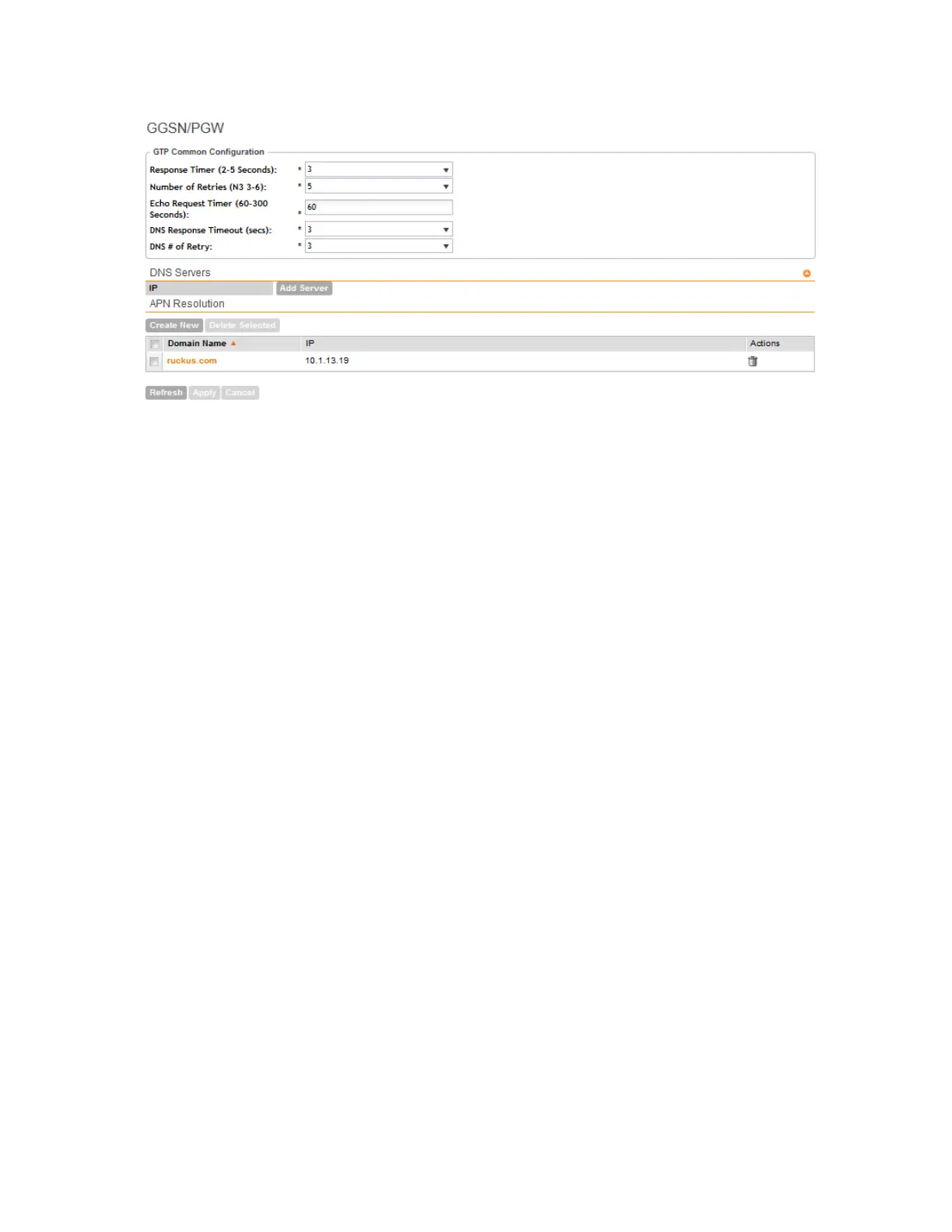
Figure 59: The GGSN services configuration page
Follow these steps to configure the GGSN/PGW service.
1. Go to Configuration > Services & Profiles.
2. On the sidebar (under Services), click GGSN.
3. In the GTP Common Configuration section, configure the following options:
• Response Timer: Define the response expected from GGN server from the drop down
list, which ranges from 2 to 5 seconds. The controller will try contacting GGSN during a
call establishment.
• Number of Retries: Define the number of times that the controller will attempt to contact
the GGSN. If all attempts fail, the relevant alarm is raised to confirm the failure of the GGSN
path. For example, if the response timer is 3 and the number of retries is 5, it means that
for each retry, the controller will attempt to contact the GGSN for 3 seconds.
• Echo Request Timer: Define number of seconds that the GGSN waits before sending
an echo-request message to check for GTP path failure.
• DNS Response Time: Specify the maximum time that DNS waits for a response from a
signaling request message.
• DNS # Retry: specify the maximum number of times that the DNS attempts to send a
signaling request.
4. In the DNS Servers section, click Add Server to add a DNS IP address.
If you’re adding multiple DNS IP addresses, you can set their priority by clicking the Move
Up and Move Down buttons. DNS servers that are higher up on the list of servers are given
higher priority.
5. In the APN Resolution section, click Create New to define the IP address of the GGSN that
should serve the AP.
6. Configure the following options:
• Domain Name: Type the GGSN domain name.
• IP Address: Type the GGSN IP address.
SmartCell Gateway 200/Virtual SmartZone High-Scale for Release 3.4.1 Administrator Guide
152
Configuring Services and Profiles
Configuring the GGSN/PGW Service



 To Next Page