NOTE: Before you can test the AAA server configuration, you must have created an AAA server.
See Adding an Authentication Service for more information.
Follow these steps to test the AAA server configuration.
1. Go to Configuration > Services & Profiles.
2. On the sidebar under Services, click RADIUS.
The RADIUS Services page appears.
3. Click Test AAA.
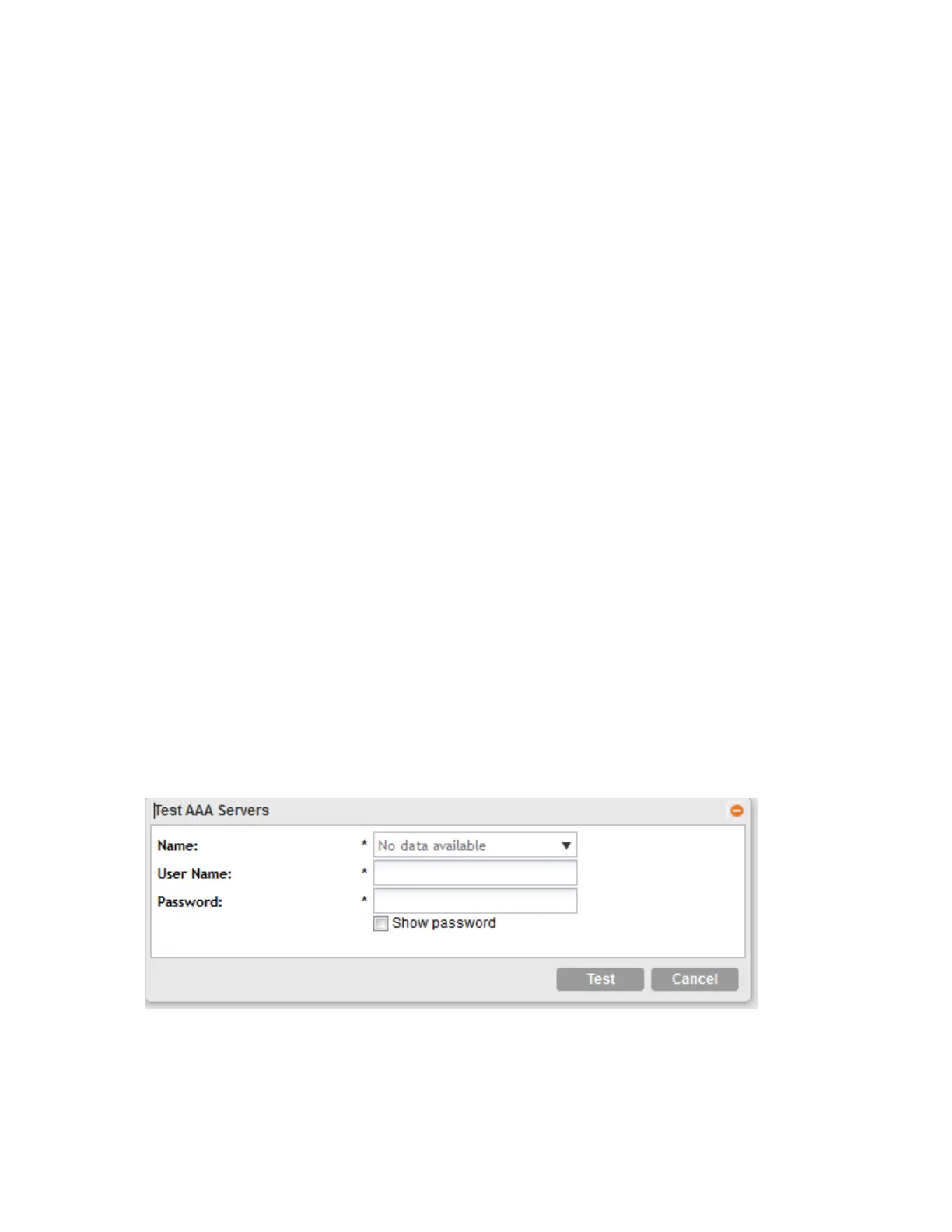
The Test AAA Servers form appears.
4. Configure the options in the Test AAA Servers form.
• Name: Select the name of the RADIUS server that you want to test.
• User Name: Type the RADIUS user name that you want to use for testing.
• In Protocol: Select the Password Authentication Protocol (PAP), or the Challenge
Handshake Authentication Protocol (CHAP) to authenticate the AAA server.
• Password: Type the RADIUS password for the user.
• Confirm Password: Retype the RADIUS password above.
5. Click Test.
The message Please wait... appears.
If the service request fails, a relevant error message is displayed. Similarly, if the user name or
password is incorrect, the error message includes this information along with the server IP
address and port. If the server IP address, port, or shared secret is incorrect, the connection to
AAA server fails and the error message Invalid server setting appears and displays
the server IP address and port.
If both primary and secondary servers exist, the requested service will be interrupted when
controller meets a failure and an error message is displayed.
Figure 61: The Test AAA Servers form
SmartCell Gateway 200/Virtual SmartZone High-Scale for Release 3.4.1 Administrator Guide
157
Configuring Services and Profiles
Configuring Authentication Services



 To Next Page