Setting an AP Zone to Use an LBS Server
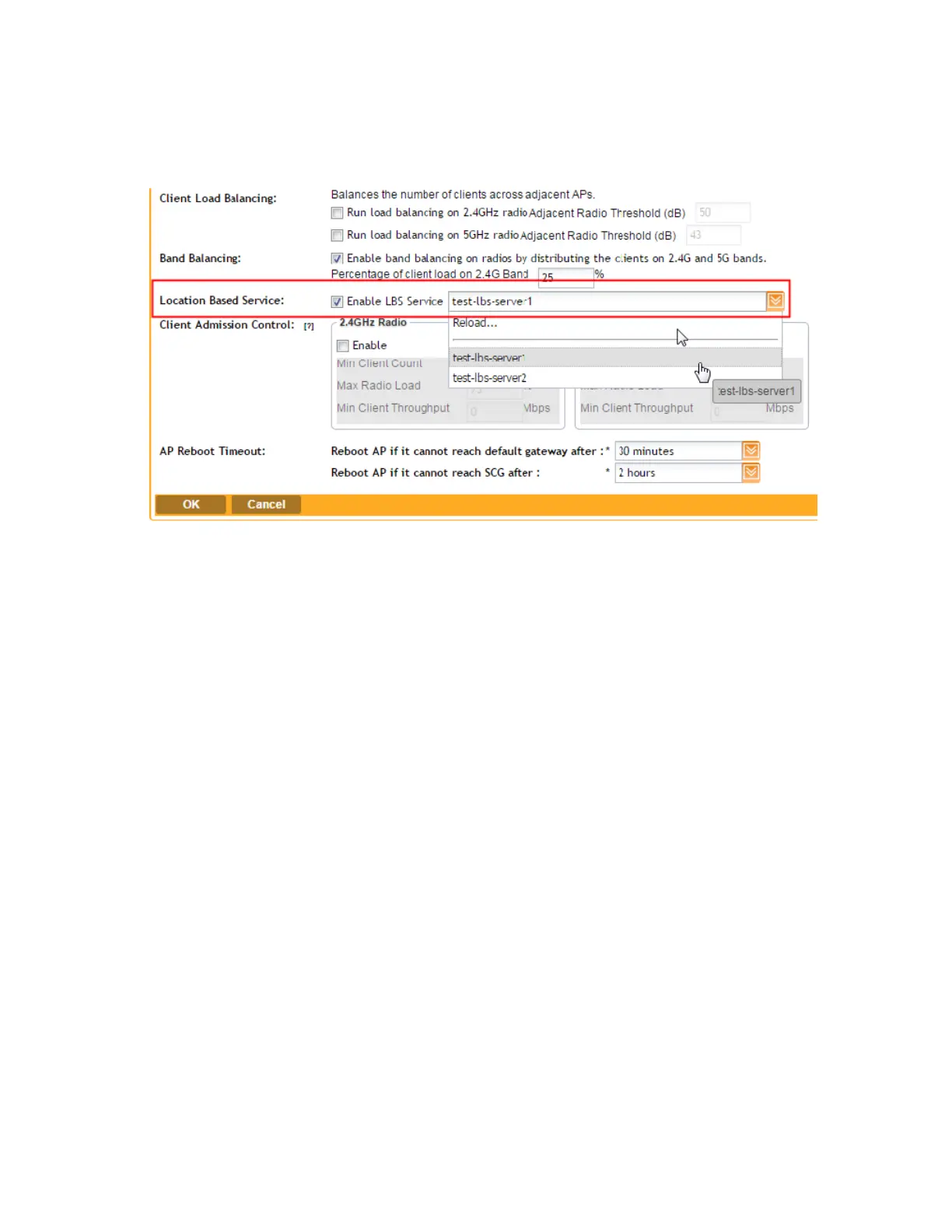
When you create or edit an AP zone, you can enable the LBS service for the entire zone by
selecting the Enable LBS service check box, and then selecting an LBS server to use.
Figure 72: Enabling and selecting an LBS in the create/edit AP zone form
Setting an AP Group to Override the LBS Settings of a Zone
If you want APs that belong to an AP group to use a different LBS server, you can override the
LBS settings at the AP group level. Follow these steps.
1. Go to Configuration > AP Zones.
2. In the AP Zone List, click the zone name to which the AP group you want to configure
belongs.
3. On the sidebar, click AP Group.
4. Click Create New to create a new AP group, or click the AP group name to edit it.
5. In the form that appears, scroll down to the Advanced Options section. Click the plus (+)
sign before Advanced Options to display all options.
6. In Location Based Service, select the Override zone config check box.
7. Configure the LBS settings as required.
• To disable the LBS service for this AP group, clear the Enable LBS service check box.
• To use a different LBS server for this AP group, select the Enable LBS service check
box, and then select the LBS server that you want to use from the drop-down list.
8. Configure the other AP group settings as required.
For information on configuring AP groups, see Creating an AP Group on page 45.
9. Click OK.
You have completed setting an AP group to override the LBS settings of its zone.
SmartCell Gateway 200/Virtual SmartZone High-Scale for Release 3.4.1 Administrator Guide
169
Configuring Services and Profiles
Configuring Location Services



 To Next Page