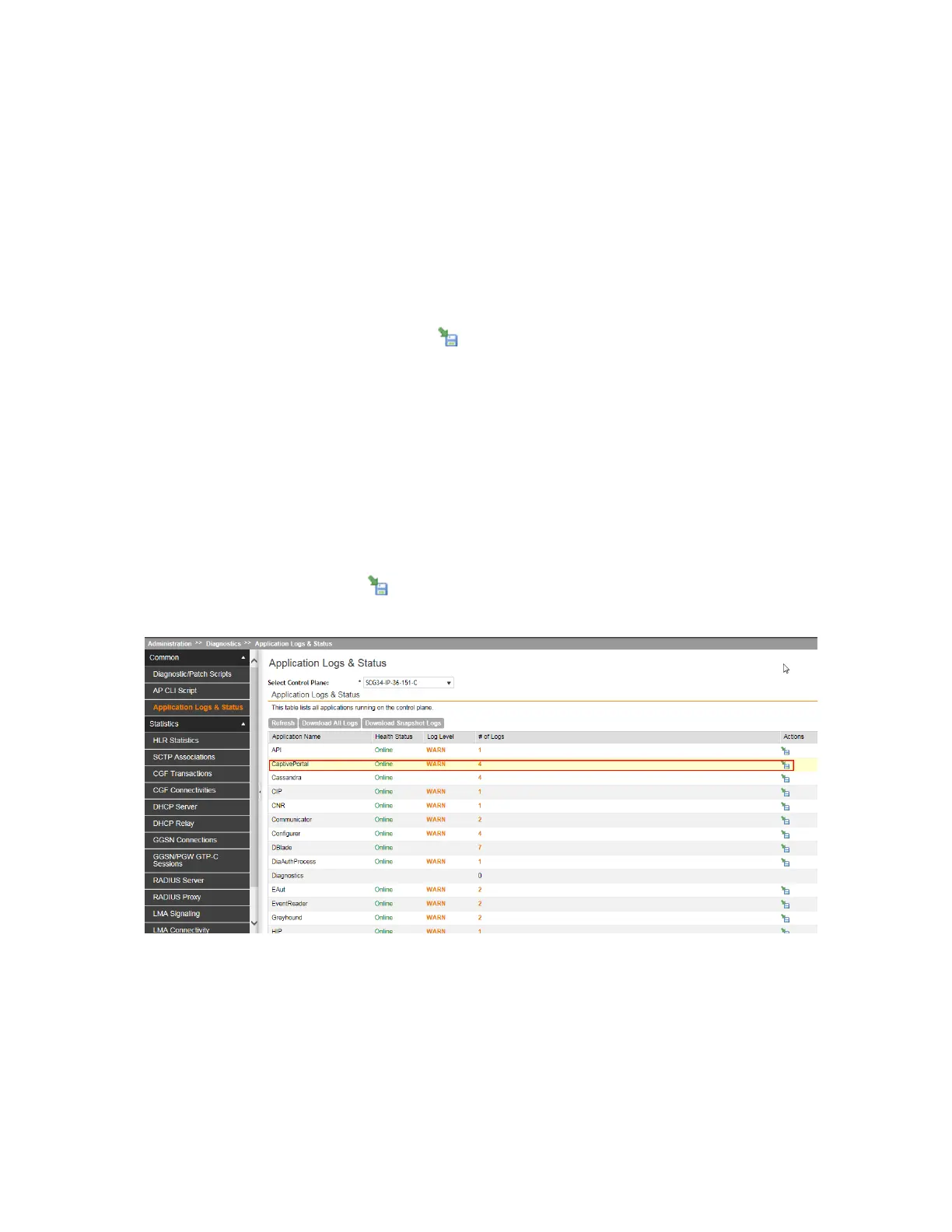
3. In Select Control Plane, select the control plane to which the Captive Portal module is
connected.
4. In the table below, locate the application named CaptivePortal.
You can view the following information about CaptivePortal, as well as the other applications
in the controller:
• Health Status
• Log Level
• # of Logs
5.
Under the Actions column, click the icon that is in the same row as CaptivePortal.
Your web browser downloads the logs in GZIP Compressed Tar Archive (with .TGZ extension)
to its default download location.
6. Go to your web browser's default download location and verify that the TGZ file was
downloaded successfully.
7. Use your preferred compression/decompression program to extract the log files from the
TGZ file.
You have completed downloading the Captive Portal logs from the controller.
If you are using the built-in Subscriber Portal, scroll down the table to locate the SubscriberPortal
application, and then click the icon that is in the same row as SubscriberPortal to download
its logs.
Figure 151: Click the save to disk icon to download the Captive Portal logs
SmartCell Gateway 200/Virtual SmartZone High-Scale for Release 3.4.1 Administrator Guide
282
Creating and Managing Hotspots
Downloading Captive Portal and Subscriber Portal Logs



 To Next Page