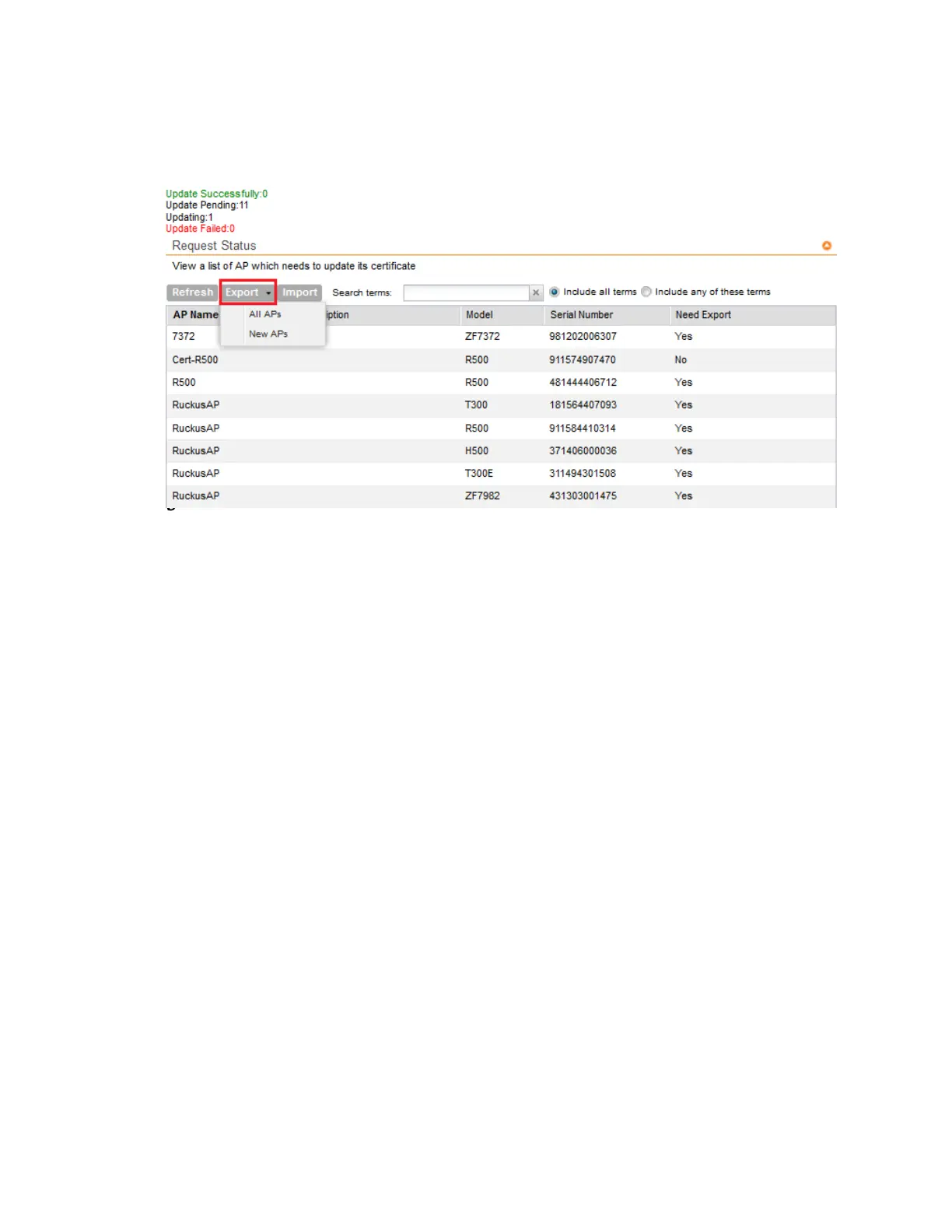
The AP Certificate Replacement page appears. You can view the status of the certification
update for the APs as shown in the figure.
Figure 232: AP Certificate Replacement
page
2. In Request Status, view the list of APs.
APs that have already exported the certificate request are marked No and the ones which
need to export the certificate request are marked Yes.
NOTE: Use the Search terms option to look for APs by name, model, serial number, or
description.
3. From Export, select one of the following:
• All APs: to export the certificates for all the APs.
• New APs: to export the certificates for new APs or APs that need to regenerate the
certificates.
4. Click OK to export the file and copy it to your local drive.
NOTE: All exported AP Certificate request (.req) files generated from a cluster include it's
name. To manage multiple export request files, change the filename before uploading it to
uniquely identify the file.
For example: cert-scg-cluster5f6433ef-711b-4f44-b38a-ddd485ee2c37-R500.req
You have successfully exported the AP certificate request file.
SmartCell Gateway 200/Virtual SmartZone High-Scale for Release 3.4.1 Administrator Guide
373
Performing Administrative Tasks
Managing AP Certificate Replacement



 To Next Page