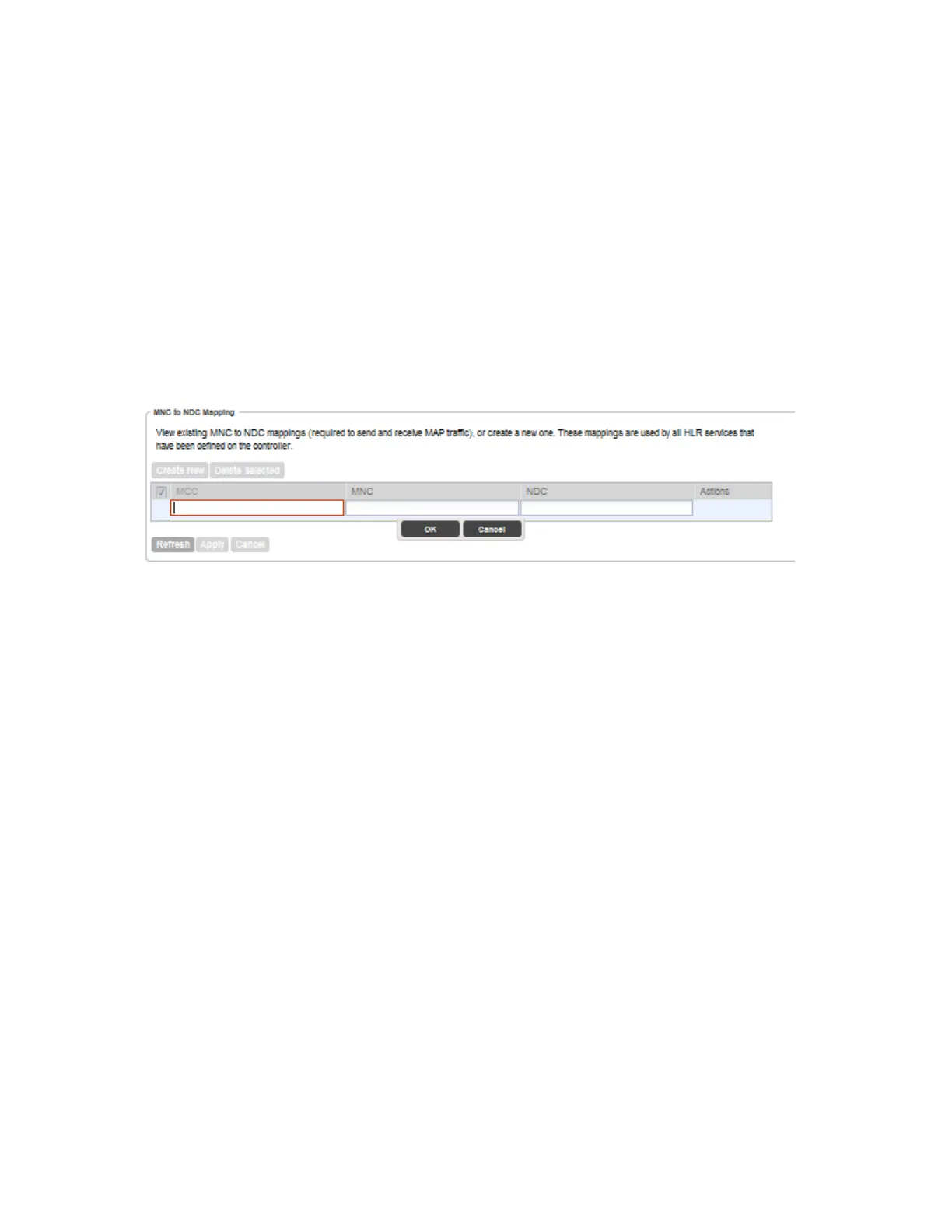
4. Click Create New.
5. Define the MNC to NDC mapping by filling out the following boxes.
• MCC: Type the mobile country code digits. Decimal digit strings with maximum length of
3 and minimum length of 2.
• MNC: Type the mobile network code digits. Decimal digit strings with maximum length of
3 and minimum length of 2.
• NDC: Type the network destination code digits, which has a maximum length of 5 digits.
6. Click Save.
7. To add another mapping, repeat steps 4 to 6.
8. Click Apply.
You have completed adding an MNC to NDC mapping.
Figure 65: Adding an MNC to NDC mapping
Viewing MNC to NDC Mapping
Follow these steps to view a list of mapping information.
1. Go to Configuration > Services & Profiles.
2. On the sidebar under Services, click HLR.
3. Click MNC to NDC Mappings on the sidebar under HLR.
The MNC to NDC Mapping page appears and lists the MNC to NDC mappings that you
have created. For each mapping on the list, the following details are displayed:
• MCC
• MNC
• NDC
• Actions: Displays the trash bin icon, which you can click to delete the mapping
You have completed viewing a list of existing MNC to NDC mappings.
SmartCell Gateway 200/Virtual SmartZone High-Scale for Release 3.4.1 Administrator Guide
161
Configuring Services and Profiles
Configuring HLR Services



 To Next Page