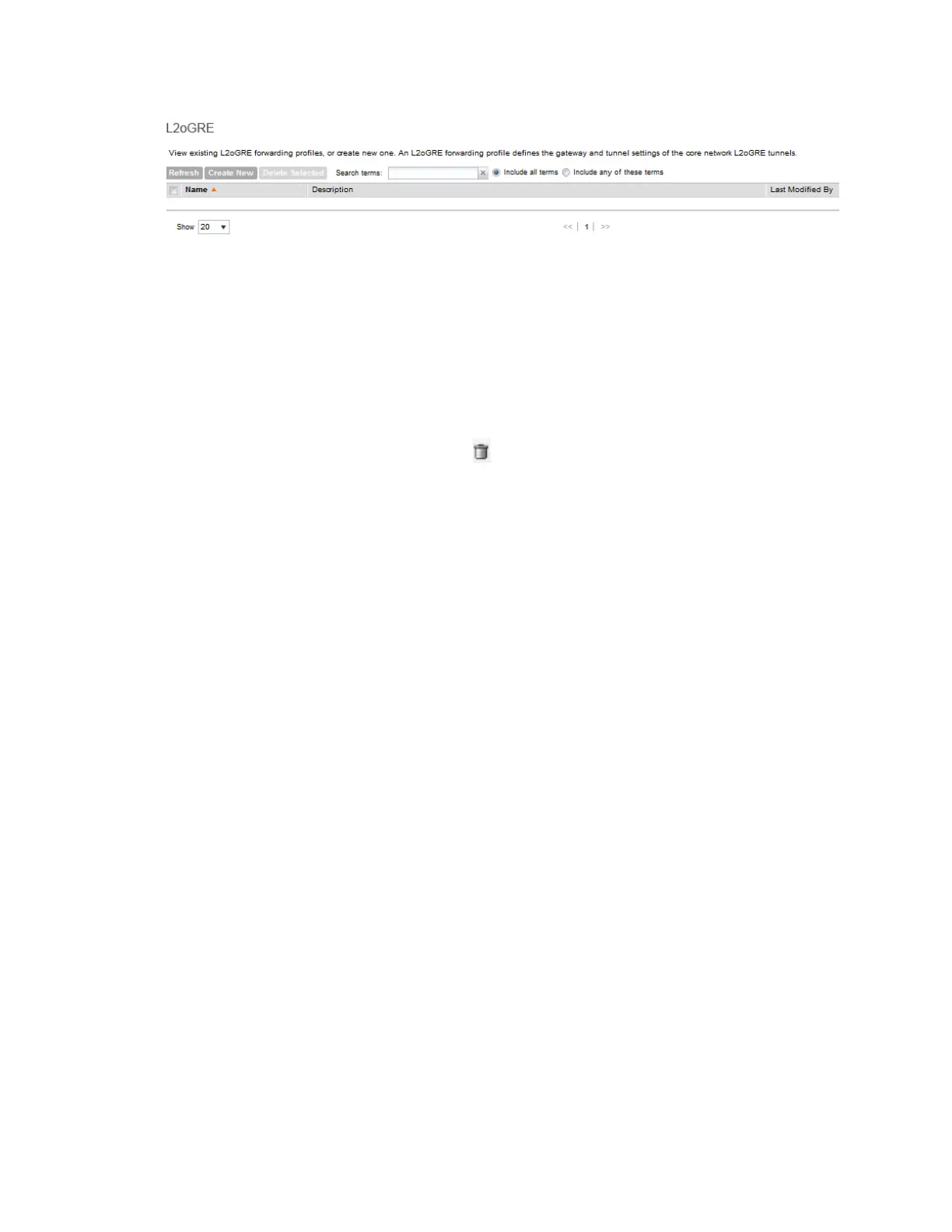
Figure 90: List view of L2oGRE Profiles
Deleting an L20GRE Profile
Follow these steps to delete an L2oGRE profile.
1. On the L2oGRE Forwarding Profiles page, locate the L2oGRE profile that you want to
delete.
2.
Under the Actions column, click the icon that is in the same row as the L2oGRE profile
name.
A confirmation message appears.
3. Click Yes.
The page refreshes, and the L2oGRE profile that you deleted disappears from the view list.
You have completed deleting an L2oGRE profile.
L3oGRE Profiles
L3oGRE forwarding profile defines the gateway and tunnel configuration for core network of
L3oGRE tunnels. This section covers:
Adding an L3oGRE Profile
L3oGRE forwarding profile defines the gateway and tunnel configuration for core network of
L3oGRE tunnels.
Follow these steps to add an L3oGRE profiles.
1. On the L3oGRE Forwarding Profiles page, click Create New.
The Create New L3oGRE profiles form appears.
2. In Name, type a name for the L3oGRE profiles that you are adding.
3. In Description, give a brief description of the profile created.
This is an optional field.
4. In Core Network Gateway Settings, configure the following:
• Core Network Gateway IP
• Gateway Path MTU: Set the MTU value manually or use Auto (default). MTU is the size
of the largest protocol data unit (in bytes) that can be passed on the controller network.
5. In DHCP Relay Options, configure the following:
SmartCell Gateway 200/Virtual SmartZone High-Scale for Release 3.4.1 Administrator Guide
192
Configuring Services and Profiles
Working with Profiles



 To Next Page