The traffic flow is as follows:
1. A client sends DHCP discover broadcast.
2. The AP tunnels this DHCP discover frame to the controller.
3. The DHCP relay agent sends unicast DHCP discover packet to the DHCP server.
4. The DHCP server sends DHCP offer to the relay agent on the controller.
5. The controller sends DHCP offer back to the AP.
6. The AP sends this DHCP offer to the client.
By reducing broadcast flooding, this option allows for higher client capacity in tunneled WLANs
designed for VoIP phones, for example. It also allows for DHCP discovery across multiple subnets
and limits DHCP broadcasts to client’s AP tunnel and radio.
Viewing TTG+PDG Profiles
Follow these steps to view a list of TTG+PDG Profiles defined.
1. Go to Configuration > Services & Profiles.
2. On the sidebar, click Forwarding > TTG+PDG.
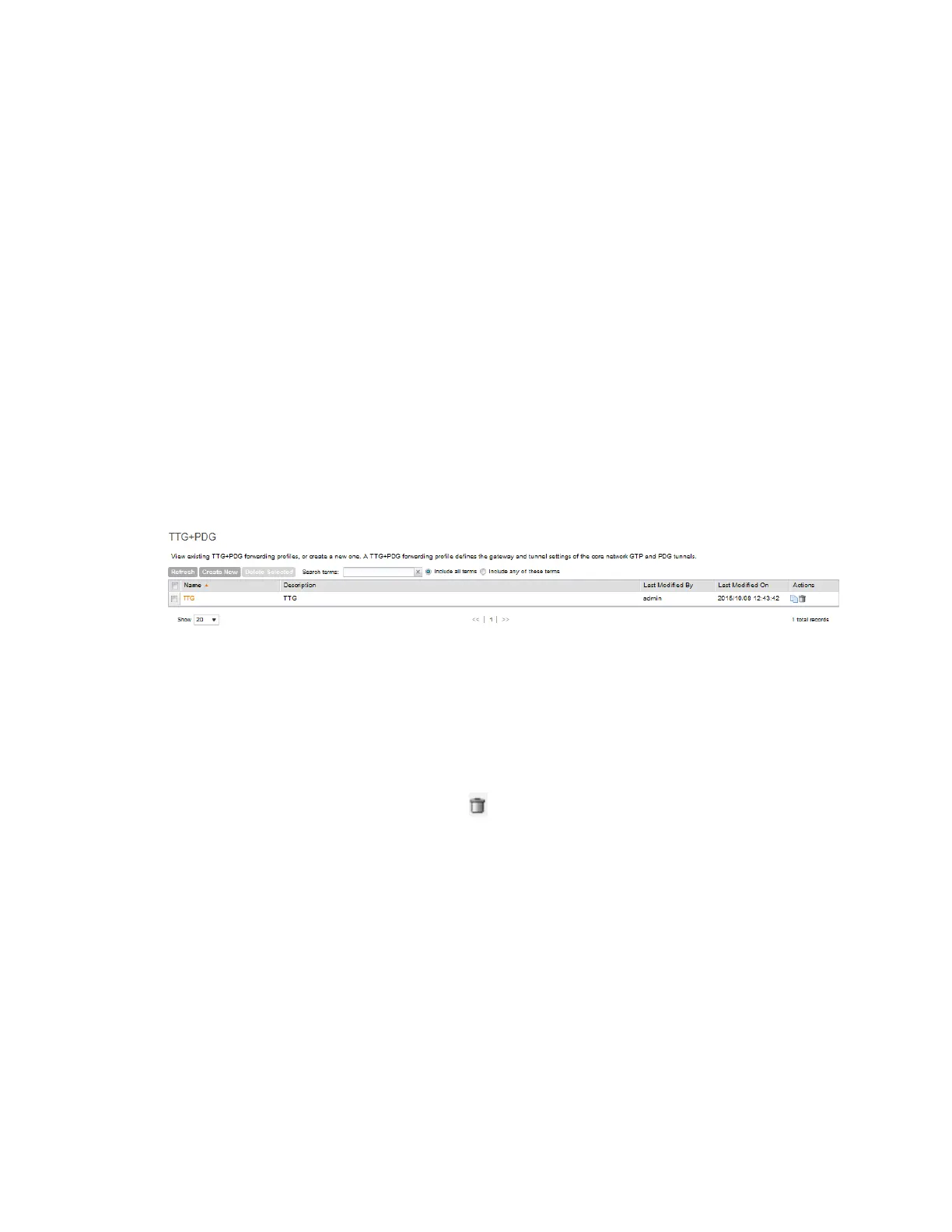
3. This section displays the TTG+PDG profile that you want to use. If you have not created a
server, refer to Adding a TTG+PDG Profile.
Figure 94: List view of TTG+PDG Profiles
Deleting TTG+PDG Profiles
Follow these steps to delete a TTG+PDG Profile.
1. In the TTG+PDG Profile, locate the TTG+PDG Profile that you want to delete.
2.
Under the actions column, click the icon that is in the same row as the TTG+PDG Profile
name.
A confirmation message appears.
3. Click Yes.
The page refreshes, and the TTG+PDG Profile that you deleted disappears from the view list.
You have completed deleting a TTG+PDG profile.
SmartCell Gateway 200/Virtual SmartZone High-Scale for Release 3.4.1 Administrator Guide
198
Configuring Services and Profiles
Working with Profiles



 To Next Page