1. Log on to the controller from the CLI. For more information, see the corresponding Command
Line Interface Reference Guide for your controller platform.
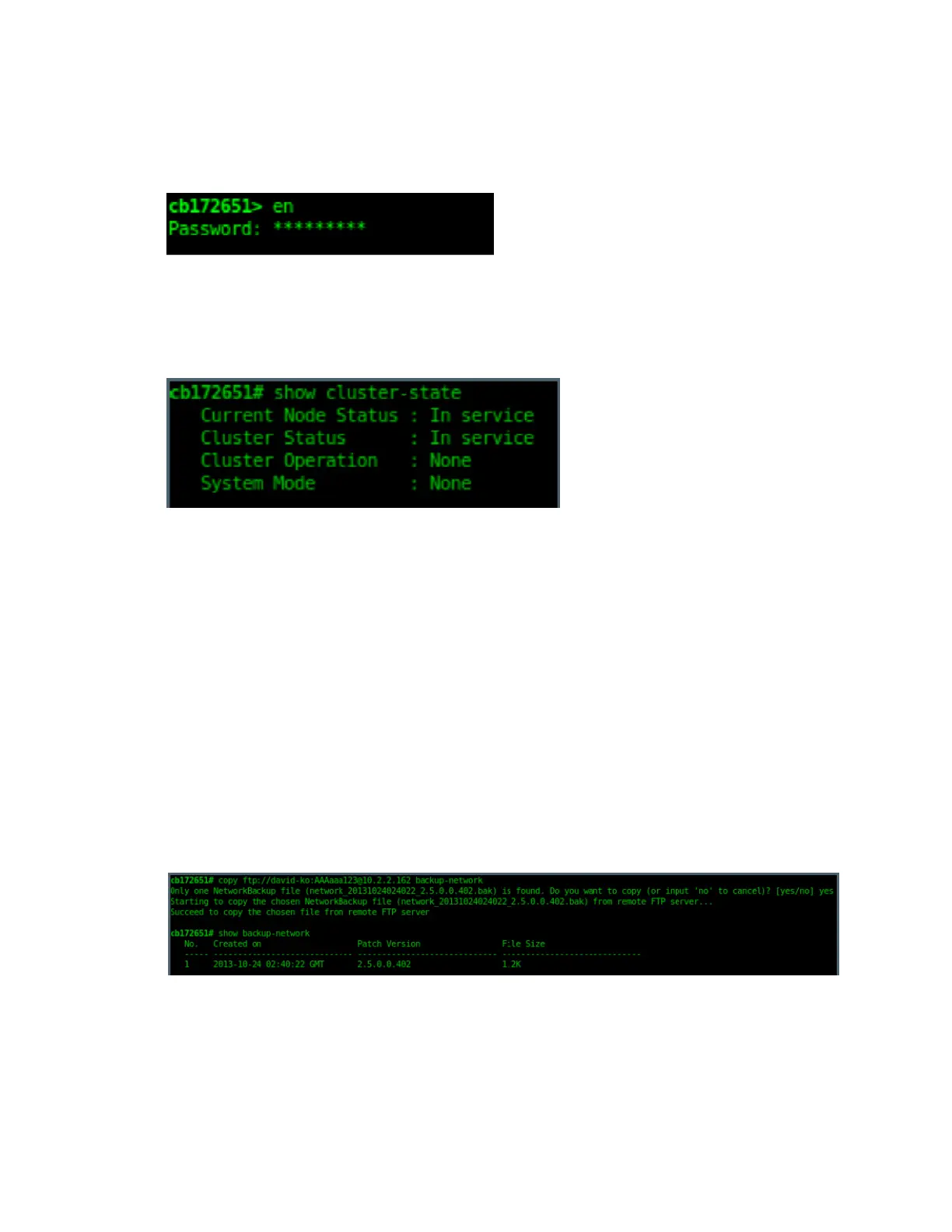
2. At the prompt, enter en to enable privileged mode.
Figure 206: Enable privileged mode
3. Enter show cluster-state to display the statuses of the node and the cluster.
Before continuing to the next step, verify that both the node and the cluster are in service.
Figure 207: Verify that both the node and the cluster are in service
4. Enter the following command to log on to the FTP server and check for available backup files
that can be copied to the controller:
copy <ftp-url> backup-network
5. If multiple backup files exist on the FTP server, the CLI prompts you to select the number
that corresponds to the file that you want to copy back to the controller.
If a single backup file exists, the CLI prompts you to confirm that you want to copy the existing
backup file to the controller.
When the controller finishes copying the selected backup file from the FTP server back to
the controller, the following message appears: Succeed to copy the chosen file
from the remote FTP server
6. Enter show backup-network to verify that the backup file was copied back to the controller
successfully.
Figure 208: Verify that the backup file was copied to the controller successfully
7. Run restore network to start restoring the contents of the backup file to the current controller.
The CLI displays a list of backup files, and then prompts you to select the backup file that
you want to restore to the controller.
SmartCell Gateway 200/Virtual SmartZone High-Scale for Release 3.4.1 Administrator Guide
348
Performing Administrative Tasks
Backing Up and Restoring the Controller's Network Configuration from an FTP Server



 To Next Page