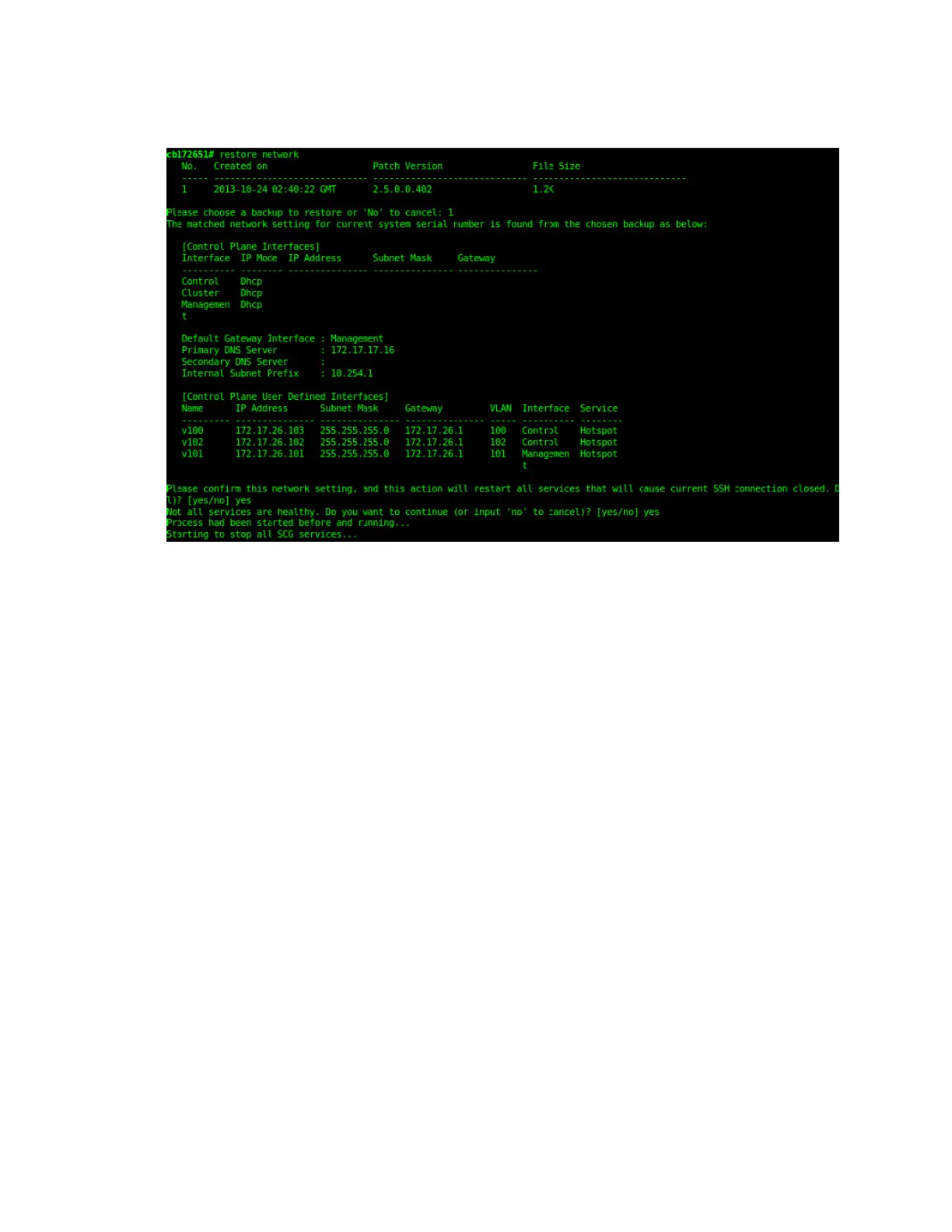
8. Enter the number that corresponds to the backup file that you want to restore.
Figure 209: Enter the number that corresponds to the backup file that you want to
restore
The CLI displays the network configuration that the selected backup file contains.
If the serial number of the current controller matches the serial number contained in one of
the backup files, the CLI automatically selects the backup file to restore and displays the
network configuration that it contains.
9. Type yes to confirm that you want to restore the selected backup file. The controller starts
the restore process and performs the following steps:
a) Stop all services.
b) Back up the current network configuration.
This will enable the controller to roll back to the current configuration, in case there is an
issue with the restore process.
c) Clean up the current network configuration.
The controller deletes its previous network configuration, including static routes, name server,
user defined interfaces, etc.
10. Restore the network configuration contained in the selected backup file.
11. Restart all services.
When the restore process is complete, the following message appears on the CLI: All
services are up!
SmartCell Gateway 200/Virtual SmartZone High-Scale for Release 3.4.1 Administrator Guide
349
Performing Administrative Tasks
Backing Up and Restoring the Controller's Network Configuration from an FTP Server



 To Next Page