DescriptionAttribute (TLV)
sent by the selected AP model before discarding it. The default
value is 120 seconds.
Indicates the name assigned to the AP. The default name of
Ruckus Wireless APs is RuckusAP.
System Name
Indicates the AP model plus software versionSystem Description
Indicates the AP’s capabilities (Bridge, WLAN AP, Router,
Docsis), and which capabilities are enabled
System Capabilities
Indicates the management IP address of the APManagement Address
Indicates the description of the port in alphanumeric formatPort Description
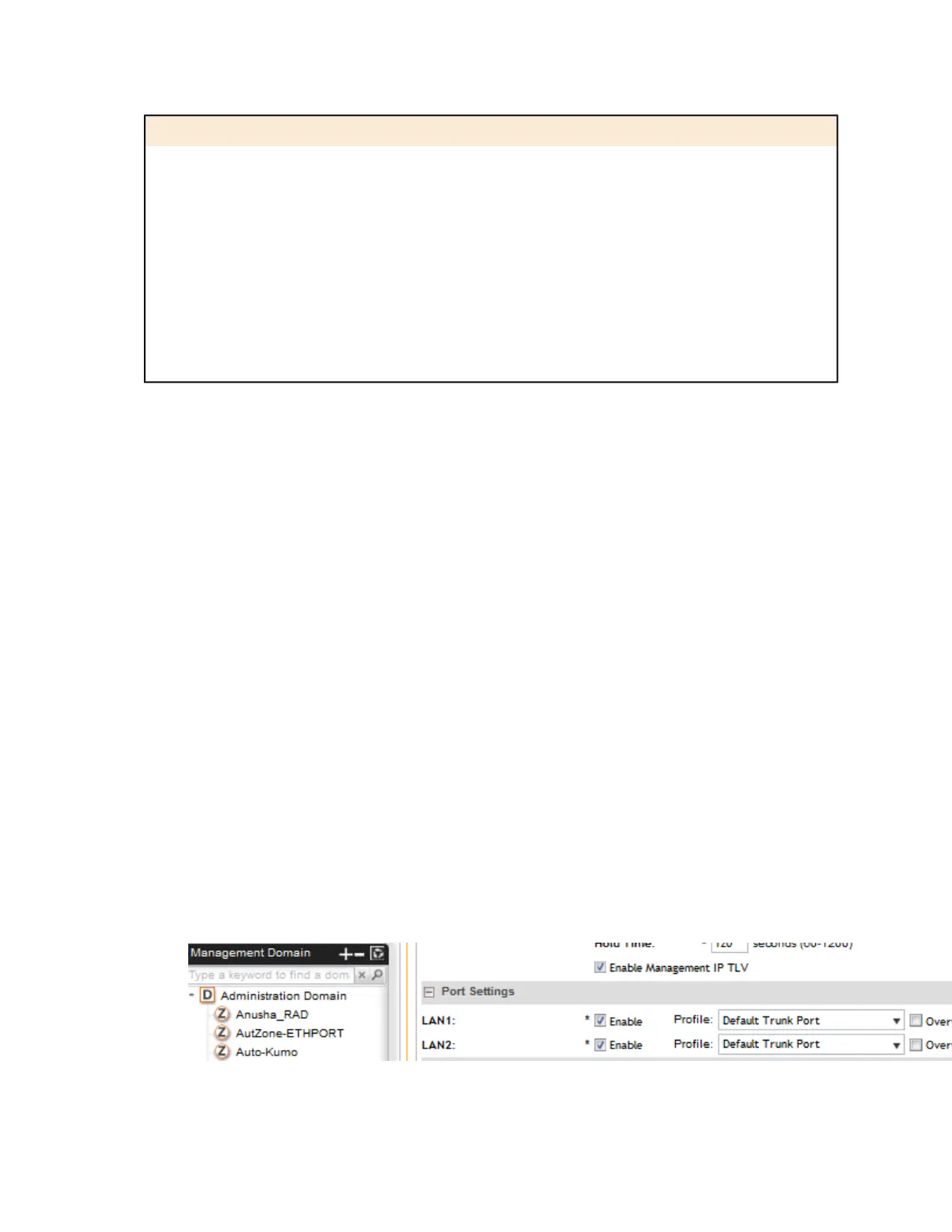
Configuring the Port Settings of a Particular AP Model
Use Port Settings in the AP Model-Specific Configuration section to configure the Ethernet
ports of a particular AP model.
Follow these steps to configure the port settings of a certain AP model.
1. All ports are enabled by default (the Enable check boxes are all selected). To disable a particular
port entirely, clear the Enable check box next to the port name (LAN1, LAN2, etc.)
2. For any enabled ports, you can choose whether the port will be used as a Trunk Port, Access
Port, or General Port.
The following restrictions apply:
• All APs must be configured with at least one Trunk Port.
NOTE: You cannot move an AP model to an AP group and configure the AP model to
use a trunk port at the same time, if general ports are enabled when trunk port limitation
is disabled. You must configure the selected AP model to use at least one trunk port, and
then move the AP model to the AP group.
• For single port APs, the single LAN port must be a trunk port and is therefore not
configurable.
• For ZoneFlex 7025/7055, the LAN5/Uplink port on the rear of the AP is defined as a Trunk
Port and is not configurable. The four front-facing LAN ports are configurable.
• For all other APs, you can configure each port individually as either a Trunk Port, Access
Port, or General Port. See Designating an Ethernet Port Type on page 52 for more
information.
Figure 17: The Port Settings section
SmartCell Gateway 200/Virtual SmartZone High-Scale for Release 3.4.1 Administrator Guide
51
Managing Ruckus Wireless AP Zones
Working with AP Groups



 To Next Page