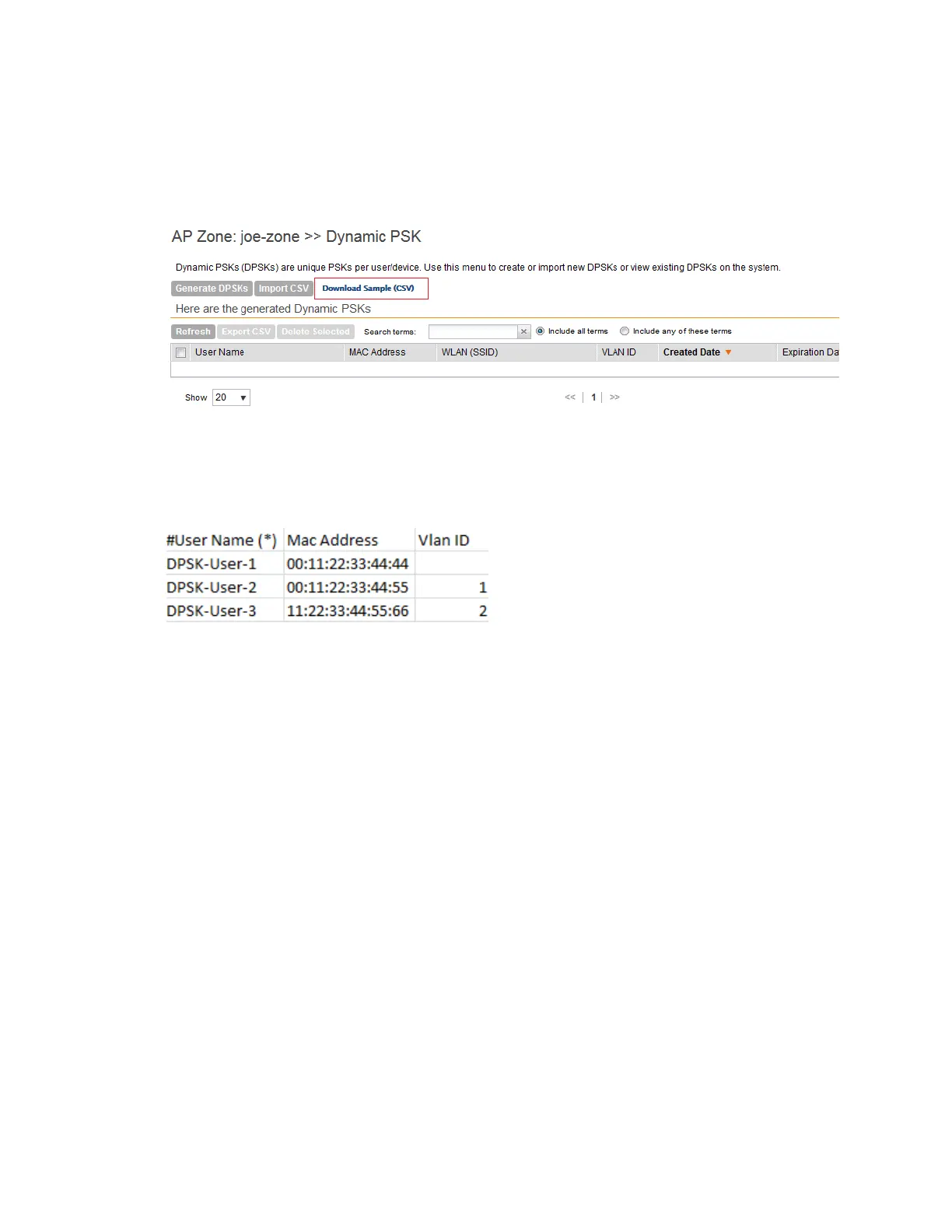
1. Click Configuration > Identity > Dynamic PSKConfiguration > AP Zone > AP Zone
List > {Zone Name} > Dynamic PSK.
The Dynamic PSK page appears listing the DPSKs that were generated.
2. Click the Download Sample (CSV) link to download the CSV file template.
Figure 35: Download Sample CSV link
A sample CSV file is displayed as show in the figure.
Figure 36: Sample CSV file
Modify the CSV file as appropriate and save it. Following are the components of the CSV file.
• User Name: Type the name of the user
• MAC Address: Enter the MAC address to generate a DPSK that limits the reach of the
network (bound DPSK). If MAC Address field is empty, the DPSK generated in unbound,
and has a farther reach within the network.
• VLAN ID: Enter a value to override the WLAN VLAN ID, or leave it empty if you do not want
to override the WLAN VLAN ID.
3. Click Import CSV.
The Import CSV dialog box appears.
NOTE: Importing a CSV file to a WLAN containing the same UeMac value as the existing
DPSKs in the WLAN, replaces the old DPSKs within the data base.
Figure 37: Importing a CSV file
SmartCell Gateway 200/Virtual SmartZone High-Scale for Release 3.4.1 Administrator Guide
99
Managing Ruckus Wireless AP Zones
Working With Dynamic PSKs



 To Next Page