1 Auto Alignment Registration (Cloud Constraints)
Enabling the Pre-Registration Options for import of any supported scan type will align scans
automatically.
During the import process a kind of Cube Image is created for each scanner position containing
both image and scan data. Cyclone then does a pairwise comparison between the single scanner
positions trying to find matching features in both images and scans.
It automatically creates a Registration and places all scans into it. Also it creates Groups from
aligned scans.
1.1 Auto Align
For the Auto Alignment registration it is important to import the scan data with Pre-registration
Options enabled or Import as Auto Align Project. Only then the respective files are created, that
allow the Auto Alignment.
Import
•
Create a new database and optional project folder (see
Module 2.0 – Introduction to
Cyclone
)
•
Import the scan data with Auto Align Scans, Generate Scan Thumbnails and Find B&W Targets
option enabled (see
Module 2.1 - Pointcloud Import
)
Figure 1
•
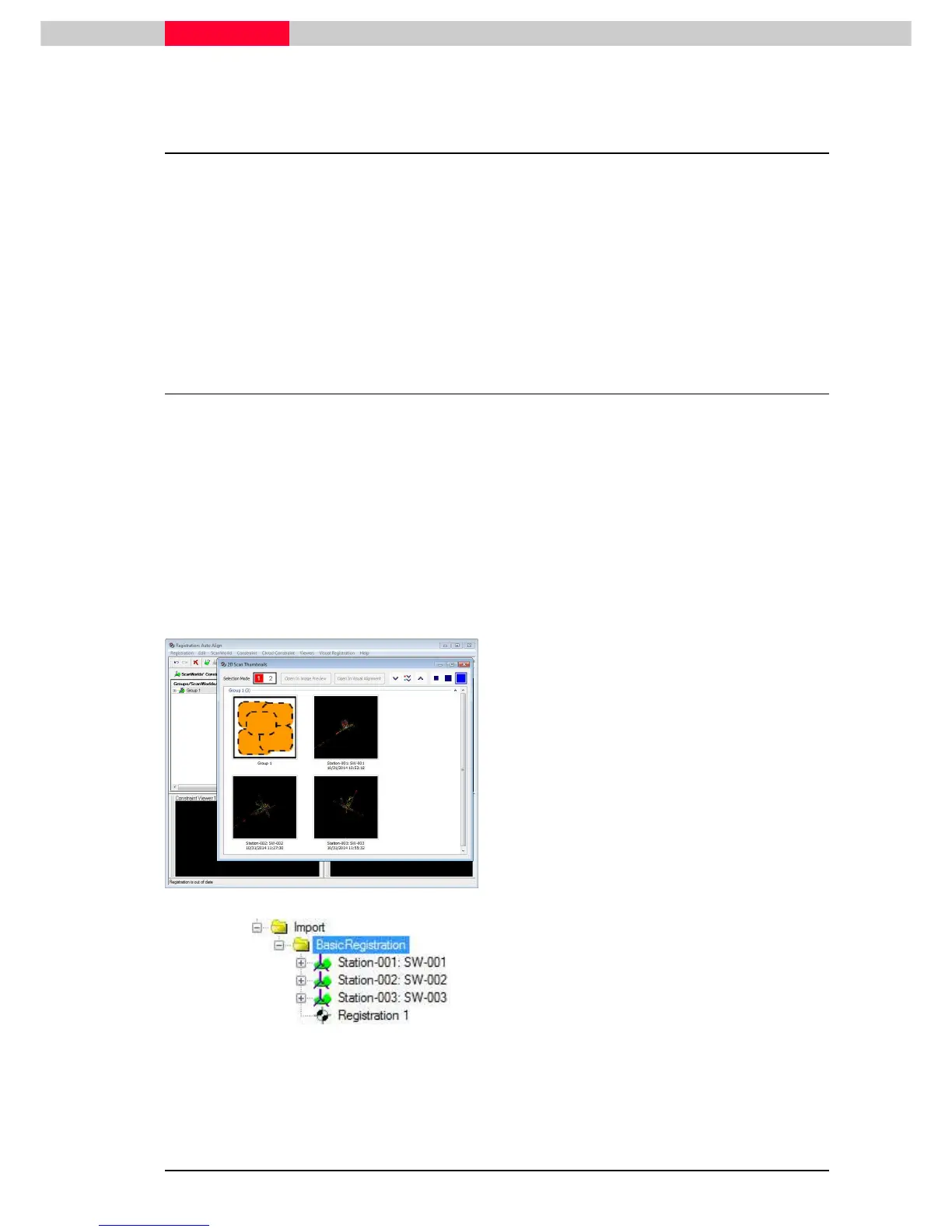
Once the import process is completed a
Registration window will open showing
the newly created Registration and a 2D
Scan Thumbnails window
•
Groups of aligned ScanWorlds are
created.
•
ScanWorlds that cannot be aligned to
another ScanWorld will be placed in a
group called Ungrouped.
Figure 2
•
A new project folder is created



 To Next Page